
Create a service bill
Make a service bill step by step — find or add the customer, add services and staff, choose the payment mode and save, print or send it.
- Who can use it
- Owner/Admin, Co-owner, Manager or staff with "View service-billings" (to open the screen) and "Create service-billings" (to save)
- Where to find it
- Main Menu → Make A Bill → Service Billing
Service Billing is where you charge a customer for the services they had today. One screen holds the customer, the services, who did them, and the payment.
What this feature does
A service bill records the services, the staff member who performed each one (for sales credit and incentives), the payment mode and the final amount. When you save it, the bill appears on the Home Dashboard feed and the Activity Feed, and the customer can get the invoice on WhatsApp.
Who can use it
- Make A Bill appears in the menu for anyone with View service-billings.
- Saving a new bill needs Create service-billings.
- Changing the bill date (backdating) needs Allow Backdated Billing.
Where to find it
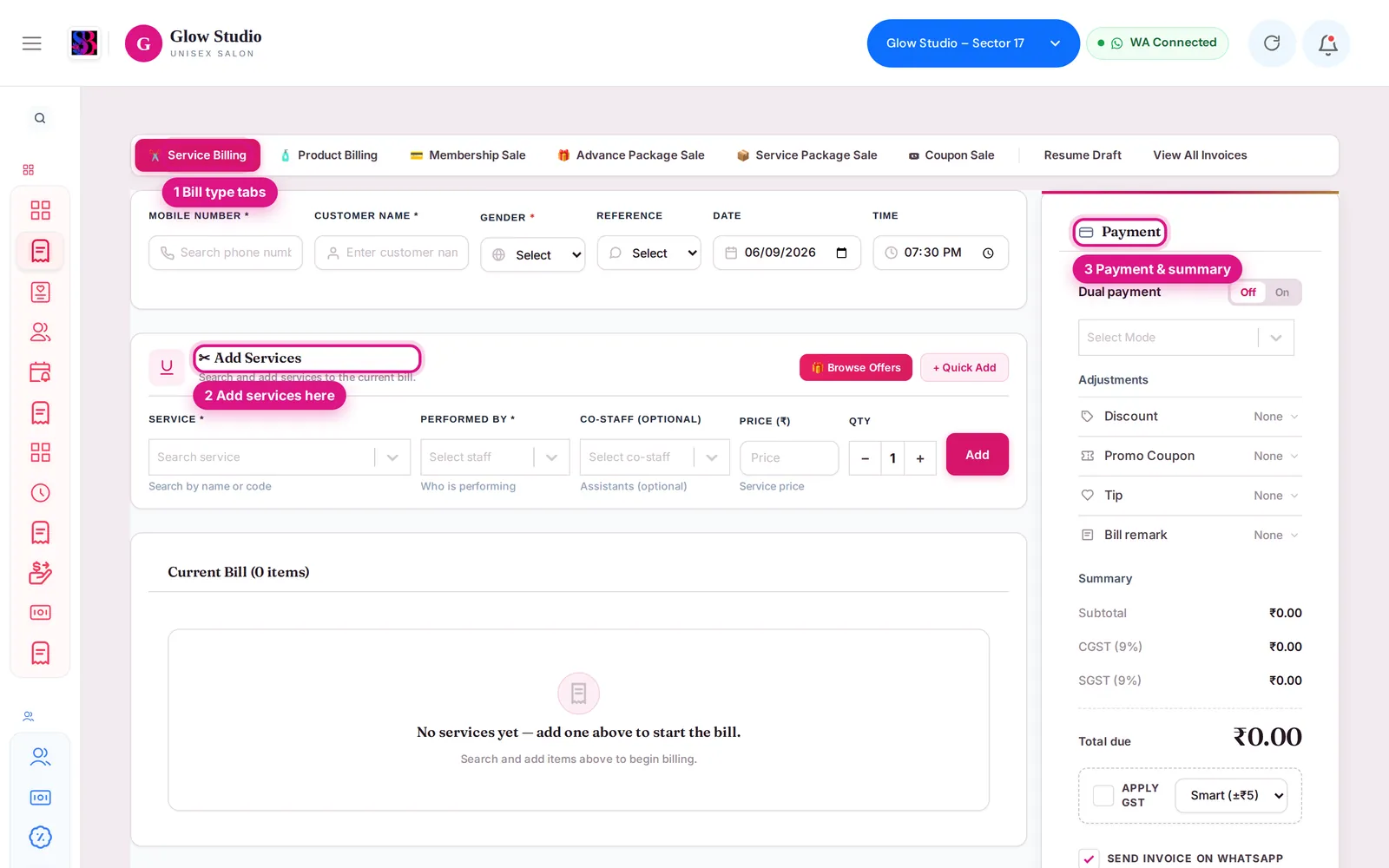
Go to Main Menu → Make A Bill. The tabs at the top switch between Service Billing, Product Billing, Membership Sale, Advance Package Sale, Service Package Sale and Coupon Sale. On the Service Billing tab you also see Resume Draft and View All Invoices.
How to use it
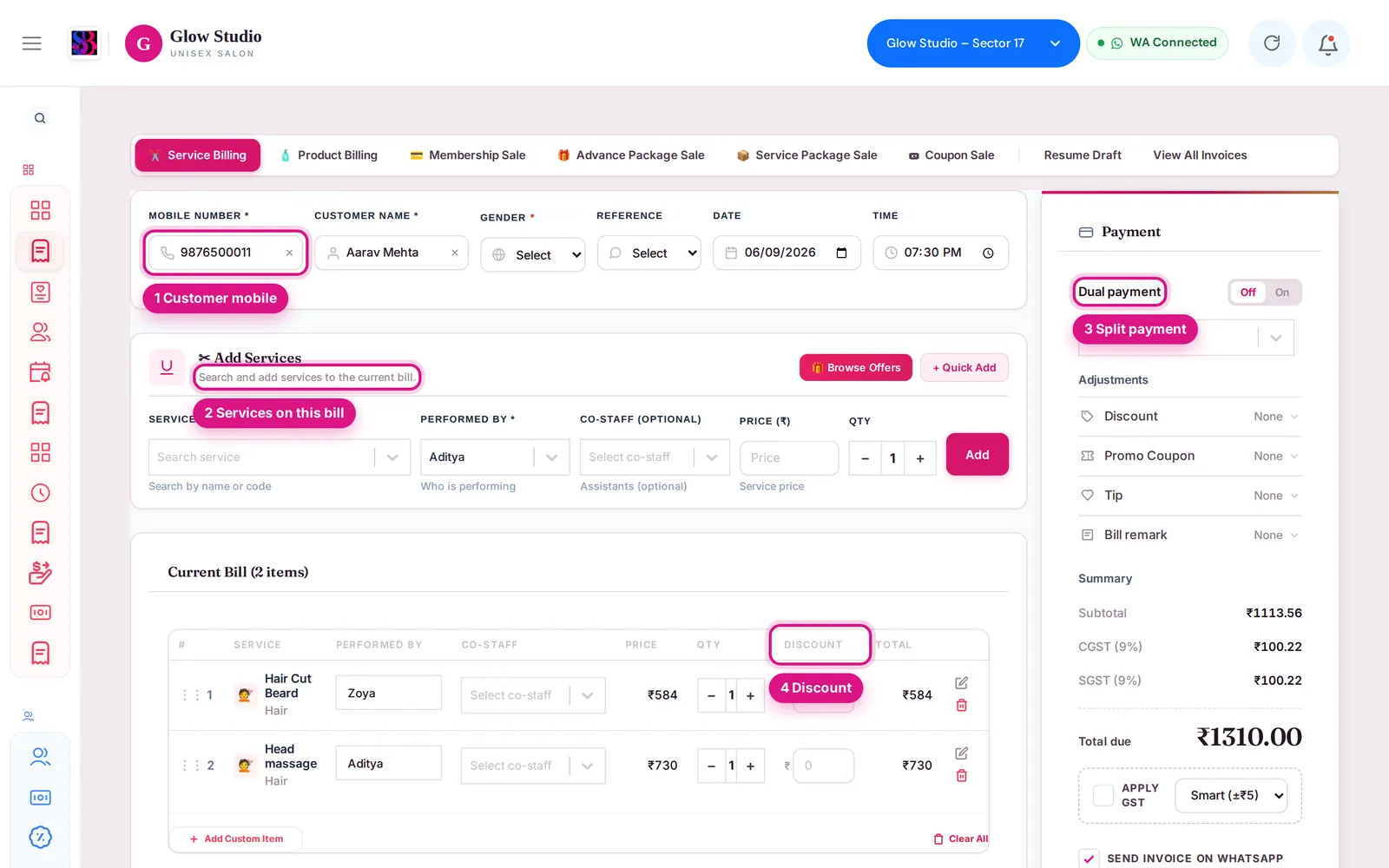
- In Mobile Number, type the customer's number. Pick the customer if they already exist, or type a Customer Name for a new customer.
- For a new customer, choose Gender (required). Reference (Instagram, Facebook, Walk-in) is optional.
- In Add Services, search the Service, choose who did it under Performed By, optionally add Co-Staff (optional), check Price (₹) and Qty, then click Add. Repeat for each service.
- Check the Current Bill list. Each row shows the service, staff, co-staff, price, quantity, a line Discount and the total. Use the bin icon to remove a row.
- In the Payment panel, pick the payment mode (Cash, Card, Gpay/UPI and so on). To take two or more modes, turn on Dual payment — see Split a bill between payment modes.
- Under Adjustments, add a Discount, Promo Coupon, Tip or Bill remark if needed.
- Check the Summary and Total due. Tick or untick Send invoice on WhatsApp.
- Click Save & Print to save and open the print preview, or Save Bill to save only. Draft keeps the bill to finish later from Resume Draft.
Important rules and limits
- Every service needs a staff member. Otherwise you see "Please select a staff member for all services."
- You cannot lower a service below its catalogue price: "Price cannot be lower than the original service price." Use the Discount instead (within your limit).
- The payments must add up exactly to Total due.
- If a bill with the same service(s) was already made for this customer in the last 15 minutes, SalonBill asks whether you want to proceed, to stop double billing.
- A bill opened from a Job Card is locked to Service Billing, and its services can only be changed on the Job Card. See Bill a job card.
- Add Custom Item does not create a new service. Ask the Owner/Admin to add the service to the catalogue.
- Open job cards for the customer appear as chips above the services so you can bill them.
Common problems
"Please select customer gender."?
The customer is new. Choose Gender before saving.
The Save button does nothing or stays disabled?
Look for a red message in the Payment panel. The most common causes are a discount above your limit (Discounts and limits) or payment amounts that do not add up to the total. See also Bill will not save.
"The total payment amount must be equal to …"?
With Dual payment on, the amounts you typed do not match Total due. Correct the amounts.
Last updated