
Book an appointment
Book a client for a date and time with services and stylists, send the WhatsApp confirmation, and turn the appointment into a job card when the client arrives.
- Who can use it
- Owner/Admin, Co-owner, Manager or staff with "View appointments" and "Create appointments
- Where to find it
- Main Menu → Book Appointment
Use Book Appointment to reserve a time for a client before they arrive. On the day of the visit, the appointment becomes a job card with one click.
What this feature does
- Saves the client, date, time, services and the stylist for each service.
- Shows the client's outstanding, wallet balance, membership, active packages, last visit, total visits and lifetime spend while you book.
- Sends the client a WhatsApp booking confirmation with the date, time and services, if WhatsApp is connected and the appointment confirmation template is switched on.
- Creates a new customer profile automatically if the mobile number is not yet in this outlet.
Who can use it
| Action | Permission |
|---|---|
| See Book Appointment in the menu and the appointment list | View appointments |
| Save a new appointment | Create appointments |
| Change status, mark complete, cancel | Update appointments |
Owner/Admin and Co-owner have all of these. For other roles, see Staff permissions.
Where to find it
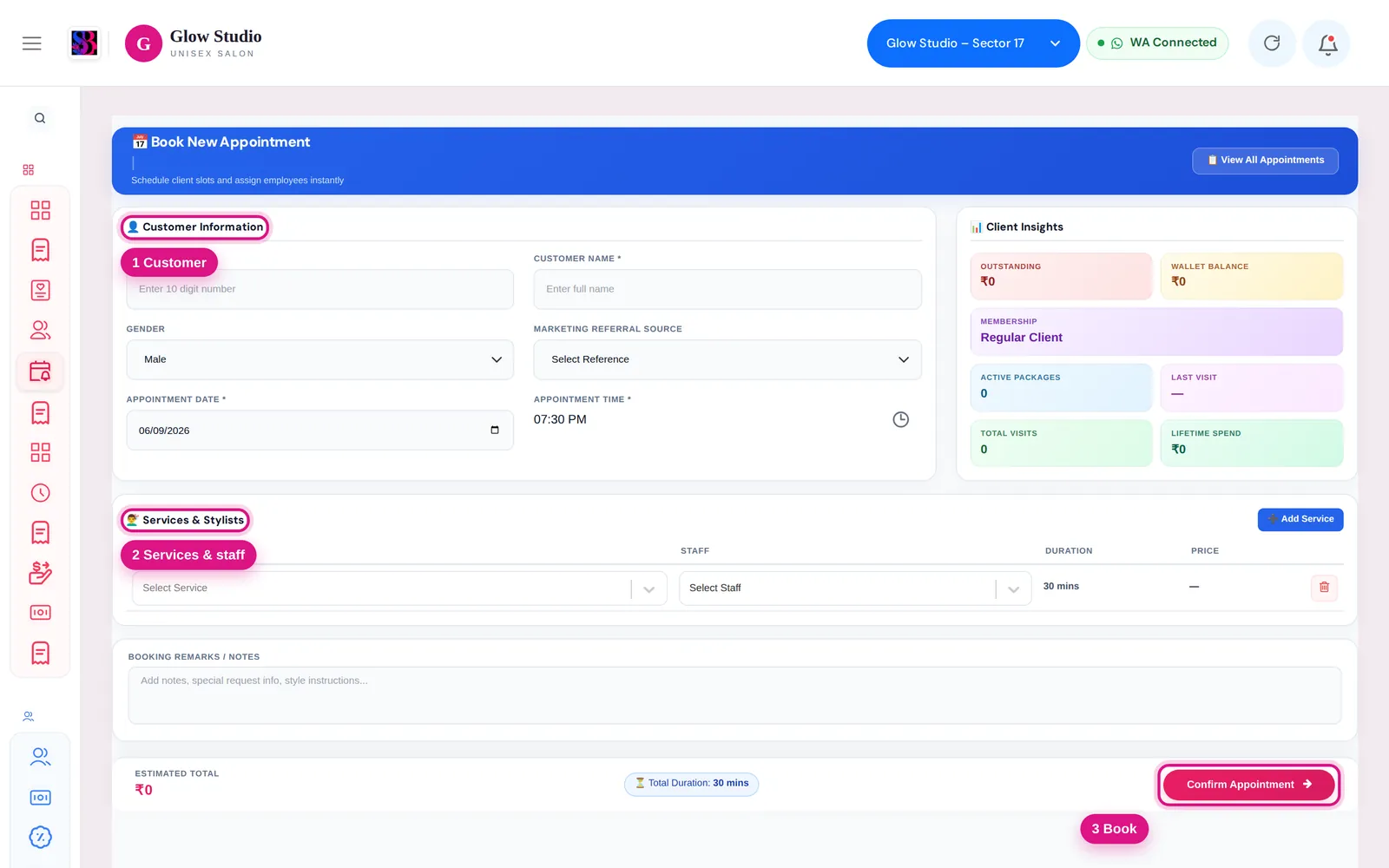
Go to Main Menu → Book Appointment. From a customer profile you can also click New Appointment, which fills in the client for you.
How to use it
- Under 👤 Customer Information, enter the client's Mobile Number (10 digits). If the client exists, pick them from the list. For a new client, type the Customer Name and choose Gender.
- Optionally choose a Marketing Referral Source (Instagram, Facebook or Walk-in).
- Set Appointment Date and Appointment Time.
- Under 💇♂️ Services & Stylists, choose a Service and a Staff member. Click ➕ Add Service for more rows.
- Add any Booking Remarks / Notes, such as style instructions.
- Check the Estimated Total and Total Duration at the bottom, then click Confirm Appointment.
- You are taken to the appointments list. To open it any time, click 📋 View All Appointments.
When the client arrives
- Go to Main Menu → Job Cards.
- Today's bookings are listed under Today's Appointment Queue.
- Click Add to Job Card. A job card is created with the booked services and stylists.
- If the appointment already has a card, click Open JC instead.
Important rules and limits
- The mobile number must be a valid 10-digit Indian mobile number.
- Every service row needs both a service and a staff member. At least one service is required.
- Only staff with the Employee role appear in the Staff list.
- A mobile number that already belongs to another customer in this outlet cannot be used for a new customer.
- An appointment that has already been turned into a job card cannot be cancelled. Cancel or clear the job card instead.
- The appointments list can be filtered by status: Pending, Confirmed, Checked In, Completed, No Show and Cancelled.
Common problems
"Phone number should be 10 digits" or "Invalid phone number format"?
Enter only the 10-digit mobile number, without spaces. It must start with 6, 7, 8 or 9.
"The phone has already been taken"?
A customer with this number already exists in the outlet. Search the number and pick that customer instead of typing a new name.
A stylist is missing from the Staff list?
Only staff with the Employee role are listed. Managers and other roles do not appear. Check their role in Team Management → Staff. See Add staff.
"This appointment has already been converted to a Job Card and cannot be cancelled"?
Open the job card from Today's Appointment Queue (Open JC) and cancel or clear it there. See Job card statuses.
Last updated