
Edit your WhatsApp message templates
See every WhatsApp message SalonBill sends to customers, when it goes out, switch messages on or off, edit the text with variables and reset to default.
- Who can use it
- Owner/Admin and Co-owner (edit); Managers and staff with "Whatsapp Integration" (view only)
- Where to find it
- Administration → WhatsApp Templates
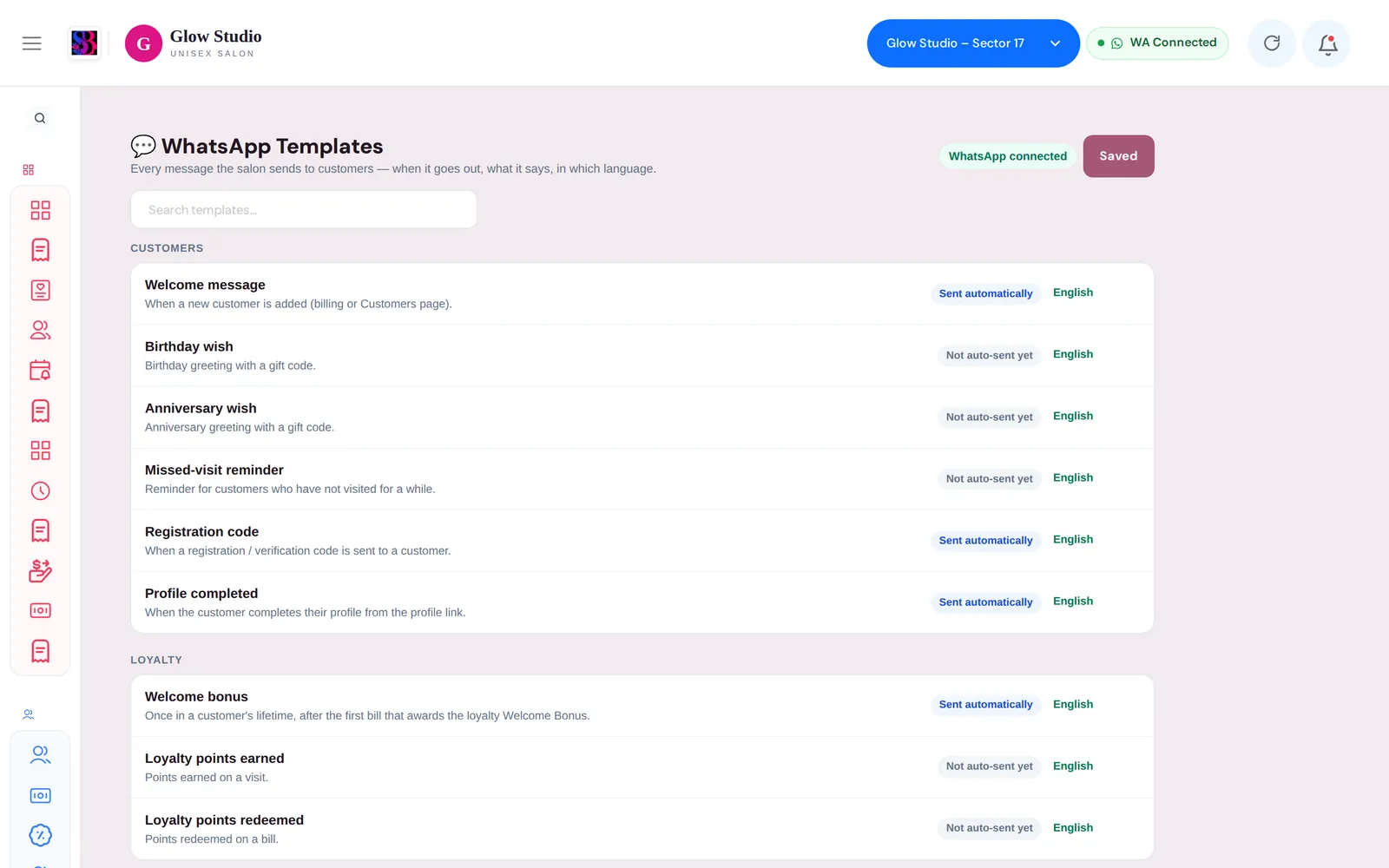
The WhatsApp Templates page lists every message your salon sends to customers on WhatsApp – what it is for, when it goes out, whether it is sent automatically, and its text.
What this feature does
For each message you can:
- see when it is sent and whether it is Sent automatically,
- switch it on or off,
- change the text, using variables such as
{CustomerName}that SalonBill fills in, - preview it with sample data, and Reset to default text.
Templates are saved per outlet. They are the same templates as the Message Templates tab under WhatsApp Integration.
Who can use it
| Role | Access |
|---|---|
| Owner/Admin, Co-owner | View and edit |
| Manager, staff with Whatsapp Integration | View only – the page says "View only — the Owner / Admin can edit templates." |
Where to find it
Open Administration → WhatsApp Templates. Check the outlet in the top bar first. At the top right a badge shows WhatsApp connected or WhatsApp not connected for this outlet.
How to use it
- Type in Search templates… or scroll to the group you need: Customers, Billing, Loyalty, Memberships & packages, Offers, Job cards & appointments.
- Each row shows the title, when it is sent, a badge (Sent automatically or Not auto-sent yet) and the languages that are on (or All off).
- Click a row to open it.
- Tick or untick English, Hindi or Punjabi to switch that language version on or off.
- Edit the text in the box. The Variables line lists the variables this message supports; type them exactly with the curly brackets, for example
{CustomerName}. - Check the green Preview under the box.
- Changed rows show • unsaved. Click Save changes at the top. You see "WhatsApp templates saved".
To undo your edits for a language, click Reset to default above its text box.
Which messages are there
| Group | Messages and when they go out |
|---|---|
| Customers | Welcome message (new customer added) · Profile completed · Registration code · Birthday wish · Anniversary wish · Missed-visit reminder |
| Billing | Invoice (after every service bill is saved) · Complimentary bill · Feedback request · Location sharing |
| Loyalty | Welcome bonus (once, after the first bill that gives the loyalty welcome bonus) · Loyalty points earned · Loyalty points redeemed |
| Memberships & packages | Membership purchased · Membership expiry reminder · Advance package purchased |
| Offers | Coupon generated · Coupon expiry reminder · Offer transferred · Offer link (Send via WhatsApp on a Current Offer) · Spin & Win invite · Spin & Win offer won |
| Job cards & appointments | Job card created · Job card updated · Appointment confirmation · Appointment reminder |
Messages marked Not auto-sent yet have a text you can prepare, but SalonBill does not send them by itself today.
Important rules and limits
- Automatic messages use the English text. Unticking English stops that message from being sent automatically.
- Formatting:
bold,_italic_and~strikethrough~work as in WhatsApp. - A variable that is spelled wrongly (for example
{CustmerName}) is left out of the message, so the customer sees a gap. Copy the variable names exactly. - For Spin & Win offer won, the line "📌 Important: This offer is applicable on regular/MRP prices only…" is always added at the end automatically.
- Nothing is sent while the outlet's WhatsApp is disconnected or the WhatsApp Notifications switch is OFF on the WhatsApp Integration screen.
- Templates belong to the selected outlet. To use the same text in another branch, switch outlet and edit there too.
Common problems
The Save changes button is greyed out?
Nothing has changed yet, or you are viewing as a Manager (view only). Only the Owner/Admin and Co-owner can save.
I edited the Hindi text but customers still get English?
Automatic messages use the English version. Put the wording you want in the English box.
A message stopped going out?
Open its row and check that English is ticked, then check the WhatsApp pill in the top bar. See WhatsApp messages not sending.
Last updated