
Staff attendance with GPS punch in and out
Set your salon location and radius, let staff punch in and out from the SalonBill app, track late arrivals and export attendance to Excel.
- Who can use it
- Owner/Admin and Co-owner (manage and view reports); Employees, Managers and Accountants (punch in/out in the mobile app)
- Where to find it
- Team Management → Attendance
SalonBill attendance is location-based. Staff punch in and out on their phone using the SalonBill mobile app, and the app only accepts the punch when they are inside your salon's radius.
What this feature does
- Staff punch in and out, go On Duty or Going Outside, and see their own history in the mobile app.
- You set the salon location, the allowed radius, the shift start time and a grace period.
- SalonBill marks each day Present or Late and keeps a full history with distance and device.
- Each staff account is locked to one registered phone.
Who can use it
- Punch in / out: Employees, Managers and Accountants, from the SalonBill mobile app. Attendance cannot be punched from the website.
- Attendance page, settings and reports: Owner/Admin and Co-owner only.
Where to find it
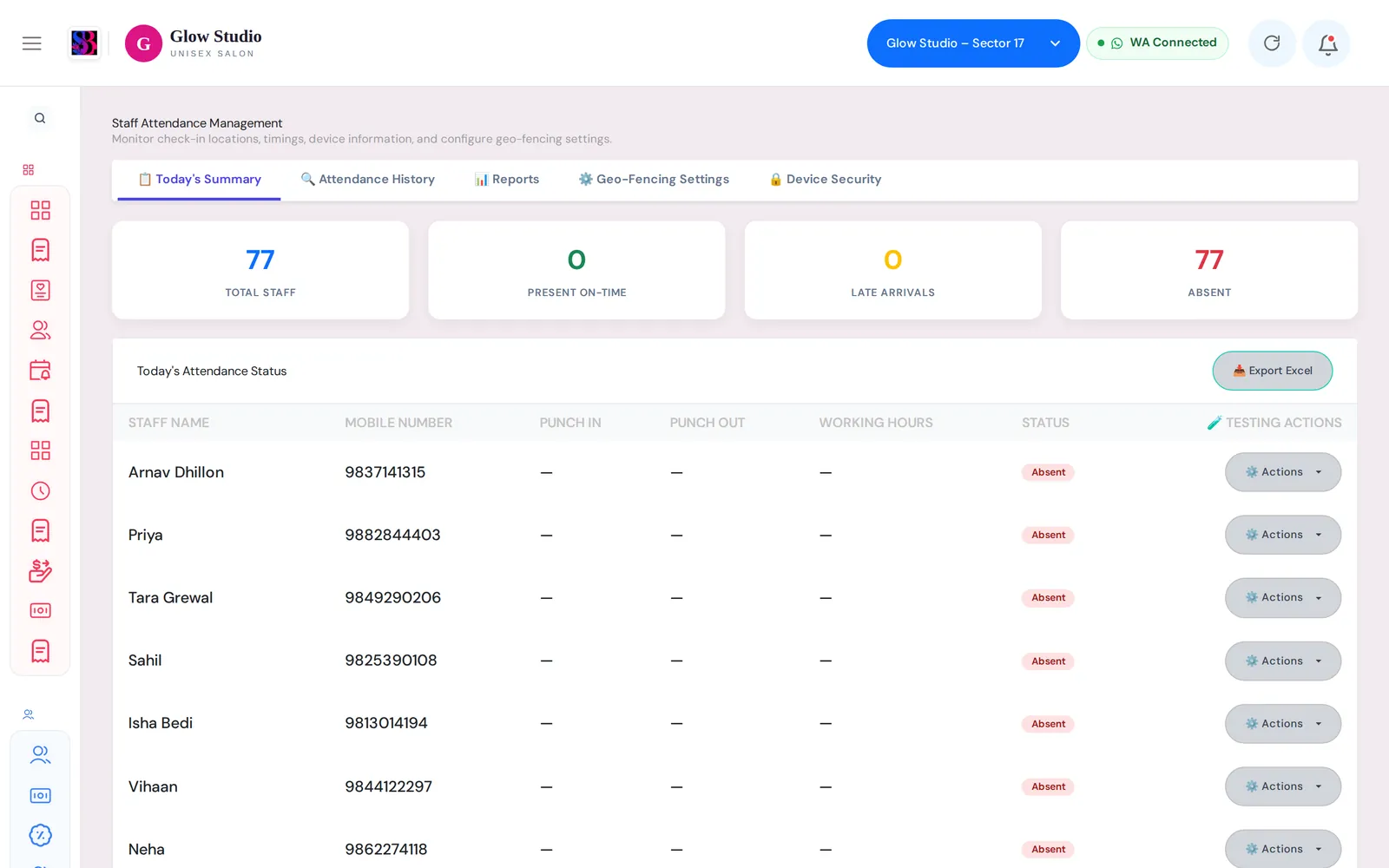
Go to Team Management → Attendance. The page has five tabs: Today's Summary, Attendance History, Reports, Geo-Fencing Settings and Device Security.
How to use it
1. Set up the salon location (once per outlet)
- Open the Geo-Fencing Settings tab.
- In Google Maps, open your salon's pin, tap Share and copy the link.
- Paste it into Auto-Extract Location Coordinates and click Extract Coordinates. Latitude and Longitude fill in. You can also type them yourself.
- Set Radius (meters) between 100 and 200.
- Set Shift Start Time and Grace Period (minutes) (default 15).
- Choose whether to Show Performance Report to Staff in the app, and whether to Enable Background Location Tracking for Staff.
- Click Save Settings.
2. Staff punch in and out (mobile app)
- The staff member signs in to the SalonBill app on their own phone (login access must be on).
- At the salon they tap punch in. SalonBill checks their distance from the salon.
- If they must leave during work, they use Going Outside and return inside the radius to end it, or start On Duty with a reason (Bank, Product Purchase, Client Visit, Marketing, Personal Approval or Other).
- At the end of the day they punch out from inside the radius.
3. Check attendance
- Today's Summary: Total Staff, Present On-Time, Late Arrivals and Absent, plus each person's punch in, punch out and working hours.
- Attendance History: filter by dates, staff member, status or name/phone. Shows distance at punch in/out and the device.
- Reports: pick a month to see the Monthly Active Summary (days present, late days, total hours) and the Late Arrivals Log.
- Every table has an Export Excel button.
Important rules and limits
| Rule | Detail |
|---|---|
| Must be inside the radius | Punch in, punch out and returning from Going Outside are refused outside the radius. |
| Late | A punch in after Shift Start Time plus the Grace Period is marked Late. With no shift time set, everyone is Present. |
| One punch in per day | A second punch in on the same day is refused. |
| Working hours | Time spent Going Outside is subtracted from working hours. |
| Fake location | Punches from a mock/fake location app are refused. |
| Open sessions | Staff cannot punch out while On Duty or Going Outside is still running. |
Device security
The first phone a staff member uses becomes their registered device. If they try from another phone, the punch is refused and the Device Security tab shows New Device Detected. Click Approve New Device to accept the new phone, or Reset Registration so their next sign-in registers a fresh device.
Common problems
"You must be at your salon location to mark attendance"?
The phone's location is outside the radius. Ask the staff member to turn on GPS / precise location and try again inside the salon. If it happens to everyone, re-check the coordinates and radius in Geo-Fencing Settings.
"Attendance location has not been set up for this outlet yet"?
The owner has not saved the salon location. Complete step 1 above.
"This account is registered on another device"?
The staff member changed or reset their phone. Open Device Security and click Approve New Device or Reset Registration.
A staff member cannot sign in to the app?
Turn on Give Login Access for them in Add, edit and remove staff, and make sure they are Active.
Last updated