
Split a bill between payment modes
Use Dual payment to take part of a bill in cash and the rest by UPI, card, wallet or prepaid coupon, and fix the split errors.
- Who can use it
- Anyone who can make a bill ("Create service-billings")
- Where to find it
- Make A Bill → Service Billing → Payment panel → Dual payment
Customers often pay one bill in two ways — some cash and the rest on UPI, for example. Dual payment lets you record exactly that.
What this feature does
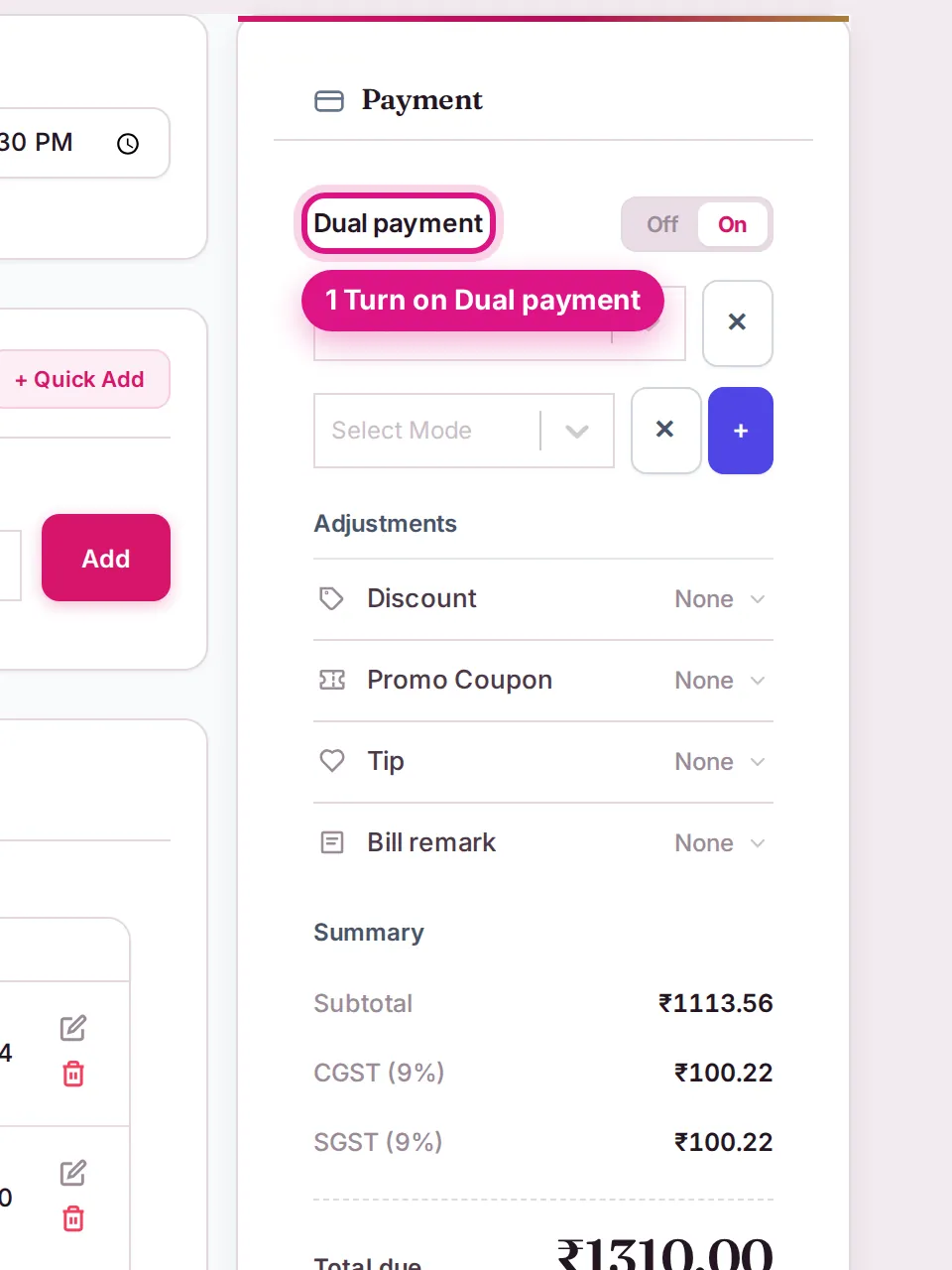
With Dual payment off, the whole bill is paid in one mode. With it on, you add two or more payment rows, each with its own mode and amount. Reports and the Dashboard payment-mode breakdown then show each part under the right mode.
Who can use it
Anyone who can save a service bill.
Where to find it
Make A Bill → Service Billing, in the Payment panel on the right. The Dual payment switch has Off and On buttons.
How to use it
- Add the customer and services as usual (Create a service bill).
- In the Payment panel, click On next to Dual payment.
- In the first row, choose a mode under Select Mode and type the amount.
- Click + to add another row. Choose the second mode and type the rest of the amount.
- Remove an extra row with ✕.
- Check that the rows add up to Total due, then save.
Which payment modes you can choose
| Mode | When it appears |
|---|---|
| Cash, Card, Gpay/UPI, API, UPI Solo | The payment methods switched on for your outlet |
| Package | Customer's package or membership sittings |
| Advanced Package | The customer has an advance package with credit left |
| Prepaid Coupon (₹ balance) | The customer has a usable prepaid coupon |
| Wallet (₹ balance) | The customer's membership wallet |
Under the mode box SalonBill shows Last used: with the mode this customer paid by last time — click it to pick the same mode.
Important rules and limits
- The total of all rows must equal Total due. Otherwise saving is blocked.
- With Dual payment off, the amount box is filled for you and cannot be edited.
- A Prepaid Coupon that does not cover the whole bill: click Use coupon and SalonBill turns Dual payment on with the coupon amount in the first row and the rest in a second row. Choose the mode for the rest.
- A Wallet payment can only use the unlocked part of the wallet. If a membership is not fully paid, a note shows how much is unlocked.
- A bill with a Combo cannot be paid from the Membership Wallet or Package.
- A Tip is not part of the split. It has its own mode inside the Tip adjustment.
Common problems
"The total payment amount must be equal to …"?
The rows do not add up to Total due. Change one of the amounts.
"Payment amount (…) cannot exceed the grand total (…)"?
You typed more than the bill. Reduce one row.
"Payment amount is required for all selected payment modes"?
A row has a mode but no amount. Type an amount or remove the row with ✕.
"Prepaid Coupon balance is ₹… only — collect the rest by another payment mode (Dual payment)."?
Turn on Dual payment and add a second row for the remaining amount.
I chose the wrong mode on a saved bill?
Last updated