
Open, close and reconcile the cash drawer
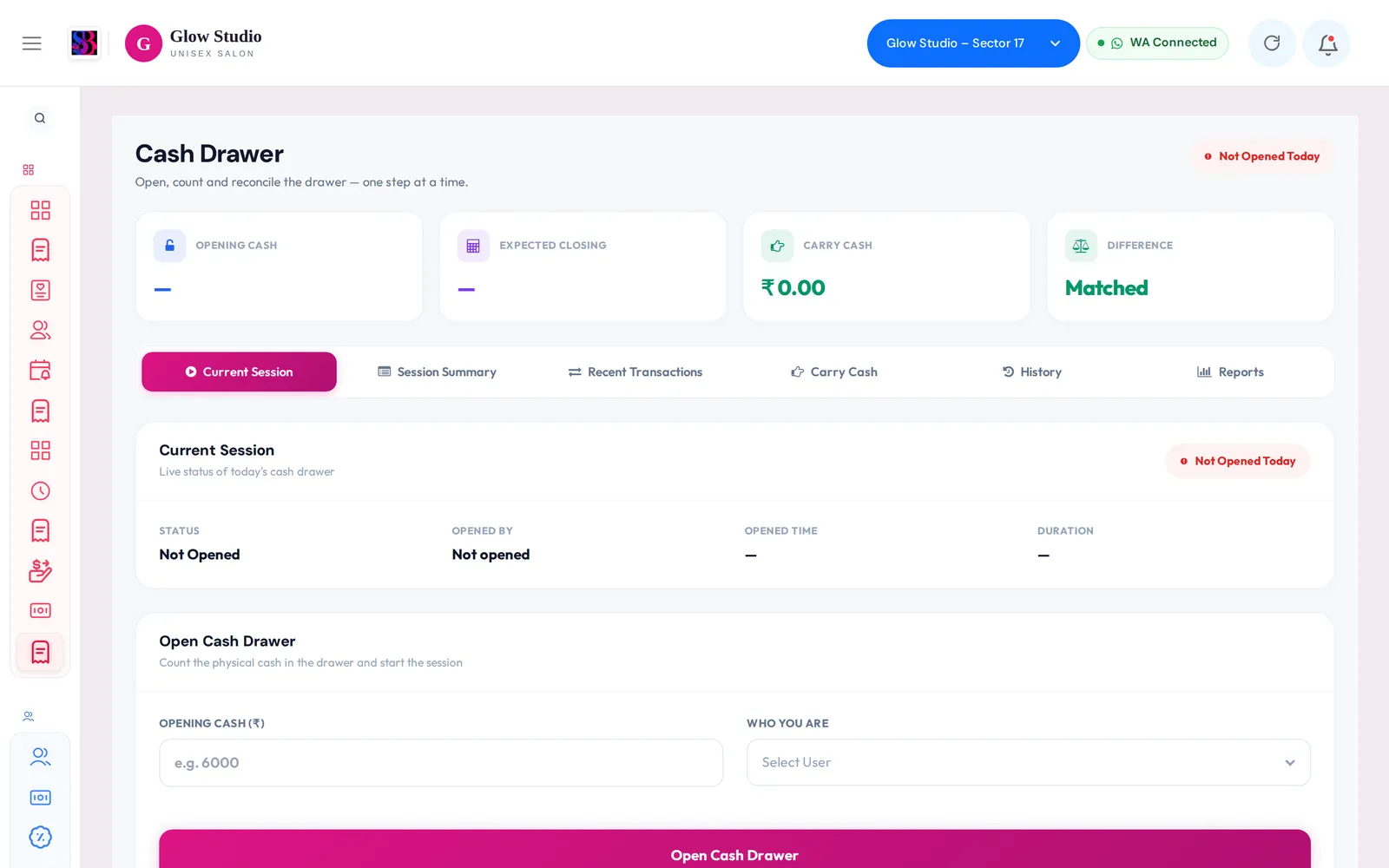
Count opening cash, close the day with carry cash to the owner, see Matched, Short or Excess, and correct or reconcile past sessions.
- Who can use it
- Owner/Admin, Co-owner; other staff with "View Cash Drawer" (and Edit, Reopen, Reset, Force Close Session, Reset Cash Difference for corrections)
- Where to find it
- Main Menu → Cash Drawer
The Cash Drawer checks every day that the cash in your counter matches what SalonBill expects. You count cash when you open, record what you hand to the owner when you close, and SalonBill shows the difference.
What this feature does
For each day SalonBill works out the Expected Closing cash:
| Item | |
|---|---|
| Opening Cash | |
| + | Today's Cash Sales (services and products) |
| + | Cash Received (membership · package · dues) |
| − | Today's Cash Expenses |
| − | Carry Cash to Owner |
| = | Expected Closing |
When you close, the Counted Cash is compared with it: Matched, ₹… Short or ₹… Excess. Only cash counts; UPI, card and Bank expenses do not touch the drawer.
Who can use it
- Owner/Admin and Co-owner always.
- Managers and other staff need the View Cash Drawer permission. It is off for Managers by default.
- Corrections need their own permissions: Edit Cash Drawer, Reopen Cash Drawer, Reset Cash Drawer, Force Close Session and Reset Cash Difference.
Where to find it
Main Menu → Cash Drawer. Tabs: Current Session, Session Summary, Recent Transactions, Carry Cash, History and Reports.
How to use it
Open the drawer (start of day)
- Open the Current Session tab.
- Count the cash. If denomination tracking is on, enter the note counts and the total fills in.
- Enter Opening Cash (₹) and choose Who You Are.
- Check Opening check vs previous closing, then click Open Cash Drawer and Confirm & Open.
Close the drawer (end of day)
- Read the Session Calculation.
- In Cash Denomination Breakdown, count the notes left. The total fills Counted Cash (₹).
- If you hand cash to the owner, enter Carry Cash To Owner (₹) and choose Given To.
- Choose Closed By, add Session Notes if needed and click Close Session.
The day then shows Closed & Reconciled and the session is locked.
Correct a past session
In History, each row has actions (shown only if you have the permission): Edit (reason required), Reopen, Force Close, Reset / Delete, Recalculate cash from transactions and Audit history.
To mark a period as physically checked, click Reset Difference, choose the period, enter a reason and optionally the Corrected Drawer Cash. Old sessions are kept and shown as Reconciled. Reset All is for the Owner only.
Important rules and limits
- Only one session per day. A second open shows "Cash drawer session is already open for today."
- If carry cash is entered, Given To is required.
- Opening and closing summaries and cash-difference alerts can be sent on WhatsApp. Set them in Settings → Cash Drawer Controls.
- With Enable Mandatory Opening Cash on, the chosen roles are sent to the Cash Drawer after 02:00 AM until the drawer is opened. They see "Please open the cash drawer to access the system." Owner/Admin and Co-owner are never locked.
- An Owner/Admin can switch the whole feature off in Settings → Cash Drawer Controls. Past sessions stay readable in History and Reports.
Common problems
Expected cash looks wrong?
Check that cash expenses were entered as Cash and bank expenses as Bank, and that carry cash was entered. For an older session, use Recalculate cash from transactions.
"Cash Drawer is turned off for this outlet"?
The feature is off. The Owner/Admin can turn it on in Settings → Cash Drawer Controls.
"You do not have permission to use the cash drawer."?
Ask the Owner/Admin to tick View Cash Drawer for your role in Permissions.
Last updated