
Memberships, Packages & Coupons
Sell a service package (fixed sittings)
Create a Service Based package template with included services and sittings, sell it from Make A Bill, and redeem the sittings on later visits.
- Who can use it
- Owner/Admin, Co-owner or staff with "Create packages" (templates); staff who can make bills (selling)
- Where to find it
- Make A Bill → Service Package Sale; Memberships & Packages → All Packages → Service Based
A service package is a ready-made bundle of services with a fixed number of sittings, for example "6 Hair Spa sittings". You set it up once as a template and then sell it to any customer at the same price.
What this feature does
- The template lists the included services and how many of each the customer gets.
- When sold, the customer's profile shows the services left. Each visit uses up sittings until none are left.
- Unlike an advance package, the price comes from the template and is not typed at the time of sale.
Who can use it
- Creating or editing a template: staff with Create packages / Update packages.
- Selling: staff who can create bills.
Where to find it
- Templates: Memberships & Packages → All Packages, filter Service Based.
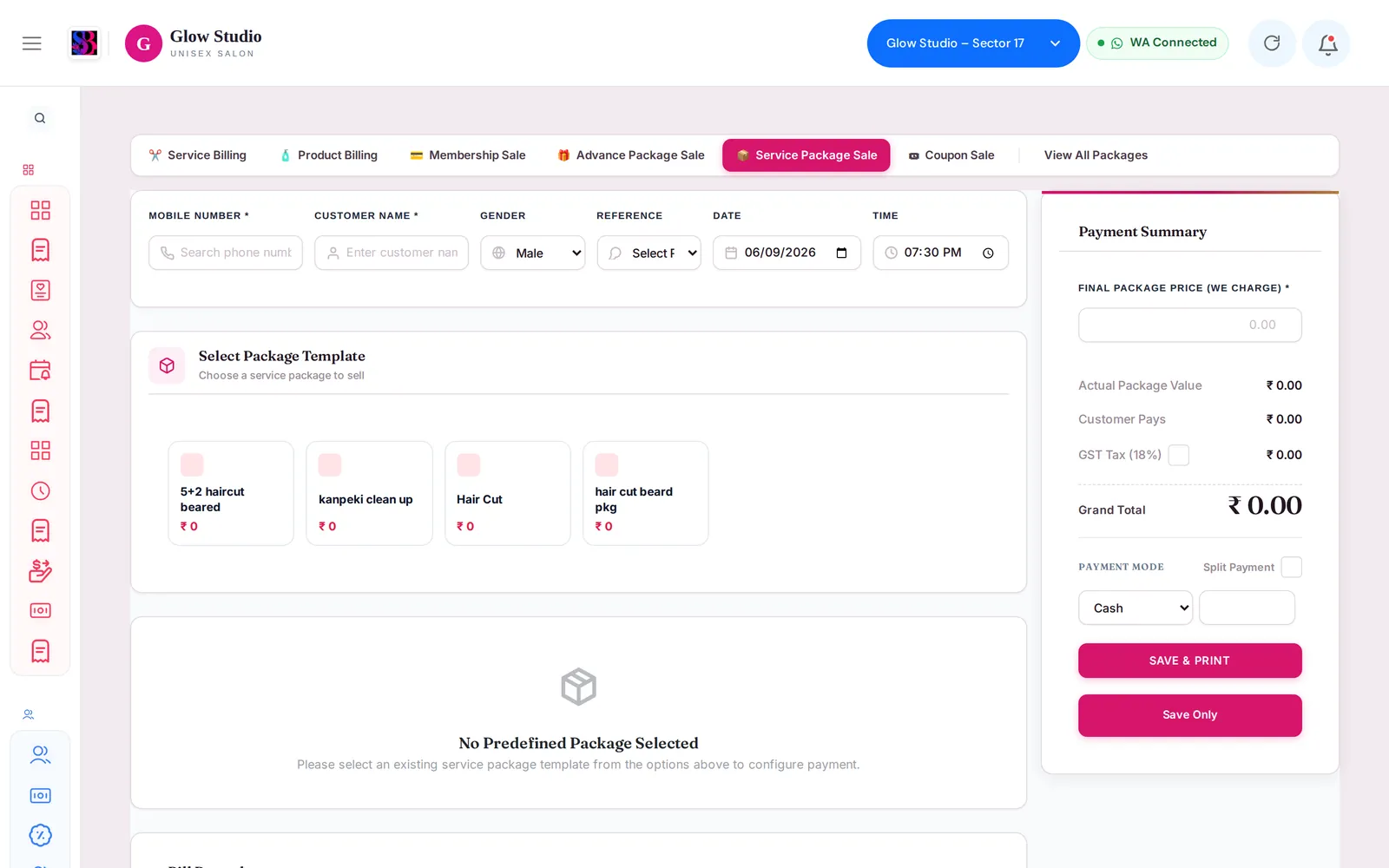
- Selling: Make A Bill → 📦 Service Package Sale.
How to use it
Create a template
- Go to Memberships & Packages → All Packages and click Add Membership Package.
- Choose Package Type → Service Based.
- Enter the Name and the Customer Pay price.
- Under Included Services, add each service and its number of sittings. The Package Summary Preview shows the value and discount.
- Optionally set an Incentive Type (None, Fixed Amount or Percentage) and Repeat Client Incentive (% of original) for the seller.
- Tick Status and click Submit.
Sell it
- Open Make A Bill → 📦 Service Package Sale and select the customer.
- Under Select Package Template, click the package card.
- In Predefined Package Details, choose Who Sold.
- Check the Payment Summary: Actual Package Value, Customer Pays, Package Discount and Grand Total. The Final Package Price is fixed from the template.
- Choose the payment mode (turn on Split Payment for two modes).
- Click Save & Print or Save Only.
Redeem sittings on a visit
- On Make A Bill, select the customer and click 🔵 Redeem Package.
- 1. Select Package — pick the package.
- 2. Select Included Services — choose the services and quantity.
- Click Add To Cart, assign the staff and save the bill.
Important rules and limits
- This tab takes the full price at the time of sale. If the customer wants to pay in parts, use an advance package instead.
- Discounts cannot be added on top of a package price.
- A package balance cannot be used to buy another membership or package.
- You cannot use more sittings than are left: "You only have N … services left in package."
- A Service Based plan can also be chosen on the Membership Sale tab. Its sittings are redeemed the same way.
- Staff who perform a package service earn their incentive on that service's share of the package's selling price, not its menu price.
Common problems
No package cards appear under Select Package Template?
Only Service Based templates are shown. Create one in All Packages with Package Type Service Based, and check that it is active.
The customer's package does not show under Redeem Package?
Packages appear only while they have sittings left. Check the customer profile for the services left.
"You only have 2 … services left in package"?
Reduce the quantity to what is left, or bill the extra sitting as a normal paid service.
Last updated
Still stuck?Our team can help on WhatsApp or email.
Contact support