
Add, edit and remove staff members
Add staff with a role, salary and incentive category, give or block login, deactivate, delete or restore staff, and import or export your team list.
- Who can use it
- Owner/Admin, Co-owner, Manager or staff with "Create staff", "Update staff" or "Delete staff
- Where to find it
- Team Management → Staff
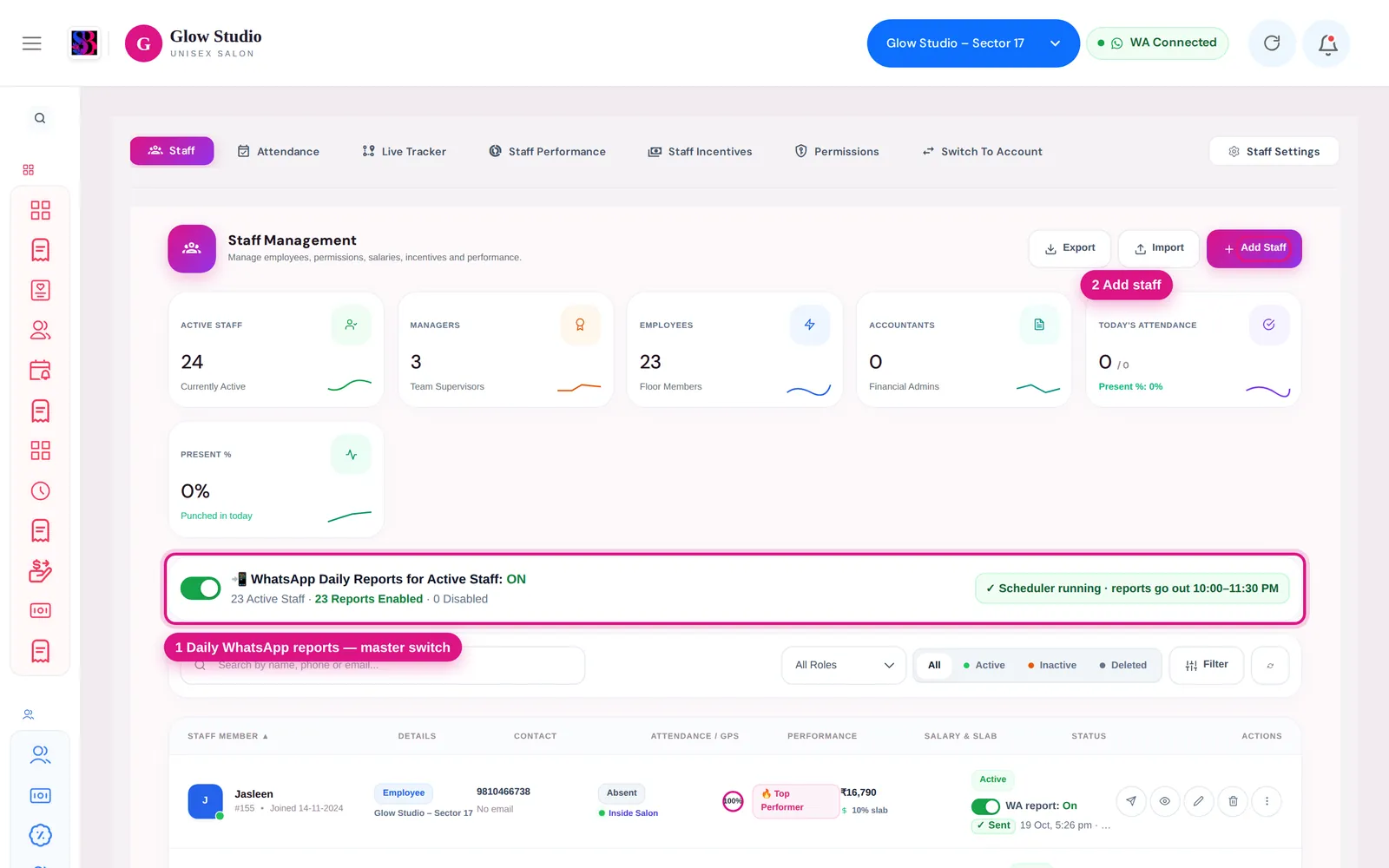
The Staff tab is your team list. From here you add new people, choose their role, set their salary and incentive category, and decide whether they can sign in at all.
What this feature does
Every person who does services, sells packages or punches attendance must be a staff member in SalonBill. A staff record is used for billing (choosing who did the service), attendance, performance, incentives and the daily WhatsApp report.
Who can use it
- Add Staff and Import: Owner/Admin, Co-owner, or staff with Create staff. The file import itself works only for Owner/Admin and Co-owner.
- Edit and Active/Inactive: anyone with Update staff.
- Delete: anyone with Delete staff. Restoring and permanently deleting are Owner/Admin only.
- Export: Owner/Admin, Co-owner and Managers.
Where to find it
Go to Team Management → Staff. The buttons Export, Import and Add Staff are at the top right.
How to use it
Add a staff member
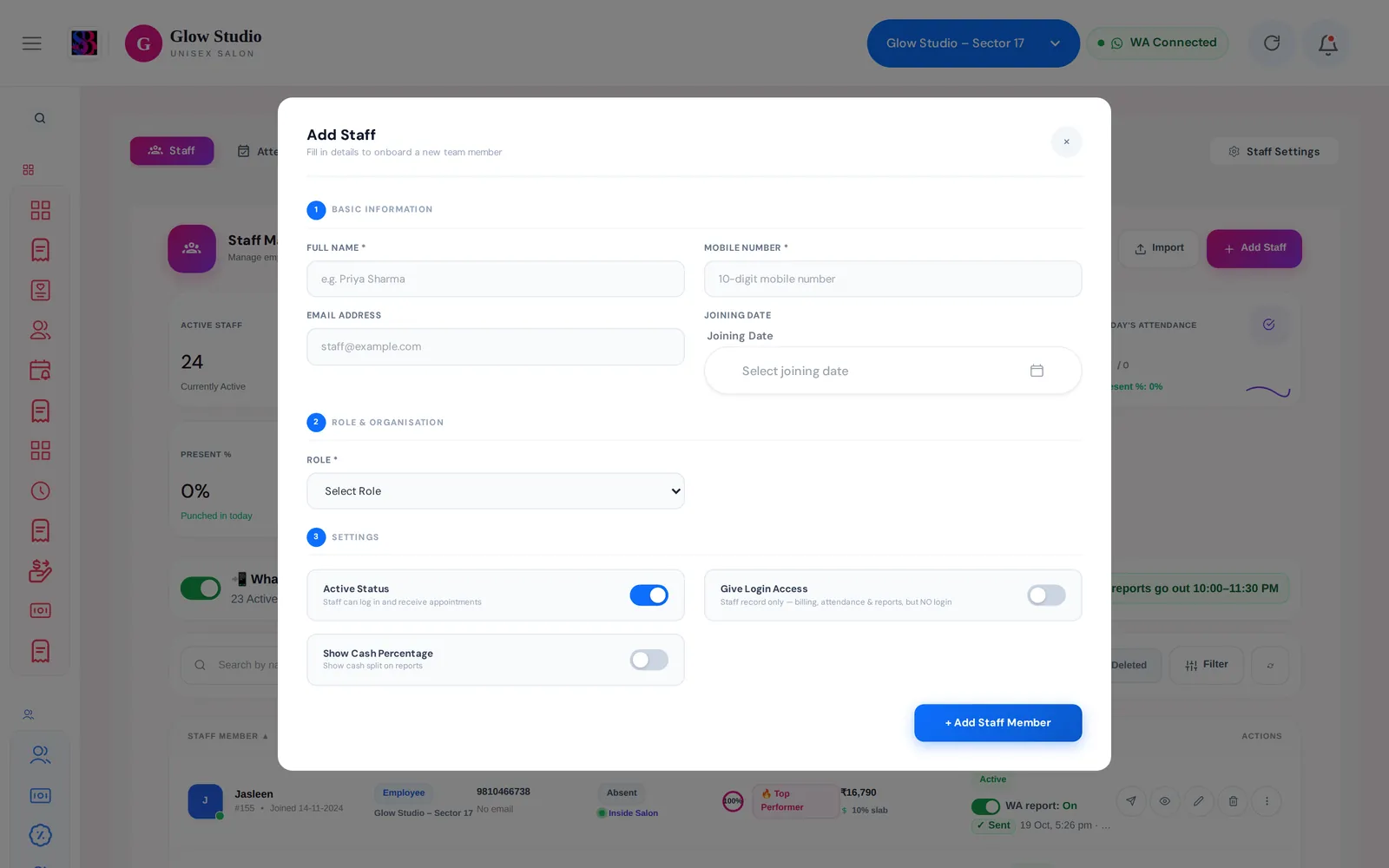
- Click Add Staff.
- Fill in Full Name and Mobile Number (10 digits, required). Email and Joining Date are optional.
- Pick the Role: Co Owner, Accountant, Manager or Employee. For Co Owner and Accountant you also choose which outlets they work in.
- For an Employee or Manager, choose the Designation (Incentive Category) (for example Hairdresser or Beautician) and enter the Monthly Salary (₹). Salary is required for these two roles.
- Optionally tick the Turn Pool / Skills this person performs (used by the Staff Turn Board).
- Under Settings, check Active Status and decide on Give Login Access.
- Click + Add Staff Member.
Edit, deactivate or delete
- Click the Edit Staff (pencil) icon, make your change, type a Reason for Modification and click Save Changes.
- Click the Active / Inactive pill on the row to switch the status. You will be asked to confirm.
- Click the Delete Staff (bin) icon and give a reason of at least 20 characters.
- To bring someone back, open the Deleted filter and click Restore Staff.
Import and export
- Click Export to download all staff of the current outlet as a CSV. Use this file as your import template.
- Click Import and choose a CSV or Excel file. It must have a Phone Number column.
- SalonBill shows how many rows are New, Existing and Invalid. For existing phone numbers choose Skip them or Update them.
- Click Import N staff. Invalid rows are skipped and you can download a report of them.
Important rules and limits
| Setting | What it means |
|---|---|
| Give Login Access OFF | The person is a staff record only. They can still be picked on bills and get incentives, but they cannot sign in. New Employees start with this OFF. |
| Give Login Access ON | The person can sign in with their own login, as their role allows. |
| Active Status OFF | The person is inactive: no sign-in, no daily WhatsApp report and their report link stops working. |
- A new staff member's first password is their own mobile number. They are asked to set a new password the first time they sign in.
- When login access is on, the Owner/Admin can type a new password (at least 6 characters) in Set / Change Password while editing, and can tick Send new password to staff on WhatsApp.
- Employees sign in only on the SalonBill mobile app (for attendance and their own performance). They cannot sign in to the web app.
- A mobile number can be used only once in the same outlet.
- Imported staff are always added as Employees in the current outlet, with login access off unless the file says otherwise.
- On the Basic plan you can add only the Employee role.
Common problems
"The phone has already been taken in this outlet"?
Another staff record in this outlet already uses that number. Search the list (check the Inactive and Deleted filters too) and edit or restore that record instead.
The staff member cannot sign in?
Check that Active Status and Give Login Access are both on. Employees must use the SalonBill mobile app, not the website. See I cannot log in.
A Manager is asked for an OTP when editing or deleting staff?
Only Owner/Admin and Co-owner can edit or delete staff directly. Other users must enter a reason and an OTP before the change goes through.
Last updated