
Set staff permissions by role
Use the Permissions matrix to choose what Managers and Accountants can do in each outlet, and learn which important permissions to check.
- Who can use it
- Owner/Admin, Co-owner
- Where to find it
- Team Management → Permissions
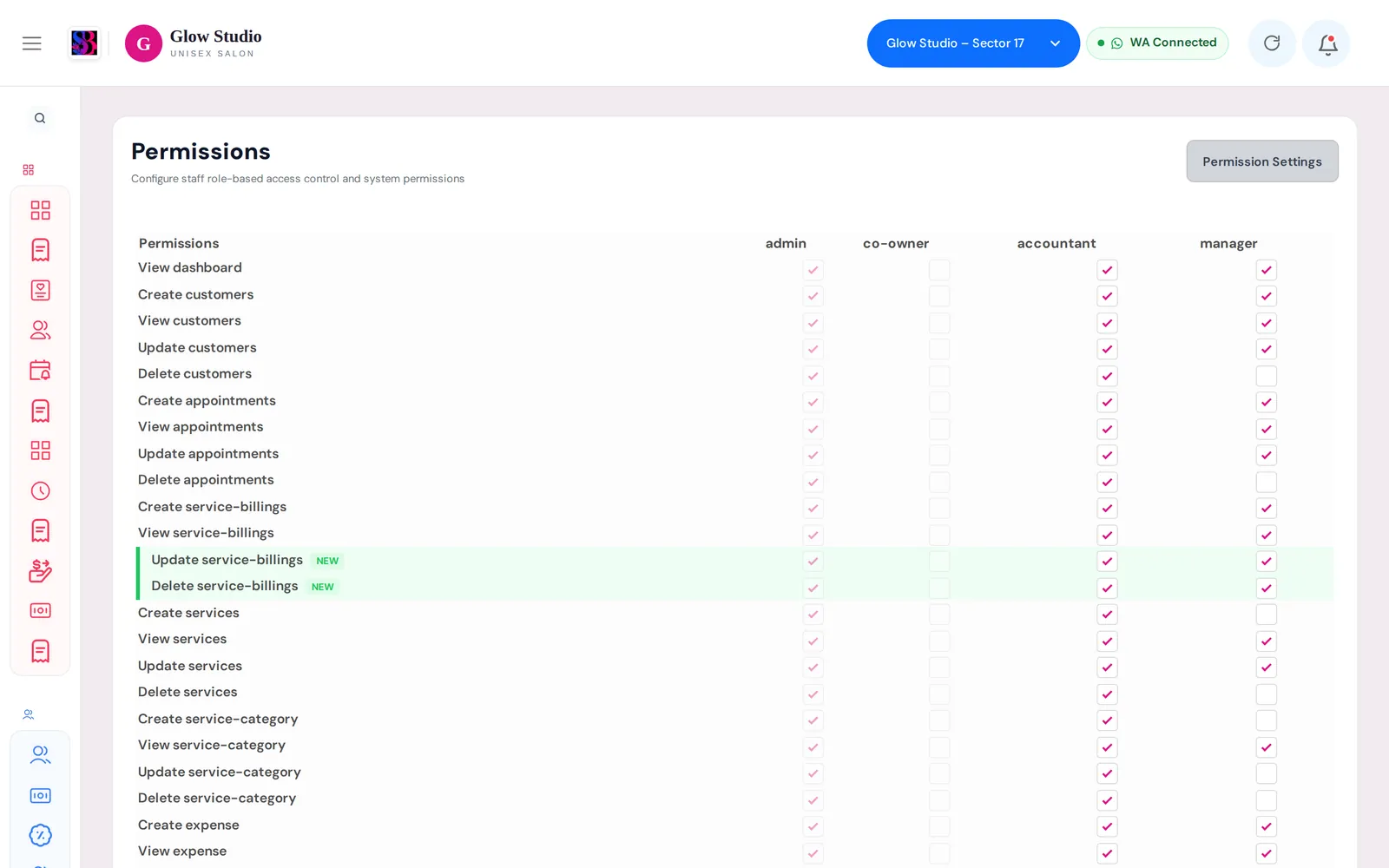
The Permissions page decides what each staff role is allowed to do in an outlet: open a screen, create, edit or delete records, and use special actions such as sending a balance summary on WhatsApp.
What this feature does
Permissions are set per role, per outlet. When you tick or untick a box, the change applies straight away to every staff member with that role in the selected outlet.
Who can use it
Only the Owner/Admin and Co-owner can open and change the Permissions page.
Where to find it
Go to Team Management → Permissions. Make sure the right outlet is selected in the top bar first, because changes apply to that outlet only.
How to use it
- Select the outlet in the top bar.
- Open Team Management → Permissions.
- Find the permission in the left column (for example Delete service-billings).
- Tick the box under the role (for example manager) to allow it, or untick it to block it.
- A message confirms the change. It works immediately; the staff member may need to refresh the app to see menus change.
Which role columns you see
| Column | Can you change it? |
|---|---|
| admin | No. The Owner/Admin always has every permission. |
| co-owner | No. Co-owners keep their full access. |
| manager | Yes. |
| accountant | Yes. |
The Employee role is not in the matrix. Employees use the SalonBill mobile app for attendance and their own performance, and they get their daily report link on WhatsApp.
Important permissions to review
| Permission | What it allows |
|---|---|
| Create / Update / Delete service-billings | Make bills, edit bills, delete bills |
| Allow Backdated Billing | Save a bill with an earlier date |
| Share Invoice on WhatsApp | Send the invoice to the customer on WhatsApp |
| Update / Delete outstanding-payments | Clear or remove pending outstanding |
| Bypass outstanding balance check | Bill a customer who still has outstanding dues |
| Clear Open Job Cards | Cancel pending services on an open job card (with a reason) |
| View Spin & Win / Spin & Win Link & QR / Send Spin & Win on WhatsApp | See won offers, share the wheel link or QR, send a customer's personal link |
| Send Balance Summary on WhatsApp | Send a customer's wallet and balance summary. It does not allow changing any balance. |
| View Cash Drawer and the other Cash Drawer permissions | Open, edit, reopen or reset the cash drawer |
| View / Create / Update / Delete staff | See and manage the team list |
Important rules and limits
- Changes apply to the selected outlet only. Repeat them for each outlet if needed.
- A tick applies to everyone with that role in the outlet. There is no separate per-person setting on this page. To give one person different access, give them a different role.
- You can only change a role column when at least one staff member with that role exists in the outlet. Otherwise you see "No user found with this role in the organisation."
- A newly added staff member starts with the standard access for their role. After adding a new Manager or Accountant, check the matrix again so they match your outlet's settings.
- Every permission change is recorded in the Audit Trail.
Common problems
I don't see the Permissions tab?
Only the Owner/Admin and Co-owner can manage permissions. Ask the salon owner.
A Manager still sees a menu I turned off?
Ask them to refresh the app or sign out and in again. Menus are loaded when the app starts.
A staff member gets "You are not authorized"?
Their role does not have the permission for that action in this outlet. Tick it for their role here, or ask the owner to do the action. To check what a Manager sees, use Switch To Account.
Last updated