
What is SalonBill? A quick tour of the modules
An overview of what SalonBill does for a salon – billing, job cards, customers, memberships, offers, staff and reports – with links to each guide.
- Who can use it
- Everyone who signs in to the web app (what you see depends on your role)
- Where to find it
- app.salonbill.com
SalonBill is salon management software for billing, customers, memberships, staff and reports. You use it in your web browser at app.salonbill.com, and you can install it on your phone, tablet or computer like an app.
What this feature does
SalonBill brings the daily work of a salon into one place. The front desk makes bills and job cards, managers watch the staff and the cash, and the owner checks sales and settings. Each outlet (branch) has its own customers, services, staff and WhatsApp number, and you switch between outlets from the top bar.
Who can use it
- Owner/Admin, Co-owner, Manager and Accountant sign in to the web app. What each person sees depends on their role and the outlet's permissions. See Roles and permissions explained.
- Employees cannot sign in to the web app. They use the SalonBill mobile app and get their daily report on WhatsApp.
Where to find it
Open app.salonbill.com and sign in. The menu on the left lists every module you are allowed to use. See Find your way around.
The main modules
| Module | What you do there | Start here |
|---|---|---|
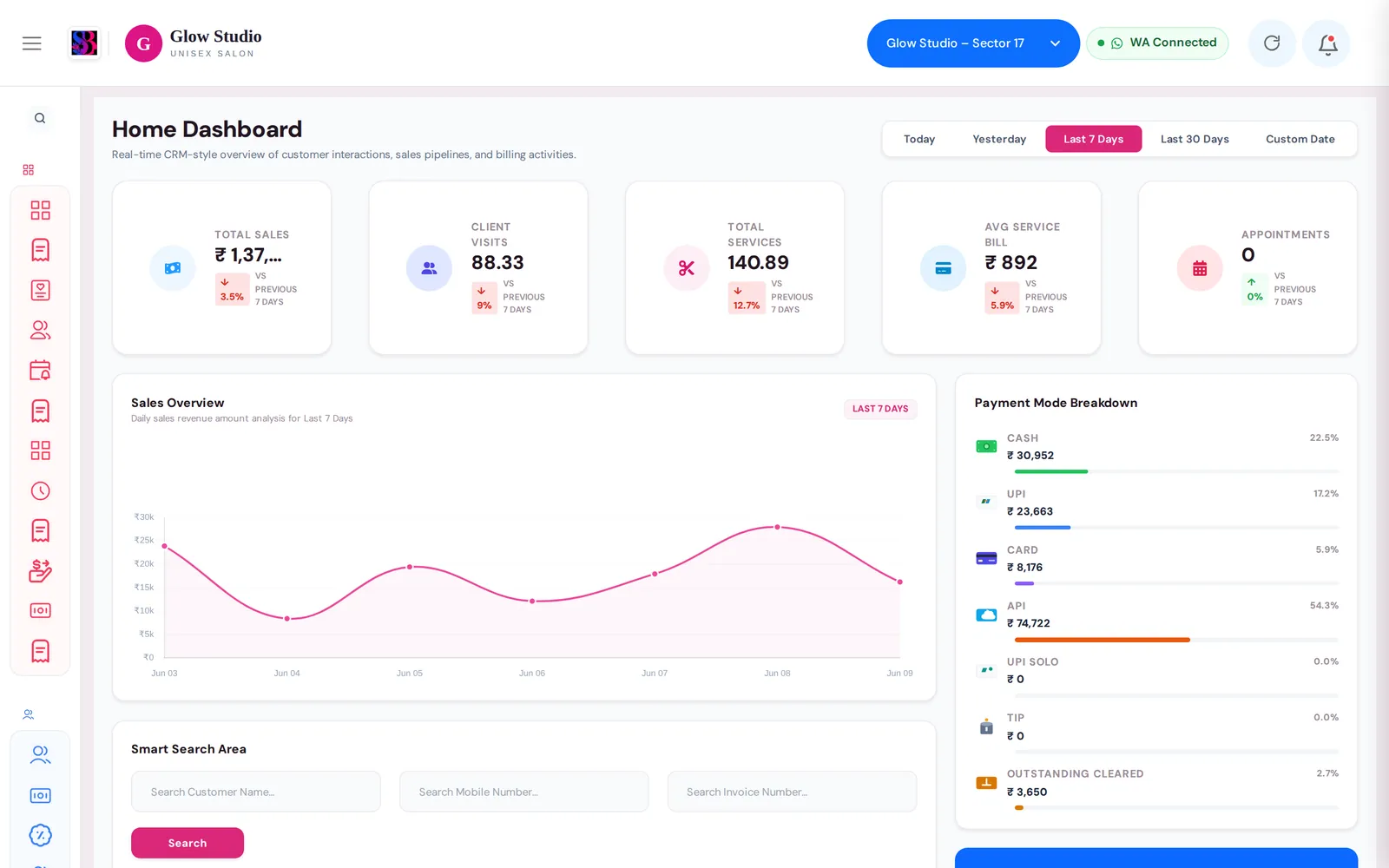
| Dashboard | Sales, payment modes, client visits and the customer feed for a period | Home Dashboard |
| Make A Bill | Service bills, product bills, membership and package sales, discounts, coupons, split payments | Create a service bill |
| Job Cards and Staff Turns | Open a job card when the customer arrives, bill it later; see whose turn is next | Create a job card |
| Book Appointment | Book a customer, services and stylist for a time slot | Book an appointment |
| Customers & Loyalty | Customer profiles, wallet, loyalty points, pending outstanding, enquiries | Customer profiles |
| Memberships & Packages | Memberships, advance and service packages, prepaid coupons | Sell a membership |
| Services & Products | Your service menu, categories, combos and retail products | Services and products |
| Current Offers and Marketing | Offers, Spin & Win, WhatsApp offer links and campaigns | Current offers |
| Team Management | Staff, attendance, performance, incentives, permissions | Add staff |
| Reports, Cash Drawer, Expenses | Management report, cash reconciliation, expense tracking, activity history | Management report |
| Settings | Outlet details, tax, payment methods, invoice template, WhatsApp | Settings overview |
How to use it
A typical first day looks like this:
- Log in and pick your outlet in the top bar.
- Check your outlet details, tax and payment methods in Settings.
- Set up your service menu and products.
- Add your staff and check their permissions.
- Connect the outlet's WhatsApp so invoices and reminders reach customers.
- Make your first service bill.
- Install SalonBill as an app on the counter computer or phone.
Important rules and limits
- Everything you see belongs to the outlet selected in the top bar. Switch the outlet before you bill or change settings.
- Some modules (for example Product Billing, Expenses and some advanced settings) appear only on plans that include them. When a module is not on your plan it is hidden or shown as a Pro feature in the menu.
- Data is always loaded live. SalonBill does not work offline: without internet you see a "You're offline" screen until the connection comes back.
Common problems
I can't see a menu item that a colleague can see?
Menus depend on your role and the permissions set for your outlet. Ask the Owner/Admin to check Set staff permissions by role.
My staff member can't sign in on the website?
Employees use the SalonBill mobile app, not the website. See Log in and switch outlets.
Last updated