
Offers, Spin & Win & Marketing
Set up the Spin & Win wheel
Turn on Spin & Win, add wheel slices with rewards and win chances, print the QR card, and manage won vouchers and blocked customers.
- Who can use it
- Owner/Admin and Co-owner (settings and wheel); staff with "View Spin & Win" or "Spin & Win Link & QR" (view, links)
- Where to find it
- Current Offers → 🎡 Spin & Win
Spin & Win lets customers spin a lucky wheel on their phone or your reception tablet and win a voucher for their visit. You decide the prizes and how often each one comes up.
What this feature does
- The customer opens the spin page, enters their mobile number and name (existing customers are recognised), and spins.
- If allowed, they may spin once more; the second result is final.
- They tap 🎁 Claim This Offer. The voucher (code, expiry, terms) is saved on their profile and sent on WhatsApp.
- At billing, the voucher is applied like a coupon. See Spin & Win rewards at billing.
Who can use it
| What | Who |
|---|---|
| Settings, add/edit slices, Load final wheel, block, reset, resend, delete history | Owner/Admin, Co-owner |
| See the wheel table and won-offer history | Staff with View Spin & Win |
| Public link, QR, barcode, print, Customer View | Staff with Spin & Win Link & QR |
| Send a personal link on WhatsApp | Staff with Send Spin & Win on WhatsApp |
Managers, Accountants and Employees get the three staff permissions by default. Untick them in Team Management → Permissions.
Where to find it
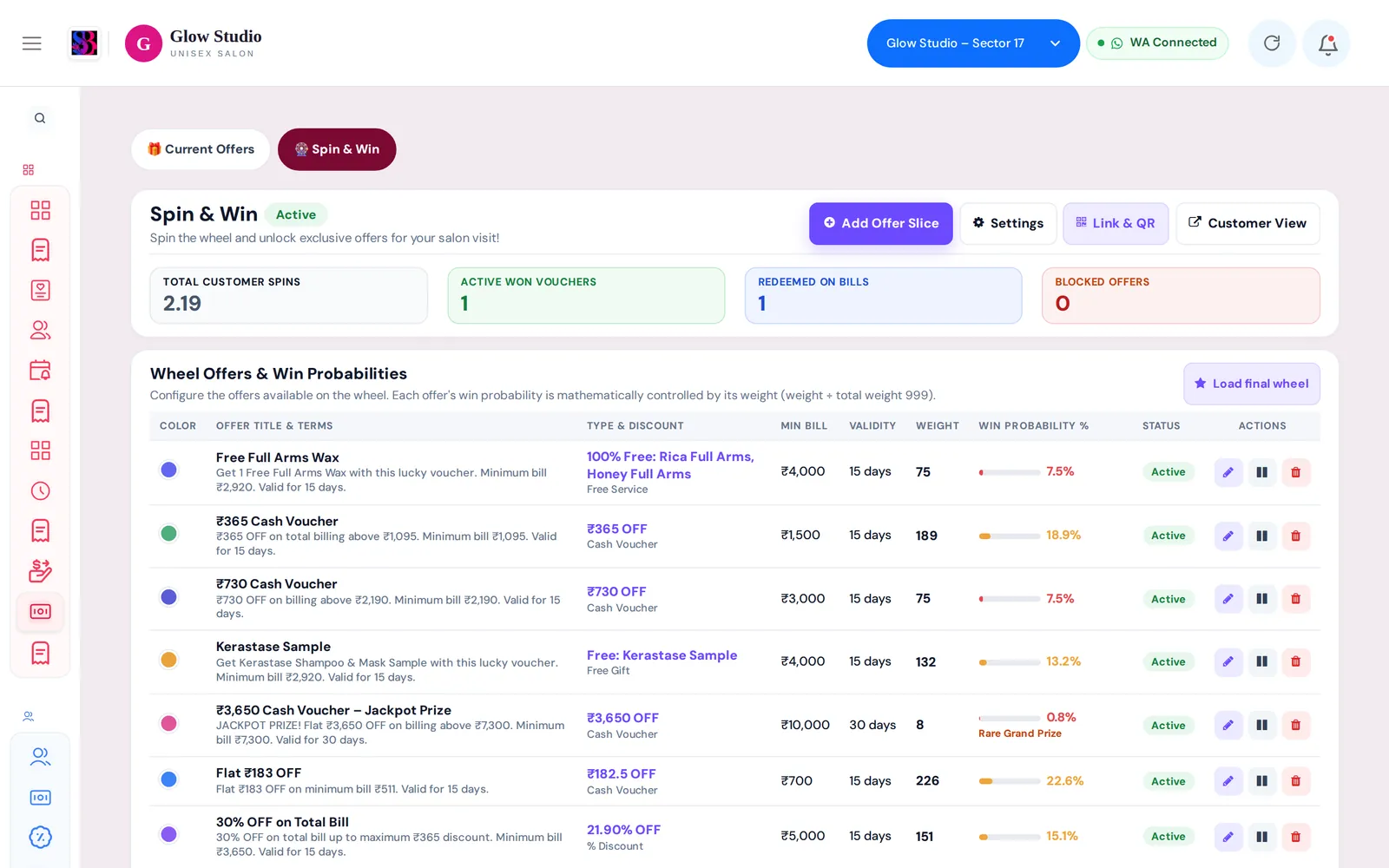
Current Offers → 🎡 Spin & Win. The buttons at the top are Add Offer Slice, Settings, Link & QR and Customer View.
How to use it
Turn it on
- Click Settings.
- Tick Spin & Win is live for customers.
- Optionally change the Page title and General terms (bottom of the spin page).
- Tick Allow one more spin if the customer does not like the first offer (second result is final) if you want a second chance.
- Click Save settings.
Add wheel slices
- Click Add Offer Slice.
- Enter the Name on wheel and choose the Reward type: Flat ₹ off the bill, % off the bill, Free service, % off selected services, or Free gift / product (handed over at billing).
- Set the amount or percent, Max discount ₹, Minimum bill ₹ and Validity (days).
- Set the Weight (the bigger the weight, the more often it wins) and optionally Max winners.
- For service rewards, choose the services or categories. Add Terms (shown to the customer and in WhatsApp) and a Colour.
- Click Save slice.
The table Wheel Offers & Win Probabilities shows each slice's Win probability % (weight ÷ total live weight). Slices under 5% are labelled Rare Grand Prize. The wheel draws on exactly these weights.
Put the wheel in front of customers
Click Link & QR for the Public Spin link (Copy Link, Share), QR (PNG), Barcode (PNG) and Print table card. The private Salon tablet link in Settings is for your reception tablet: it shows the full name and lets staff correct name, birthday or anniversary (a reason is required).
Managing winners
Customer Won Offers & Redemption History lists every spin with voucher code, status and Bill # once redeemed. The Owner/Admin can:
- Block a voucher (it stops working in billing at once) and optionally stop the customer from spinning again
- Reset Spin so the customer can spin again (their unredeemed offer is cancelled)
- Resend the voucher on WhatsApp, or select rows and delete them (redeemed rows are kept)
Important rules and limits
- A customer has one open reward at a time. They can spin again only after it is redeemed or expired.
- A slice whose Max winners is used up drops off the wheel.
- Changing or deleting a slice never changes vouchers already won.
Common problems
Customers see "not running right now"?
Spin & Win is switched off. Turn on Spin & Win is live for customers in Settings.
A Free service slice was skipped?
Your outlet has no matching active service (for example a haircut). Add the service, then load the wheel again.
Last updated