
Track salon expenses
Record expenses with category, sub-category, amount, Cash or Bank and a bill photo, link staff payments to an employee and filter the expense log.
- Who can use it
- Owner/Admin, Co-owner, staff with "View expense", "Create expense", "Update expense" or "Delete expense
- Where to find it
- Main Menu → Expenses
The Expenses Tracker is where you record every rupee the salon spends, from tea and milk to salaries and rent.
What this feature does
Each expense has a category, a sub-category, an amount, a date and a payment mode. Cash expenses are taken out of the Cash Drawer expected cash; Bank expenses are not. Staff payments linked to an employee appear in Reports → Visual Analytics → Employee Payments.
Who can use it
| Action | Who |
|---|---|
| See the expense list | Owner/Admin, Co-owner, staff with View expense |
| Add Expense | Staff with Create expense |
| Edit / Delete | Staff with Update expense / Delete expense |
| Add Category | Staff with Create expense-category or Update expense-category |
Expenses are a Pro plan feature.
Where to find it
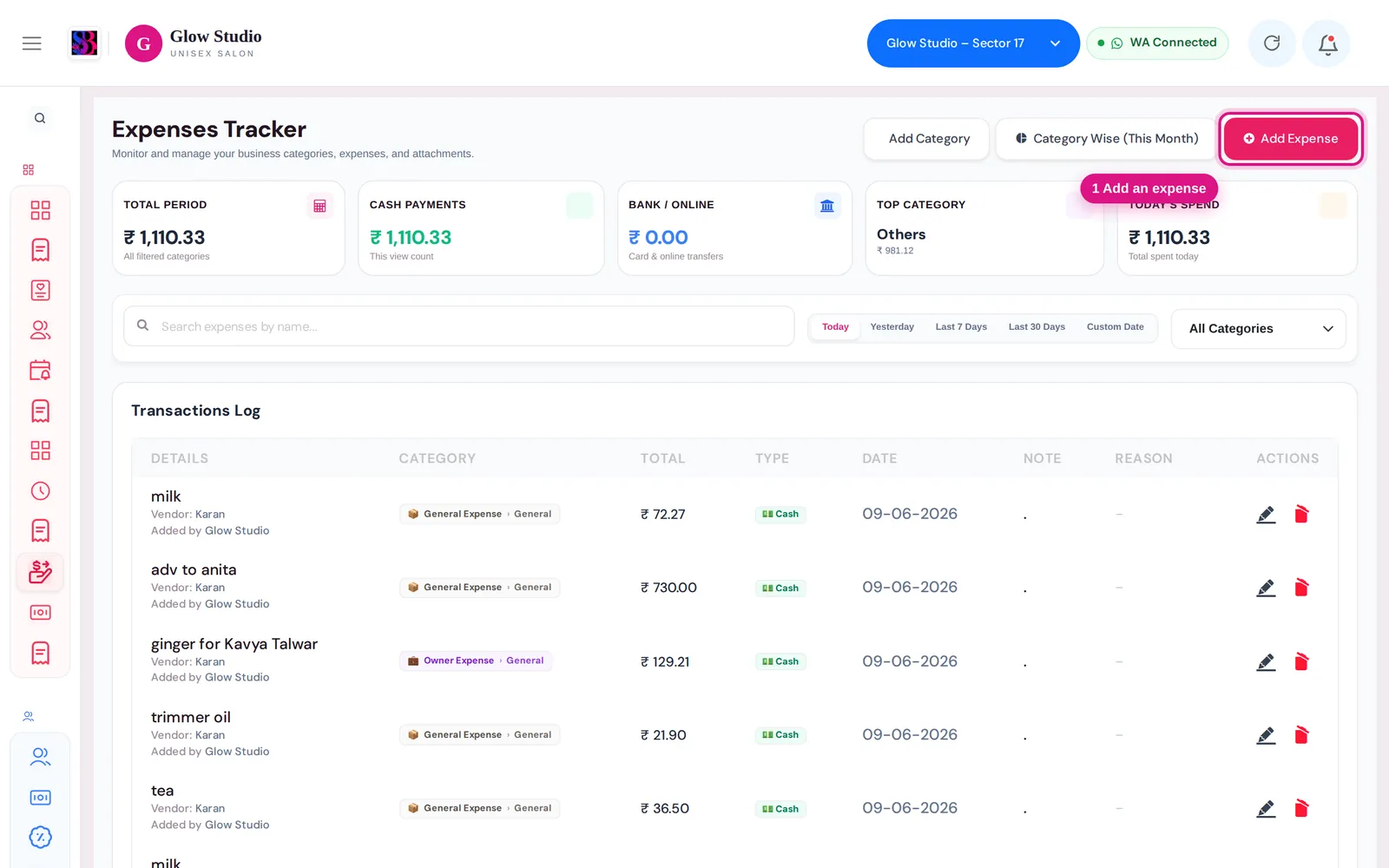
Main Menu → Expenses. At the top right are Add Category, Category Wise (This Month) and Add Expense.
How to use it
Add an expense
- Click Add Expense.
- Choose the Category, then the Sub-category (for example Pantry → Tea / Milk, or Salary → Advance). To add a missing category, click Add Category next to the field.
- If the expense is a staff payment (salary, advance, incentive, bonus, overtime, reimbursement and similar), choose the Employee.
- Enter Expense Amount (₹).
- Choose Payment Mode: Cash or Bank.
- Type a Description in your own words (optional).
- Set the Expense Date. It can be today or an earlier date, not a future date.
- Optionally upload the bill under Upload Bill (Optional) (PNG, JPG or PDF). Under More Details (Optional) you can add Vendor, Qty, Unit and Extra Notes.
- Click Save Expense.
Tip: in Recent Expenses on the right, click an earlier expense to copy its details into the form.
Find and review expenses
- Pick the period: Today, Yesterday, Last 7 Days, Last 30 Days or Custom Date.
- Filter by category and sub-category. For staff payment categories an Employee filter appears.
- Search by name in Search expenses by name....
- The log shows Expense Date, Category, Sub-Category, Description, Employee, Amount, Payment Mode and Created By.
Important rules and limits
- Category and amount are required. If the category has sub-categories, a sub-category is required too.
- Deleting needs a reason of at least 20 characters.
- The Owner/Admin and Co-owner edit and delete directly. Other users must give a reason and enter an OTP to confirm.
- Deleted expenses cannot be edited.
- Every change is recorded in the Audit Trail.
Common problems
"Please select a sub-category."?
The chosen category has sub-categories. Pick one, or add a new one with Add Category.
"Please select the employee for this payment."?
Salary-type expenses must be linked to a staff member. Choose them in Employee.
The Cash Drawer did not change after I added an expense?
Only Cash expenses dated today change today's expected cash. Check the payment mode and date.
I can't see the Expenses menu?
Your role needs View expense, and your plan must include Expenses.
Last updated