
Memberships, Packages & Coupons
Sell and manage advance packages
Build a custom package of services for one customer, take an advance or full payment, then freeze, share, edit or collect the balance later.
- Who can use it
- Staff who can make bills ("Create service-billings"); editing follows "Update service-billings
- Where to find it
- Make A Bill → Advance Package Sale; Memberships & Packages → All Advance & Service Packages
An advance package is a custom bundle of services made for one customer, such as a bridal or pre-wedding package. You choose the services and quantities, set one final price, and the customer can pay in advance and the rest later.
What this feature does
- You list the services at their menu price (or higher) with a quantity.
- You set the Final Package Price (We Charge). The difference from the full value shows as Package Discount.
- The customer can pay in full or part. What has been paid becomes package credit that can be used on bills.
Who can use it
- Selling: staff who can create bills (Create service-billings).
- Editing an existing package: Managers can only add services. Removing services needs the Remove advance package services permission, given to the Owner/Admin by default.
Where to find it
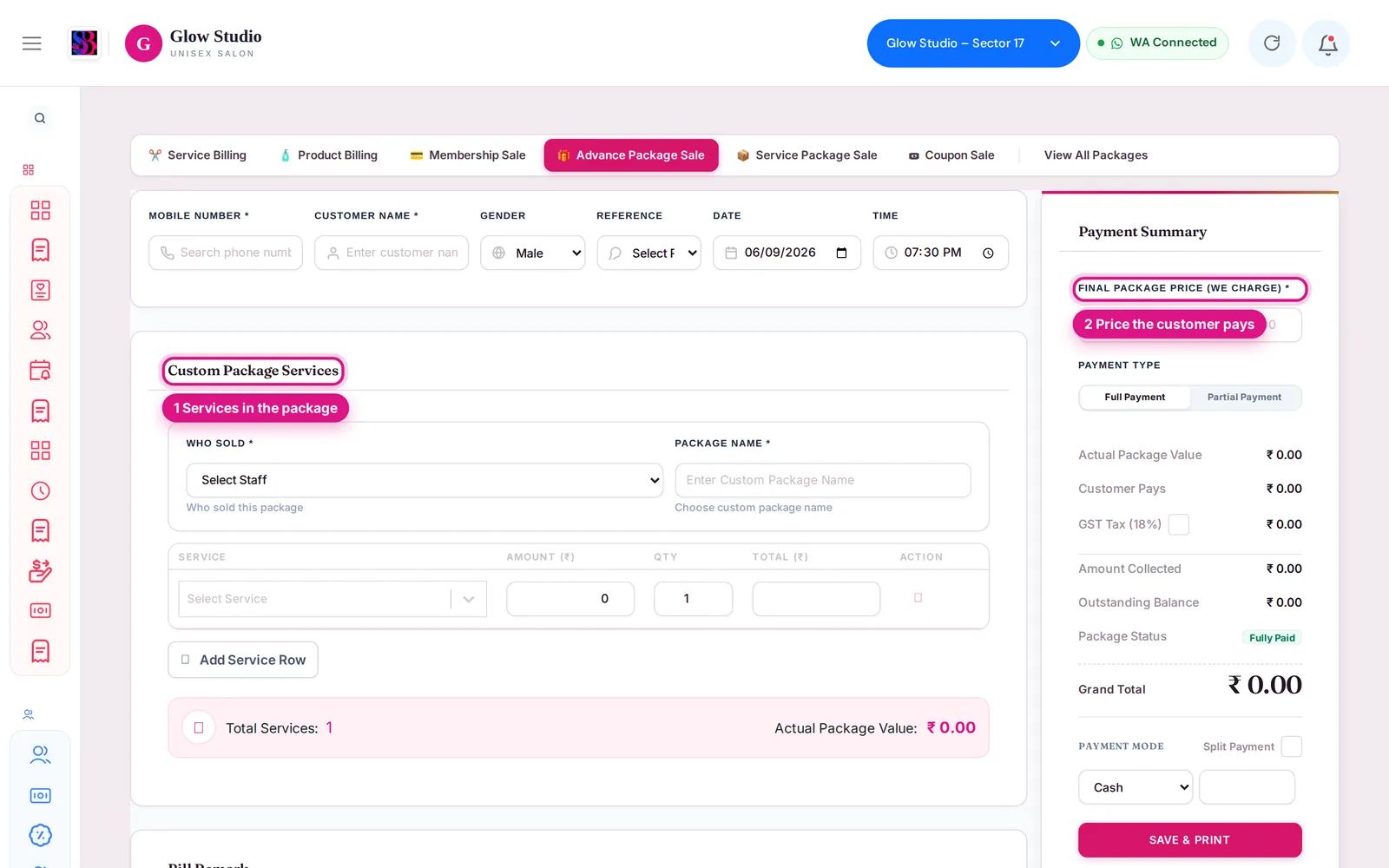
- Sell: Make A Bill → 🎁 Advance Package Sale.
- List: Memberships & Packages → All Advance & Service Packages, or View All Packages on the sale screen.
How to use it
Sell an advance package
- Open Make A Bill → 🎁 Advance Package Sale and select the customer.
- Choose Who Sold and type the Package Name.
- Click Add Service Row for each service. Pick the Service, check the Amount (₹) and set the Qty.
- In Payment Summary, enter the Final Package Price (We Charge).
- Choose Full Payment or Partial Payment. For partial, type the Amount Collected (Advance).
- Tick GST if it applies, choose the payment mode (turn on Split Payment for two modes).
- Check Actual Package Value, Customer Pays, Outstanding Balance and Package Status (Fully Paid, Partially Paid or Unpaid).
- Click Save & Print or Save Only.
Use the package on a bill
- Click 🔵 Redeem Package in the customer panel on Make A Bill, pick the package and its services, then Add To Cart.
- Or choose the payment mode Advanced Package to pay from the package credit.
Manage packages
In Advance Package Listing you see the totals Package Value, Collected, Outstanding and Available to Redeem, and you can Sort By Newest First or Oldest First. Each row has:
| Button | What it does |
|---|---|
| Edit package (pencil) | Add services (or remove, with permission) |
| Download invoice | Download the package invoice |
| Freeze package (snowflake) | Pause the package between two dates; a frozen package cannot be used on bills |
| Family package sharing | Let other customers use this package |
| Complete Package Payment | Collect the outstanding amount (shown only when something is pending) |
Important rules and limits
- A service's price in the package cannot be lower than its MRP: "Service price for '…' cannot be lower than the MRP".
- No discounts on advance or service packages. Set a lower final price instead.
- The payment can never be more than the final price or the grand total.
- Only money actually received can be used: "Available Package Credit is ₹… only. Please collect pending amount or reduce bill value."
- If a package is shared with family members, it can be used only by the owner and the listed members.
- Staff who perform package services earn incentive on each service's share of the final package price, and only on the money received.
Common problems
"Package … is currently frozen and cannot be used for billing"?
Open the listing, click the play icon (Unfreeze package), then bill again.
"This package belongs to another customer and is not shared with this customer"?
Add this customer through Family package sharing on the package row.
"SalonBill has been updated. Please refresh this page…"?
You were using an old screen. Refresh the page and edit the package again.
Last updated