
Memberships, Packages & Coupons
Create membership plans and sell a membership
Set up Amount Based or Service Based membership plans, then sell one from Make A Bill with full or part payment and the right staff credited.
- Who can use it
- Owner/Admin, Co-owner, or staff with "Create packages" (plans) and "Create memberships" (selling)
- Where to find it
- Memberships & Packages → All Packages; Make A Bill → Membership Sale
A membership lets a customer pay once and use the value over many visits. You first create the plan (for example "Pay ₹10,000, Get ₹12,000"), then sell it to customers from the billing screen.
What this feature does
- Amount Based plans put money in the customer's wallet. The customer pays the Customer Pay amount and gets the Customer Get value to spend on services.
- Service Based plans give a fixed set of services (sittings) instead of money. See Sell a service package.
Every sale is recorded against the staff member who sold it and shows in the customer's profile, the Dashboard and the reports.
Who can use it
| Action | Who |
|---|---|
| Create a plan, Export Membership | Staff with Create packages |
| Edit or delete a plan | Staff with Update packages / Delete packages |
| Sell a membership | Staff with Create memberships |
| Pick a backdated sale date | Staff with Allow Backdated Billing |
Where to find it
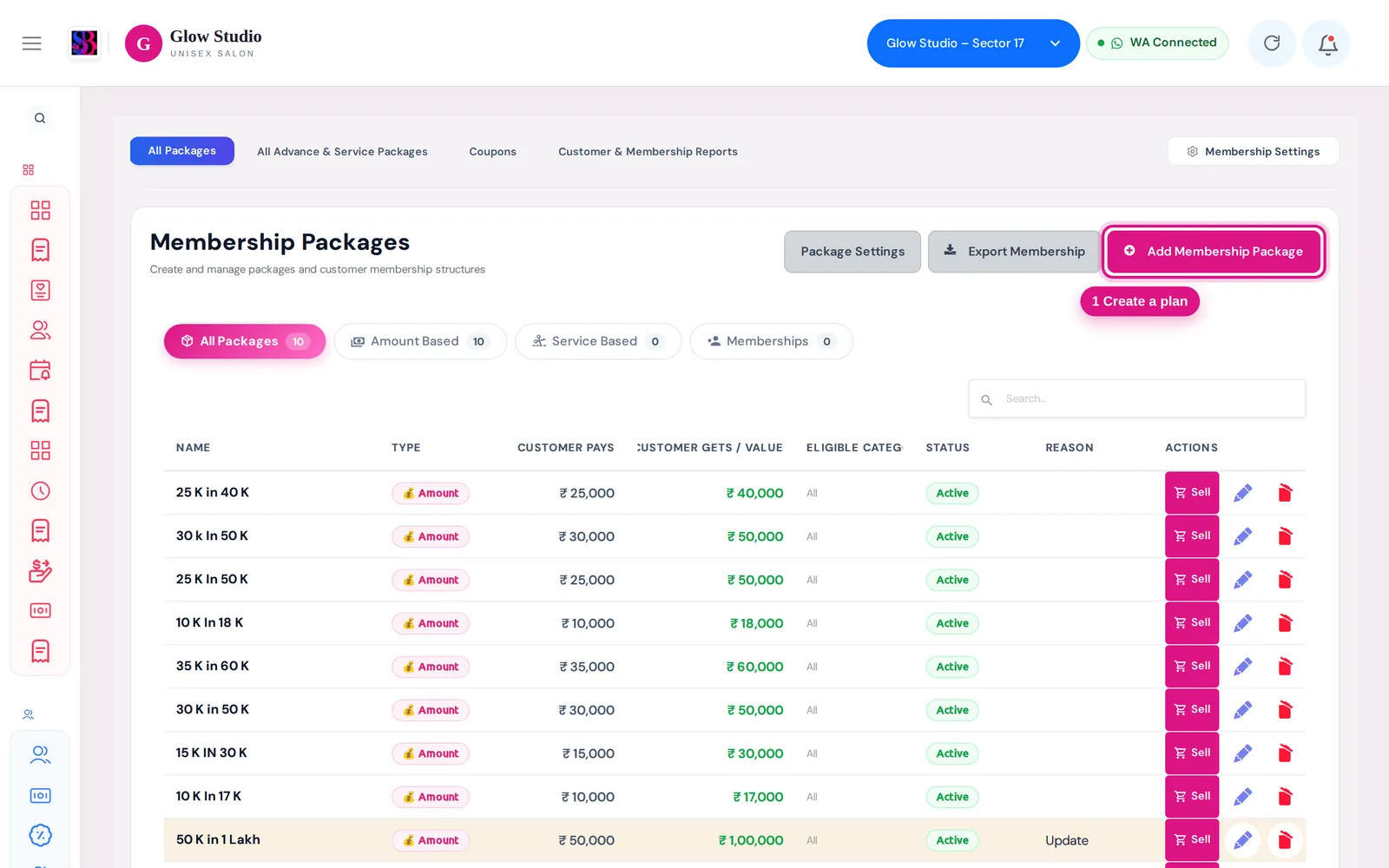
- Plans: Memberships & Packages → All Packages. Use the filter tabs All Packages, Amount Based, Service Based and Memberships.
- Selling: Make A Bill → 💳 Membership Sale, or click Sell on a plan row.
How to use it
Create a plan
- Click Add Membership Package.
- Choose the Package Type: Amount Based or Service Based.
- Enter the Name and the Customer Pay amount.
- For Amount Based, enter Customer Get (the wallet value, for example ₹12,000).
- Fill Service Reminder (after how many months) if you use it, tick Status to keep the plan active and click Submit.
When you edit a plan later you must type a Reason for modification.
Sell a membership
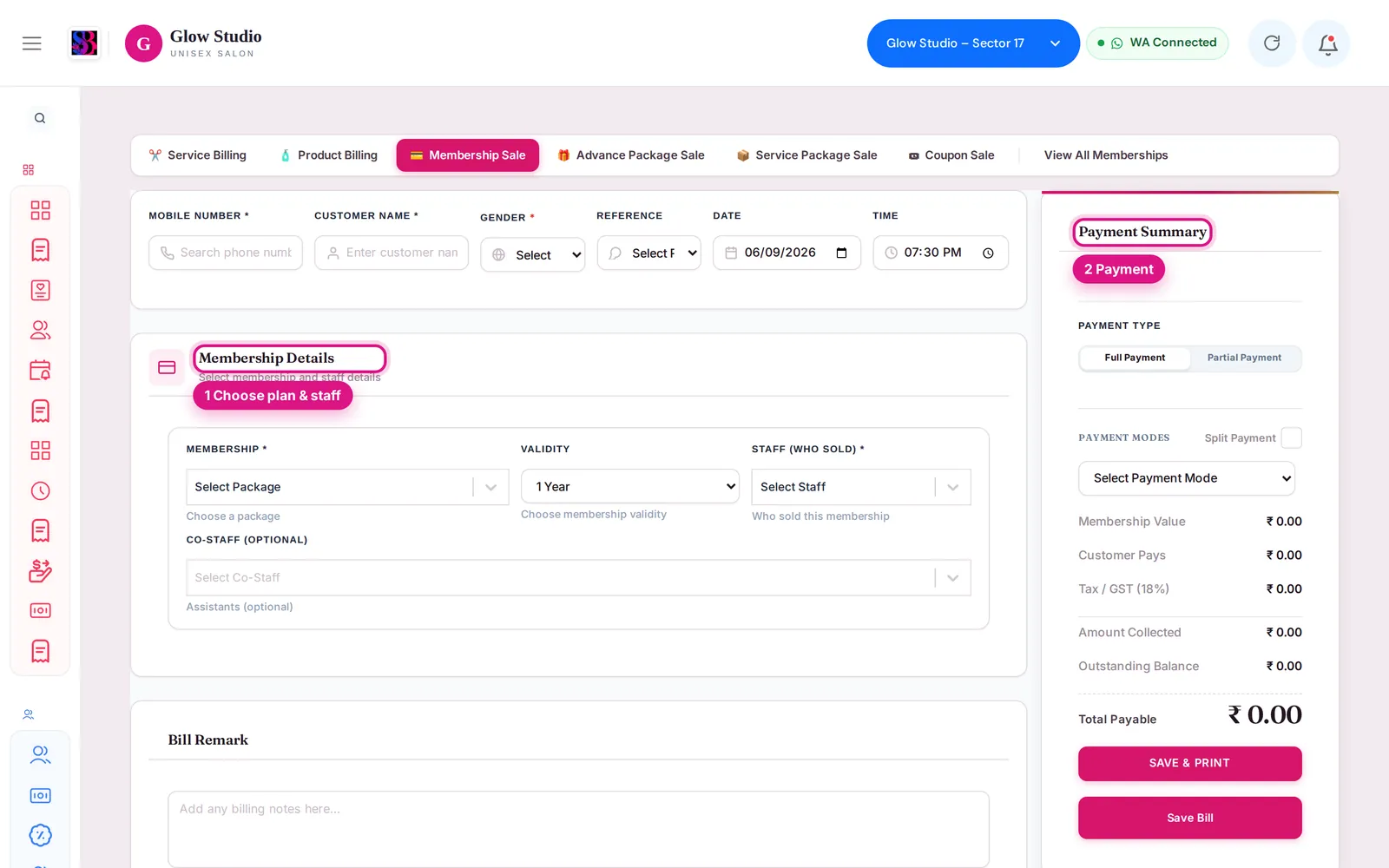
- Open Make A Bill → 💳 Membership Sale.
- Search the customer by mobile number. For a new customer, type the name and number and choose the Gender.
- In Membership Details, pick the Membership (you can search by name or price) and the Validity: One Month, Three Month, Six Month, 1 Year, 2 Year or Custom Date.
- Choose Staff (Who Sold). Add Co-Staff (Optional) if someone helped.
- If the customer already has a wallet balance, choose Carry Forward or Do Not Carry — Discard for that balance (see the rules below).
- In Payment Summary, choose Full Payment or Partial Payment. For partial, type the Amount Received Today.
- Pick the payment mode. Turn on Split Payment to take two modes, for example cash and UPI.
- Click Save & Print or Save Bill.
Important rules and limits
- A membership cannot be paid for with a package balance. You will see "Package balances cannot be used to purchase a Membership or Package."
- Amount Based memberships are used on services only, not on products.
- Partial payment leaves the rest as outstanding. Until it is paid, the customer can use only part of the wallet. Collect the balance from Pending Outstanding.
- Previous balance: when a customer with a wallet balance buys a new membership, staff must choose Carry Forward or Discard before saving. Discarding the balance needs Owner/Admin approval, unless the Owner has allowed Managers in ⚙ Carry-Forward Rules.
- Amount Based plans have no incentive setting of their own. The seller's membership incentive comes from their Incentive Profile (Membership Sales %) and is held until the membership is fully paid. Service Based plans have their own Incentive Type (None, Fixed Amount or Percentage).
Common problems
The Save button gives "Choose Carry Forward or Discard"?
The customer has a wallet balance. Pick one of the two cards in ♻️ Previous Balance / Carry Forward, then save again.
"Discarding the previous balance requires Admin/Owner approval"?
Your role cannot discard a balance. Choose Carry Forward, or ask the Owner/Admin to make the sale.
The plan is not in the Membership list?
Deleted plans are not offered for sale. Open All Packages, find the plan and check that it is not deleted and its Status is Active.
Last updated