
Connect your outlet's WhatsApp number
Link the outlet's WhatsApp by scanning a QR code, read the WhatsApp status pill, set the signature and map link, send a test message and reconnect.
- Who can use it
- Owner/Admin and Co-owner (everything); Managers with "Whatsapp Integration" (link or relink only)
- Where to find it
- Administration → Settings → WhatsApp Integration (Managers: Administration → WhatsApp Integration)
SalonBill sends invoices, job card updates, reminders and offers to customers from your outlet's own WhatsApp number. To do that, the outlet phone must be linked to SalonBill once, just like WhatsApp Web.
What this feature does
- Link WhatsApp Number pairs the outlet's WhatsApp with SalonBill by scanning a QR code.
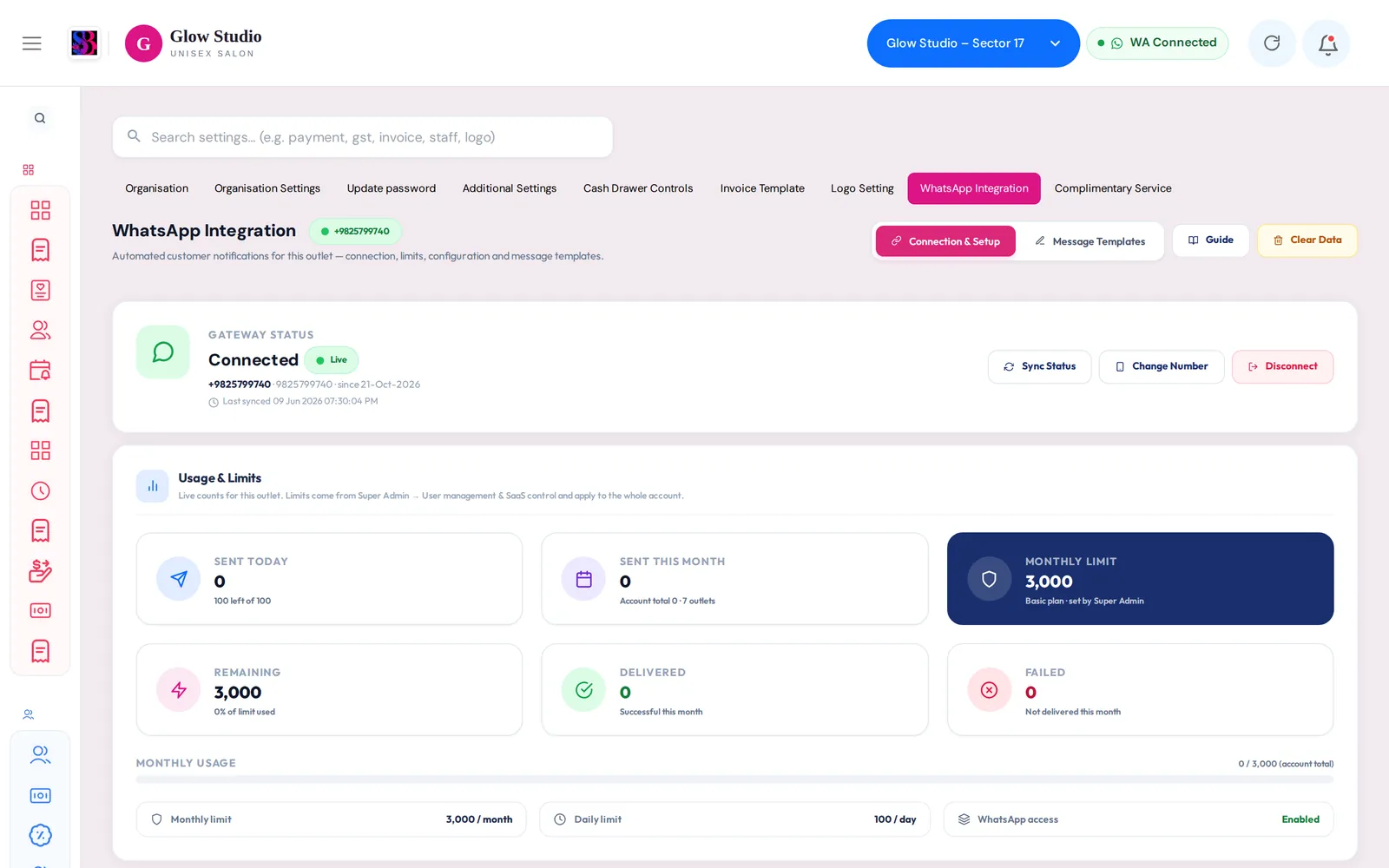
- The WhatsApp status pill in the top bar shows at any time whether the selected outlet is connected.
- Outlet Configuration sets the signature and map link added to every message, and can pause all messages.
- Send a Test Message checks that messages really go out.
Who can use it
| Action | Who |
|---|---|
| Link WhatsApp Number, Change Number, Sync Status | Owner/Admin, Co-owner, Managers with the Whatsapp Integration permission |
| Disconnect, Clear Data, Outlet Configuration (save) | Owner/Admin, Co-owner |
Where to find it
- Owner/Admin and Co-owner: Administration → Settings → WhatsApp Integration tab.
- Managers: Administration → WhatsApp Integration.
- Or click the red WA Disconnected pill in the top bar – it opens this screen if you are allowed to manage WhatsApp.
How to use it
Link the outlet's WhatsApp
- Select the outlet in the top bar.
- Open WhatsApp Integration and stay on Connection & Setup.
- Click Link WhatsApp Number.
- Type the outlet's WhatsApp number with country code (for example 919876500011) and click Generate QR Code.
- On the outlet phone open WhatsApp → Settings → Linked Devices → Link a Device.
- Scan the QR code on screen. If it expires, click Refresh QR code.
- The page updates by itself once the phone is paired. Gateway Status shows Connected and the pill turns green (WA Connected).
Check the connection
- The top bar pill shows WA Connected, WA Disconnected, WA Checking or WA Status (could not verify). It re-checks by itself every minute or so.
- On the WhatsApp Integration screen click Sync Status to check right now.
Set the signature and pause messages
- In Outlet Configuration, type the Signature Text (shown at the end of every message) and the Google Maps Link of your salon.
- Use the WhatsApp Notifications switch: ON sends all notifications normally, OFF pauses every outgoing message for this outlet.
- Click Save Configuration.
Send a test message
- In Send a Test Message, choose a Template (or Plain test message (no template)) and, for a template, the Language.
- Enter the Recipient (with country code).
- Click Send Test and read the result in the box below.
Change or remove the number
- Change Number links a different phone. SalonBill warns you that the current device will be disconnected first.
- Disconnect ends the WhatsApp session for this outlet.
- Clear Data disconnects and removes the registered number for this outlet completely.
Important rules and limits
- Each outlet has its own WhatsApp number, and one number can be linked to only one outlet.
- Keep the outlet phone switched on with internet. If WhatsApp is logged out on the phone, or the linked device is removed, the pill turns red and messages stop until you link again.
- Usage & Limits shows Sent Today, Sent This Month, Monthly Limit, Remaining, Delivered and Failed for this outlet. Limits come from your account plan; contact SalonBill support to change them.
- When a daily or monthly limit is reached, a yellow banner says so and sending resumes the next day or month.
- Test messages count towards your limits like any other message.
- Click Guide for the same steps inside the app.
Common problems
The QR code says "Failed to generate QR code"?
Click Retry. Check the number has the country code and no spaces. If it keeps failing, contact support.
The pill is amber ("WA Status")?
SalonBill could not reach WhatsApp just now. This is not a confirmed disconnect. Click the pill or Sync Status to check again.
Customers are not getting messages although the pill is green?
Check that WhatsApp Notifications is ON, that the message is switched on in WhatsApp Templates, and that you have not hit a limit. See WhatsApp messages not sending.
Last updated