
Offers, Spin & Win & Marketing
Send WhatsApp marketing campaigns
Send a WhatsApp broadcast to customer groups such as birthdays or inactive clients, pace it safely, and track, pause or retry the campaign.
- Who can use it
- Owner/Admin, Co-owner, or staff with "View marketing
- Where to find it
- Business Modules → Marketing
The Marketing page lets you send one message to many customers at once, such as a festive offer to all customers or a "we miss you" message to people who have not visited for 60 days. Messages go out one by one from your outlet's connected WhatsApp number, with a short random gap between them.
What this feature does
- Pick one or more audience tags and/or paste manual numbers. SalonBill merges them and removes duplicates.
- Use a saved campaign template or type your own message.
- Send now or schedule it, then watch progress and delivery.
Who can use it
Owner/Admin, Co-owner, and staff with the View marketing permission.
Where to find it
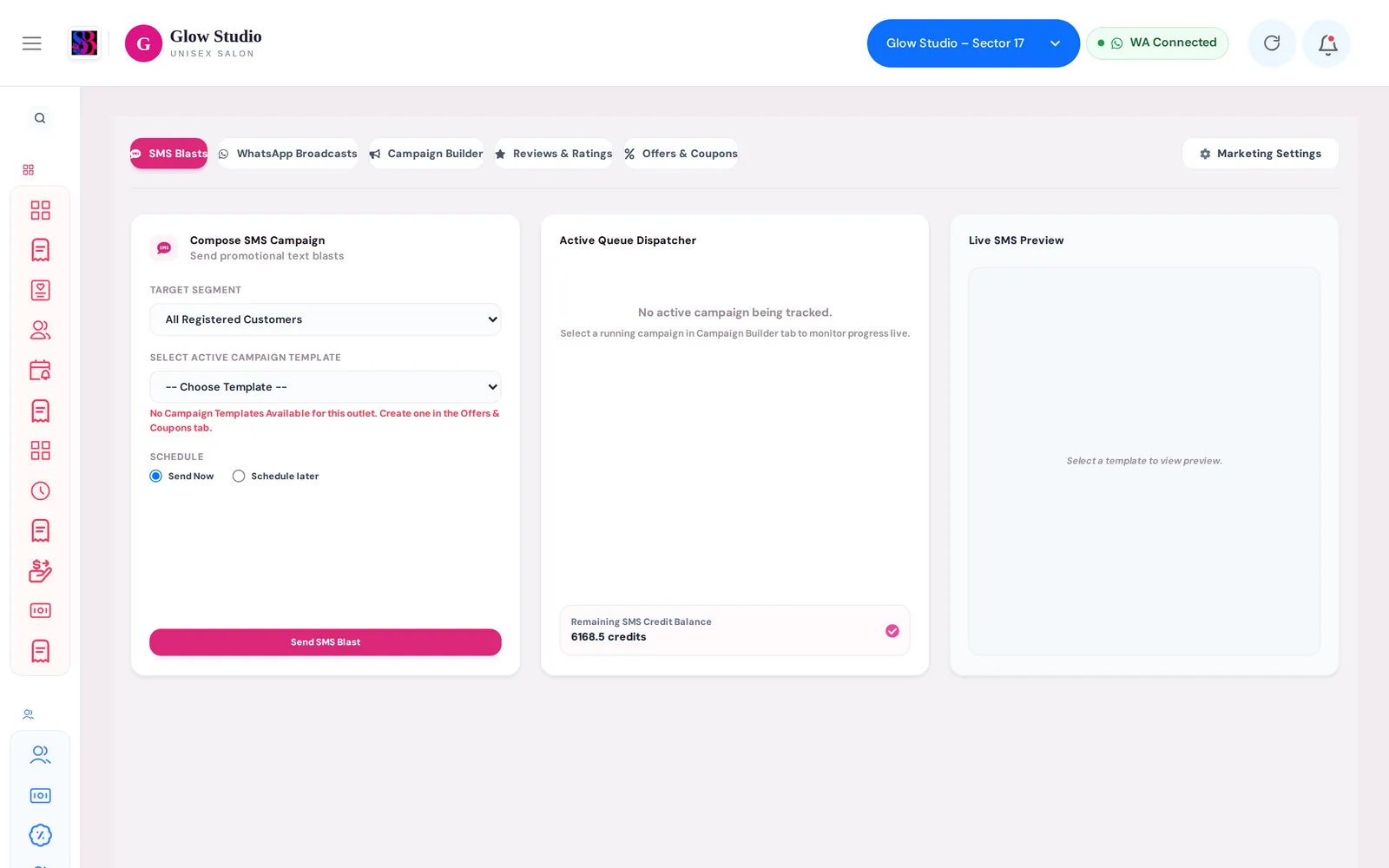
Marketing in the Business Modules menu. The tabs are SMS Blasts, WhatsApp Broadcasts, Campaign Builder, Reviews & Ratings and Offers & Coupons. Marketing Settings is at the top.
How to use it
1. Create a reusable template
- Open Offers & Coupons and click Create Campaign Template.
- Enter the Campaign Template Name, the Channel Type (WhatsApp Only) and the message. You can attach an image.
- Save. Templates appear in the Campaign Template Library, with Edit, Duplicate and Delete.
2. Send a WhatsApp broadcast
- Open WhatsApp Broadcasts.
- Choose Target Audience Tags — for example Female Only, New Customers, Inactive Customers, Membership Active, Membership Expired, Birthday This Week, Anniversary This Month, No Visit in Last 90 Days. Add Manual Numbers if needed (10-digit Indian numbers, separated by commas, spaces or new lines).
- Select Active Campaign Template.
- Choose Send Now or Schedule later.
- Click Preview & Send WhatsApp. The preview shows the merged list (valid, invalid skipped, unique).
- Click Confirm & Send, or Back to edit.
Or build a campaign from scratch
In Campaign Builder, fill Campaign Name, Objective (Retention, Conversion, Greeting), Channel (WhatsApp), the audience, and the Message Template Text Body — you can use {name}, {points} and {coupon}. Optionally add a schedule date, then Preview Campaign List and confirm.
3. Track and control it
Campaigns List & History shows each campaign's channel, audience, status and deliveries. Use Pause, Resume, Abort, Edit Campaign or Delete. Open a campaign to see its logs, retry failed messages or export a report.
Important rules and limits
- WhatsApp must be connected for the outlet. Messages are sent from that number.
- Marketing Settings controls the Daily WhatsApp Limit (default 5,000), the Min/Max Random Delay (sec) between messages (default 3–8 seconds) and Blacklist / DND Numbers, which are never messaged.
- When the daily limit is reached, the campaign pauses. Resume it the next day.
- Expired templates cannot be launched.
- A template can create a unique coupon code for each customer; that code then works in Promo Coupon at billing.
Common problems
Messages show "Failed"?
Check that WhatsApp is connected in Settings → WhatsApp Integration. Use retry failed on the campaign once it is fixed.
The campaign stopped half-way?
The daily limit was probably reached and the campaign paused. Click Resume later, or raise the limit in Marketing Settings.
"No Campaign Templates Available for this outlet"?
Create one first in the Offers & Coupons tab.
Last updated