
User roles explained – Owner, Co-owner, Manager and more
What the Owner/Admin, Co-owner, Manager, Accountant and Employee roles can do in SalonBill, and how permissions fine-tune Manager and Accountant access.
- Who can use it
- Owner/Admin and Co-owner manage roles and permissions; everyone can read this
- Where to find it
- Team Management → Staff (role); Team Management → Permissions (permissions)
Every person in SalonBill has a role. The role decides the basic level of access, and for Managers and Accountants the Permissions page fine-tunes exactly what they may do in each outlet.
What this feature does
You choose the role when you add a staff member. SalonBill then shows that person only the menus and buttons their role allows, and the server refuses any action they are not allowed to do (the message is usually "You are not authorized").
Who can use it
- The Owner/Admin and Co-owner choose roles in Team Management → Staff and set permissions in Team Management → Permissions.
- Everyone else simply works with the access they have been given.
The five roles at a glance
| Role | Signs in to the web app? | In short |
|---|---|---|
| Owner/Admin | Yes | The salon owner. Full access to everything in their outlets. |
| Co-owner | Yes | A partner with almost the same access as the owner, in the outlets chosen for them. |
| Manager | Yes | Runs the floor: billing, job cards, customers, staff – as far as the Permissions page allows. |
| Accountant | Yes | Works with bills, payments and reports – as far as the Permissions page allows. |
| Employee | No – mobile app only | Stylists and therapists. Picked on bills, punches attendance and sees their own performance in the SalonBill mobile app. |
What each role can do
Owner/Admin
- Every permission, always. The Owner/Admin column on the Permissions page cannot be changed.
- Full Settings, Invoice Template, Reports, WhatsApp Templates (edit) and Feedback.
- Subscription: the plan belongs to the owner. Other staff can open it only if they are given the Manage subscription permission.
- Only the Owner/Admin can restore or permanently delete staff, and use Switch To Account to see what a Manager or Accountant sees.
- Not limited by the outlet's discount limit.
Co-owner
- Works in the outlets you tick for them when adding them.
- Full Settings, Invoice Template, Reports, Permissions and WhatsApp management, like the owner.
- Not limited by the outlet's discount limit.
- Does not see Feedback, and opens Subscription only with the Manage subscription permission.
Manager
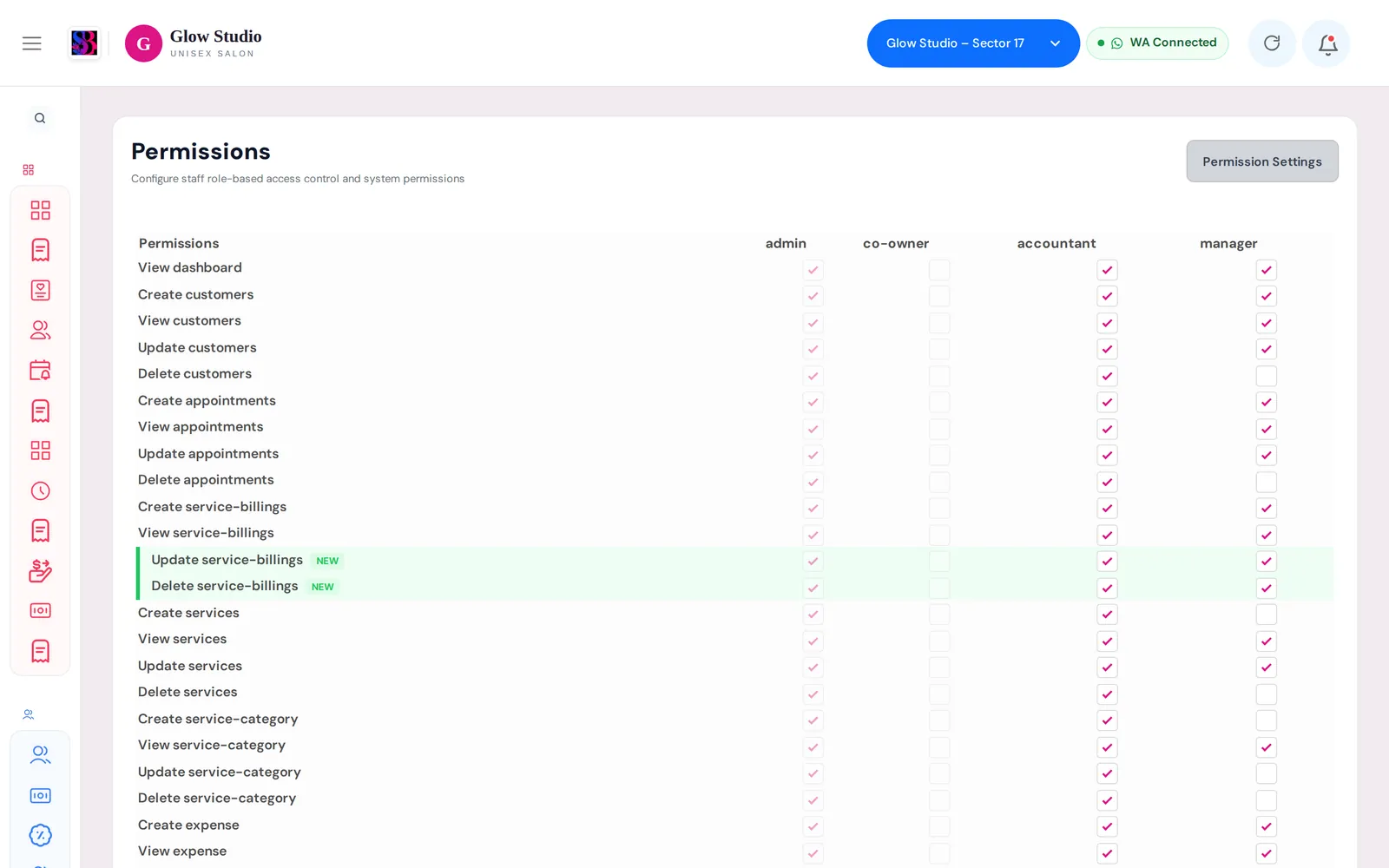
- Access comes from the manager column of the Permissions page for that outlet (billing, customers, staff, appointments, outstanding and so on).
- Sees WhatsApp Integration instead of full Settings. With the Whatsapp Integration permission a Manager can link or relink the outlet's WhatsApp, but cannot disconnect it or clear its data.
- WhatsApp Templates are view only.
- Current Offers: can view offers and send them to customers; only the Owner/Admin and Co-owner change offers.
- Services catalogue: can view, search and export services, but cannot add, edit, deactivate or delete services, categories or combos.
- Discounts are limited by the outlet's discount limit. See Discounts and limits.
- Does not see Reports, Invoice Template or the notification bell.
Accountant
- Access comes from the accountant column of the Permissions page.
- Works in the outlets you tick for them when adding them.
- Sees settings only when given the Whatsapp Integration permission (then only the WhatsApp screen).
- Does not see the notification bell.
Employee
- Cannot sign in to the web app – they see "Employees are not allowed to login."
- Uses the SalonBill mobile app for attendance and their own performance, and gets the daily WhatsApp report.
- Is not in the Permissions matrix.
How to use it
- Go to Team Management → Staff and click Add Staff (or edit a person).
- Pick the Role: Co Owner, Accountant, Manager or Employee.
- For Co Owner and Accountant, choose their outlets.
- Turn on Give Login Access if the person should sign in.
- Open Team Management → Permissions and adjust the manager and accountant columns for this outlet. See Set staff permissions by role.
Important rules and limits
- Permissions are set per role and per outlet, not per person.
- On the Basic plan you can add only the Employee role, and Co-owner, Manager and Accountant logins are locked.
- A person must have Active Status and Give Login Access on to sign in.
Common problems
A Manager says a button is missing?
Check the manager column on the Permissions page for that outlet, then ask them to press Refresh. Some actions (for example changing services or offers) are never available to Managers.
I want one Manager to have more access than another?
Permissions apply to the whole role in that outlet. Give the person a different role, or keep the stricter setting for both.
Last updated