
Offers, Spin & Win & Marketing
Send a customer their Spin & Win link
Send a personal Spin & Win link on WhatsApp from the Spin & Win panel, a customer profile or a Job Card, and check whether it was delivered.
- Who can use it
- Owner/Admin, Co-owner, or staff with "Send Spin & Win on WhatsApp" (send) or "Spin & Win Link & QR" (copy link)
- Where to find it
- Current Offers → Spin & Win → Link & QR → Send Link; Customer Profile; Job Cards
Instead of a QR code at the counter, you can send a customer their own Spin & Win link on WhatsApp. When they open it, the page greets them by name ("Hi Aarav") and they spin straight away — nothing to type.
What this feature does
- The link is personal: it is tied to that customer at your outlet. It does not contain the phone number or any customer id.
- One link starts one spin round. Opening it again, or forwarding it, only shows that round's result.
- The link stays valid for 15 days and is reused until it has been used.
- The message is sent from your outlet's WhatsApp number using the Spin & Win invite template.
Who can use it
- Send via WhatsApp: Owner/Admin, Co-owner, or staff with Send Spin & Win on WhatsApp.
- Copy personal link: staff with Spin & Win Link & QR or Send Spin & Win on WhatsApp.
Managers, Accountants and Employees have both by default.
Where to find it
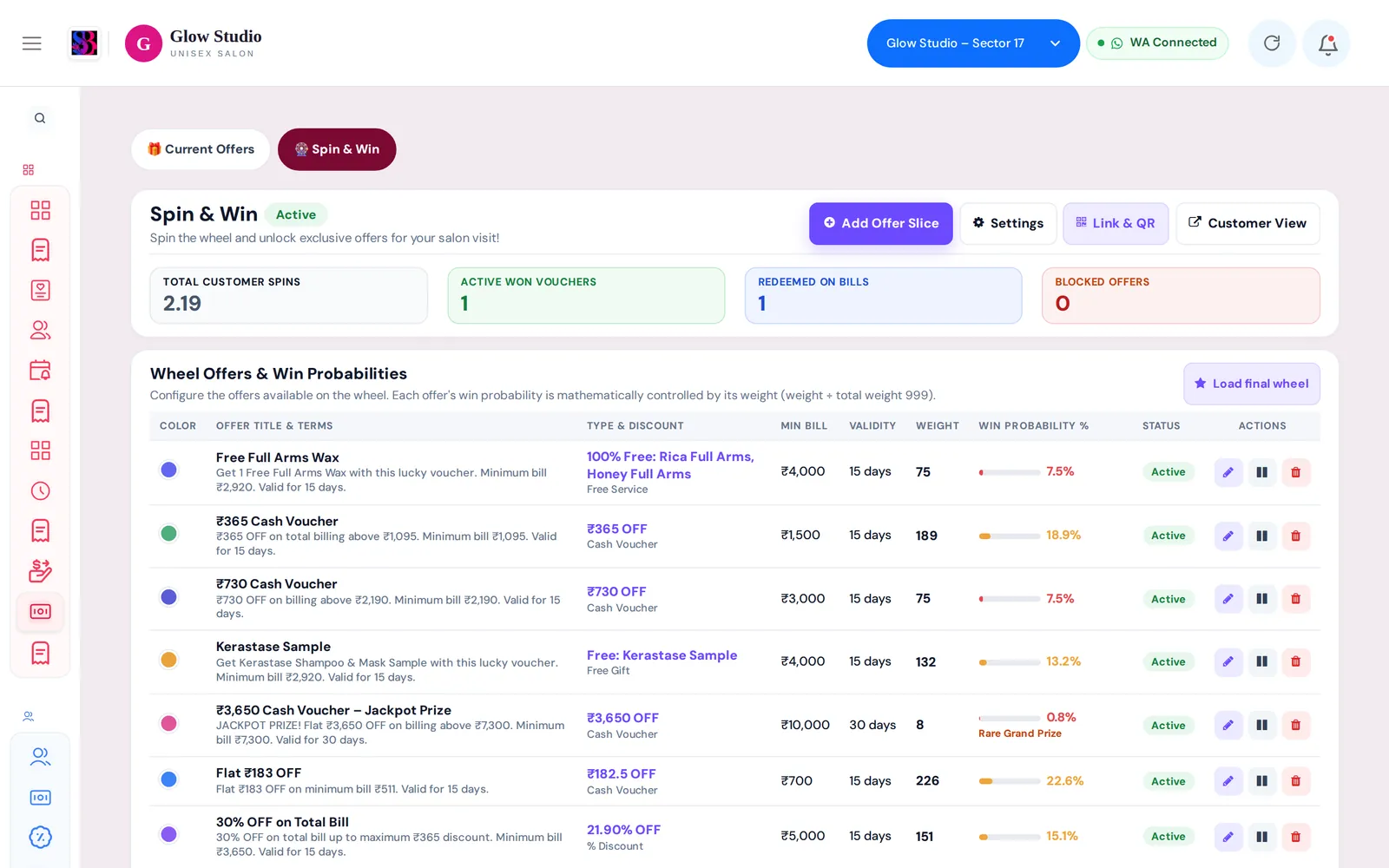
- Current Offers → 🎡 Spin & Win → Link & QR → Send Link
- Customer Profile: the 🎡 Send Spin & Win button on the Spin & Win card
- Job Cards: the 🎡 button on a job card row, or Send Spin & Win in its ⋮ menu (not for walk-ins)
How to use it
From the Spin & Win panel
- Click Link & QR and go to Send Link.
- Type the customer's name or at least 3 digits of the mobile number. Recent customers show when you click in the box.
- Pick the customer. A chip shows "Name · +91 XXXXX XXXXX · Status".
- Click Send via WhatsApp and confirm. Or click Copy personal link to share it yourself.
If you type a 10-digit number that is not a customer, you see Customer not registered; you can still send a link to that number.
From a customer profile or Job Card
- Click 🎡 Send Spin & Win.
- Confirm "Send Spin & Win link to (name) on WhatsApp?".
- A message tells you when WhatsApp has delivered it.
Each send is recorded in the Audit Trail, the Activity Feed and the customer's timeline as 🎡 Spin & Win Link Sent (WhatsApp).
Who can spin
Each customer row shows a status:
| Status | Meaning |
|---|---|
| Can Spin | A link can be sent |
| Active Voucher / Already Claimed | They already hold a reward — no new spin until it is used or expires |
| Spun · Not Kept Yet | They spun but have not decided yet |
| Spin Blocked | The Owner/Admin blocked spins for this customer |
When a customer cannot spin, the send and copy buttons are disabled and the reason is shown.
Important rules and limits
- Spin & Win must be switched on and the wheel must have at least one live offer.
- Only customers of the selected outlet appear in the search.
- After a send, the same number cannot be sent another link for one minute.
Common problems
"Spin & Win is switched off for this outlet"?
The Owner/Admin must turn it on in Spin & Win → Settings.
"There are no live offers on the wheel yet"?
Add at least one active slice. See Set up the Spin & Win wheel.
"… has no valid WhatsApp number saved"?
Update the mobile number on the customer profile.
"You do not have permission to send Spin & Win links on WhatsApp"?
Ask the Owner/Admin to tick Send Spin & Win on WhatsApp for you in Team Management → Permissions.
The customer says the link shows an old result?
Each link is good for one round. Once their reward is redeemed or expired, send a new link.
Last updated