
Sell retail products with Product Billing
Bill retail products like shampoo or serum to a customer, choose who sold each item, take one or more payment modes and edit or delete product bills.
- Who can use it
- Staff with "View product-billing" (screen), "Create product-billing" (save), "Update product-billing" (edit), "Delete product-billing" (delete)
- Where to find it
- Main Menu → Product Billing (or Make A Bill → Product Billing tab)
Product Billing is a separate bill for retail items you sell over the counter, such as hair care or skin care products.
What this feature does
A product bill records the customer, each product, the staff member who sold it, the quantity and the payment. It is kept apart from service bills, so product sales do not mix with service revenue.
Who can use it
- The menu item needs View product-billing. Product Billing is part of the plans with Pro features.
- Saving needs Create product-billing.
- Editing needs Update product-billing. Managers can change only the payment details.
- Deleting needs Delete product-billing. Managers cannot delete product bills.
Where to find it
Main Menu → Product Billing, or the Product Billing tab on Make A Bill. Products themselves are added in the catalogue — see Services and products.
How to use it
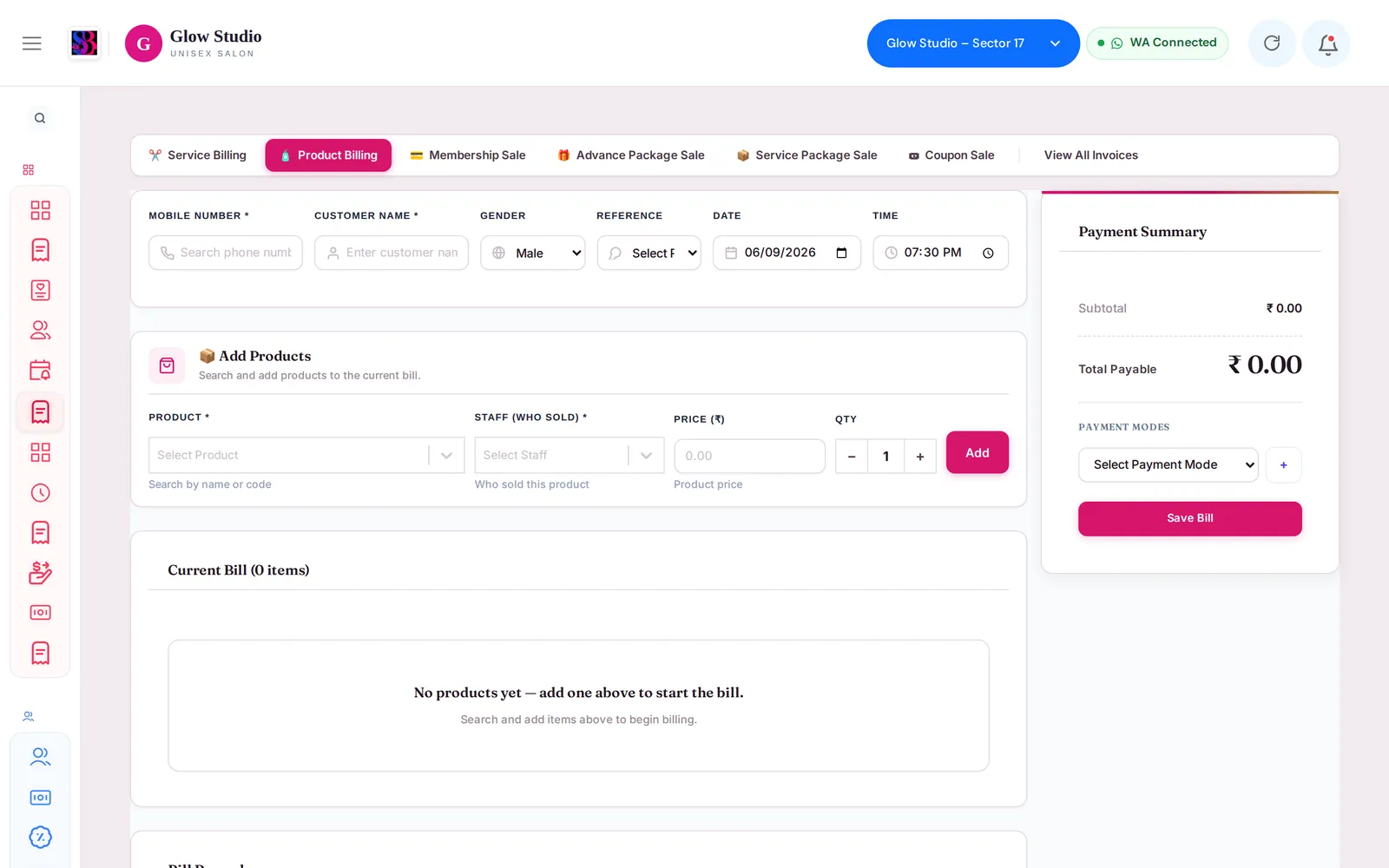
- Enter the customer's Mobile Number (10 digits) and name. Gender and Reference are optional.
- Under the product card, choose the Product (search by name or code).
- Choose Staff (Who Sold), check Price (₹) and Qty, then add it.
- Repeat for each product. The table shows Product, Staff, Qty, Price and Total.
- Add a note in Bill Remark if needed.
- In Payment Summary, choose a mode in Payment Modes. Click + to add a second mode and split the amount; - removes a row.
- Click Save Bill.
Important rules and limits
- At least one product is required, and every product needs a staff member.
- The payment rows must add up exactly to the subtotal: "Total payment (₹…) must exactly equal the subtotal (₹…)."
- Payment modes are your outlet's methods plus Wallet. Package and Advanced Package cannot pay for products.
- Prepaid Coupons cannot be redeemed on product bills.
- Changing the date needs Allow Backdated Billing. With the outlet's manual numbering setting on, you can also type an Invoice Number (Optional).
- Editing a product bill asks for a reason for the change.
Edit or delete a product bill
On the Home Dashboard feed, open the bill's ⋮ menu and choose Edit Bill. To delete, open View All Invoices on the Product Billing tab (product list) and use the delete action. You must give a reason of at least 20 characters.
Common problems
Product Billing is not in my menu?
Your plan does not include Pro features, or your role does not have View product-billing. Ask the Owner/Admin.
A Manager cannot change the product or price on a saved bill?
That is by design. Managers can only correct payment details. Ask the Owner/Admin.
Last updated