
Settings overview and settings search
A tour of the Settings page tabs – organisation, invoice, logo, WhatsApp, complimentary service – and how to find any setting with search.
- Who can use it
- Owner/Admin and Co-owner (full Settings); Managers and staff with "Whatsapp Integration" see only the WhatsApp Integration screen
- Where to find it
- Administration → Settings
Settings is where the salon owner sets up each outlet: its details and tax, the login password, the invoice, the logo, WhatsApp and complimentary service approvals.
What this feature does
The Settings page is split into tabs. A search box at the top finds any setting by name and opens the right tab for you. Settings apply to the outlet selected in the top bar.
Who can use it
| Role | What they see |
|---|---|
| Owner/Admin, Co-owner | The full Settings page with every tab |
| Manager, or staff with the Whatsapp Integration permission | Only the WhatsApp Integration screen. In the menu it is called WhatsApp Integration instead of Settings. |
| Others | No access – they are sent back to the Dashboard |
Where to find it
Open Administration → Settings in the left menu. Check the outlet in the top bar before you change anything.
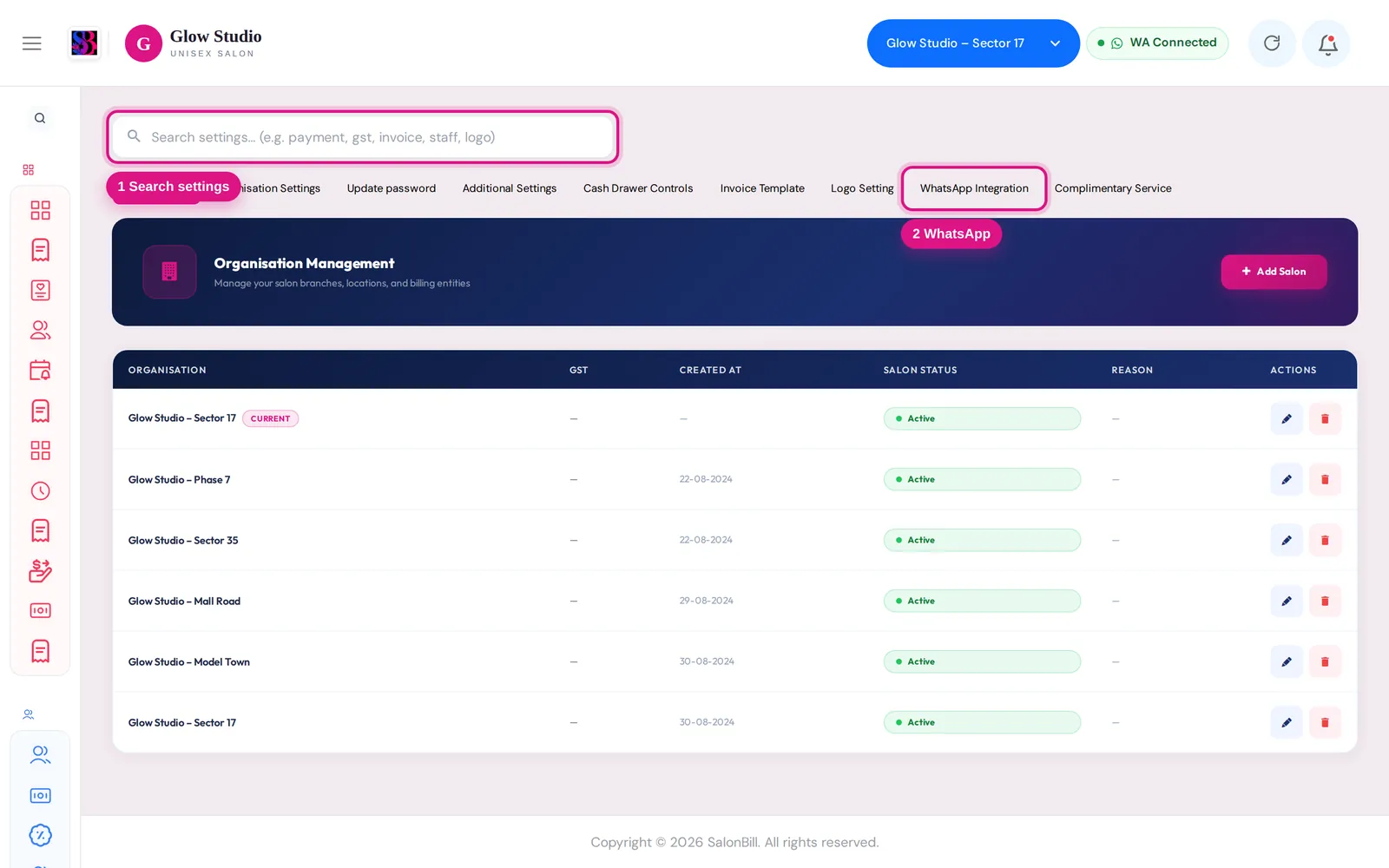
The Settings tabs
| Tab | What you set there |
|---|---|
| Organisation | Your outlets (branches): name, address, legal name, GST number, city, phone and Salon Status. Add Salon creates a new branch. |
| Organisation Settings | Detailed outlet configuration in sections such as Tax Settings (GST on/off, rate, inclusive or exclusive, CGST/SGST split) and Organisation Info. Click Save Organisation Configurations when done. |
| Update password | Change your own login password (old password, new password, confirm). |
| Additional Settings | Extra options; shown on plans that include them. |
| Cash Drawer Controls | How the cash drawer works for this outlet; shown on plans that include it. See Cash Drawer. |
| Invoice Template | What customers see on their invoice. See Invoice template. |
| Logo Setting | Upload or remove the salon logo used in the app and on invoices. |
| WhatsApp Integration | Link the outlet's WhatsApp number, usage and limits, test messages, message templates. See Connect WhatsApp. |
| Complimentary Service | Who receives the OTP to approve a free (complimentary) bill in this outlet. See Complimentary bills. |
How to use it
Find a setting with search
- Click the box Search settings… (e.g. payment, gst, invoice, staff, logo).
- Type a word – for example gst, logo, password or whatsapp. Partial words work too.
- Pick a result from the list (use the arrow keys and Enter, or click).
- SalonBill opens that tab, and for Organisation Settings it jumps straight to the right section.
If nothing matches you see "No matching setting — try "payment", "gst", "invoice", "staff"…". The search looks only at settings – never at customers, bills or services.
Change a setting
- Select the outlet in the top bar.
- Open Administration → Settings and the tab you need.
- Make the change and click the tab's save button (for example Save Organisation Configurations, Save Settings or Save Configuration).
- Wait for the green confirmation message.
Edit an outlet's details
- Open the Organisation tab.
- Click the Edit organisation button on the outlet row, change the details and type a Reason for Modification (required).
- Click Save Changes.
Important rules and limits
- Most settings are per outlet. If you run several branches, select each outlet in turn and repeat the change.
- Changing an outlet's details always asks for a reason.
- You cannot make your only active outlet inactive.
- Adding a further branch with Add Salon needs a one-time activation before the branch can be used.
- SalonBill opens the tab you used last when you come back to Settings.
Common problems
I only see "WhatsApp Integration", not the other tabs?
You are signed in as a Manager or a staff member with WhatsApp permission. Only the Owner/Admin and Co-owner see the full Settings page.
My GST change does not show on bills?
Check that you saved in the right outlet, then press Refresh in the top bar. See GST on bills.
I can't find a setting?
Type a short word in the settings search, such as tax, pay, logo or otp.
Last updated