
Customise your invoice template
Choose what customers see on their invoice – GST, discount, loyalty, payment mode, logo, address – and set the footer text and brand colour.
- Who can use it
- Owner/Admin, Co-owner
- Where to find it
- Main Menu → Invoice Template (also Administration → Settings → Invoice Template)
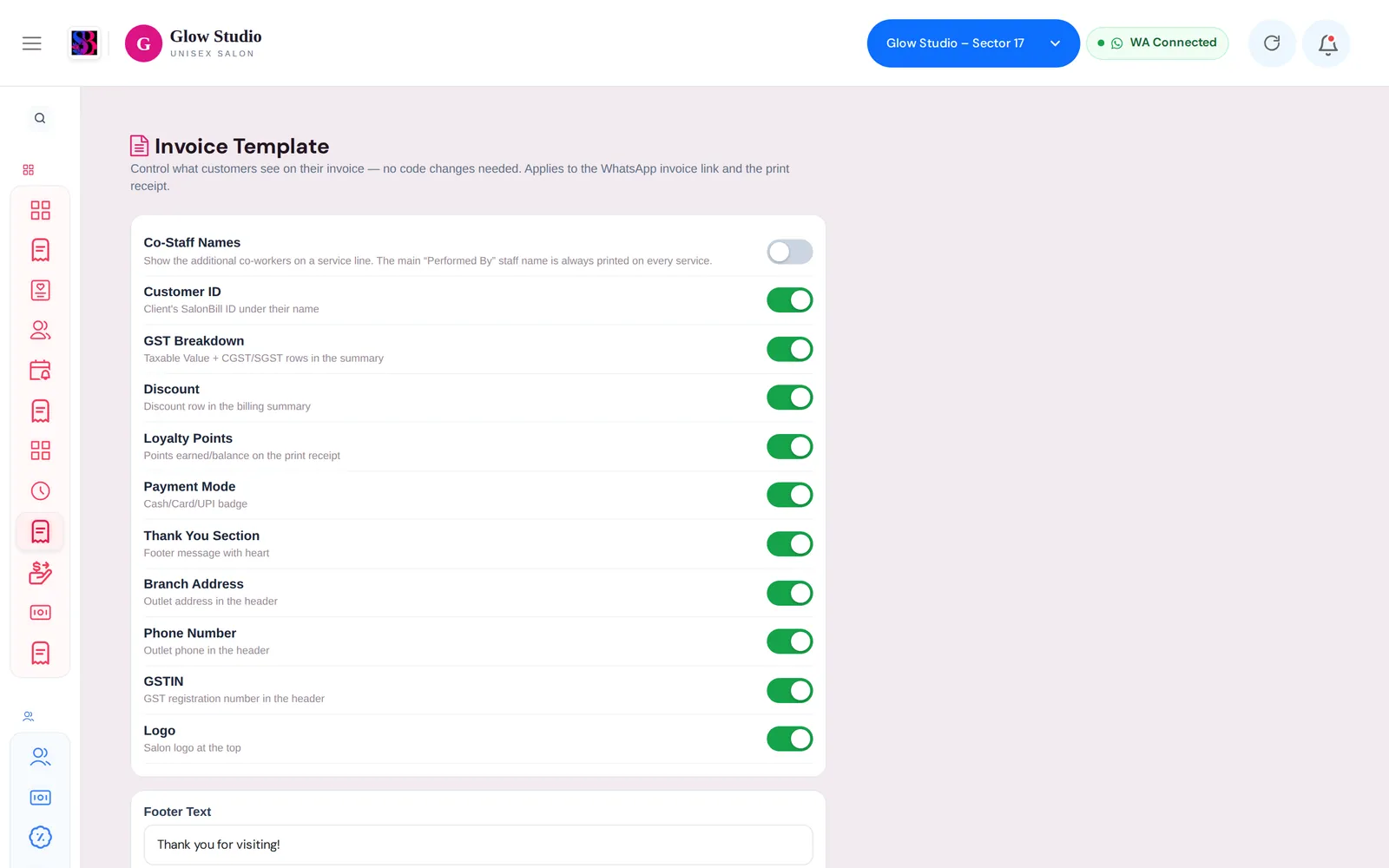
The Invoice Template page controls what your customers see on their invoice – both the invoice link they get on WhatsApp and the printed receipt. You switch parts on or off; no design work is needed.
What this feature does
- Show or hide sections of the invoice with simple ON/OFF switches.
- Set a Footer Text, a Brand Color and, if you want, a different logo for invoices.
- Changes apply to the selected outlet straight away – the next invoice opened or printed uses them.
Who can use it
The Owner/Admin and Co-owner.
Where to find it
- Main Menu → Invoice Template, or
- Administration → Settings → Invoice Template tab.
Select the outlet in the top bar first – each outlet has its own invoice settings.
How to use it
- Select the outlet in the top bar and open Invoice Template.
- Click a switch to turn a part ON (green, shown) or OFF (grey, hidden). See the table below.
- Type your Footer Text, for example "Thank you for visiting Glow Studio!".
- Pick a Brand Color with the colour box.
- Optionally paste a Custom Logo URL. Leave it empty to use the outlet logo.
- Click Save Settings. You see "Invoice settings saved. Customer invoices will use them immediately."
Click Reset to throw away unsaved changes and reload the saved settings.
What each switch does
| Switch | When ON, the invoice shows | Default |
|---|---|---|
| Co-Staff Names | Additional co-workers on a service line | OFF |
| Customer ID | The client's SalonBill ID under their name | ON |
| GST Breakdown | Taxable Value and CGST/SGST rows in the summary | ON |
| Discount | The discount row in the billing summary | ON |
| Loyalty Points | Points earned and balance on the print receipt | ON |
| Payment Mode | The Cash / Card / UPI badge | ON |
| Thank You Section | The footer message | ON |
| Branch Address | The outlet address in the header | ON |
| Phone Number | The outlet phone in the header | ON |
| GSTIN | Your GST registration number in the header | ON |
| Logo | The salon logo at the top | ON |
Important rules and limits
- The main Performed By staff name is always printed on every service line. Co-Staff Names only controls the extra co-workers.
- Footer Text can be up to 200 characters.
- Custom Logo URL must be a full web address to an image, for example
https://…/logo.png; anything else is not saved. To change the normal salon logo, use Settings → Logo Setting instead. - Settings are per outlet. Repeat them in each branch if you want the same look everywhere.
- Hiding the GST rows only changes what is printed. Whether GST is charged is set in Settings → Organisation Settings → Tax Settings. See GST on bills.
- The text of the WhatsApp message that carries the invoice link is set in WhatsApp Templates (template Invoice).
Common problems
I changed a switch but the invoice looks the same?
Make sure you clicked Save Settings in the same outlet as the bill. Then reopen the invoice link or print again.
My logo is missing on the invoice?
Check that the Logo switch is ON and that a logo is uploaded in Settings → Logo Setting. If you use a Custom Logo URL, make sure the link opens the image in a browser.
I don't see Invoice Template in the menu?
Only the Owner/Admin and Co-owner have it. Ask the salon owner.
Last updated