
Set up and pay staff incentives
Use incentive profiles, daily service slabs and package rates to calculate staff incentives automatically, then review, export and pay them.
- Who can use it
- Owner/Admin and Co-owner (settings and payouts); Managers can view
- Where to find it
- Team Management → Staff Incentives
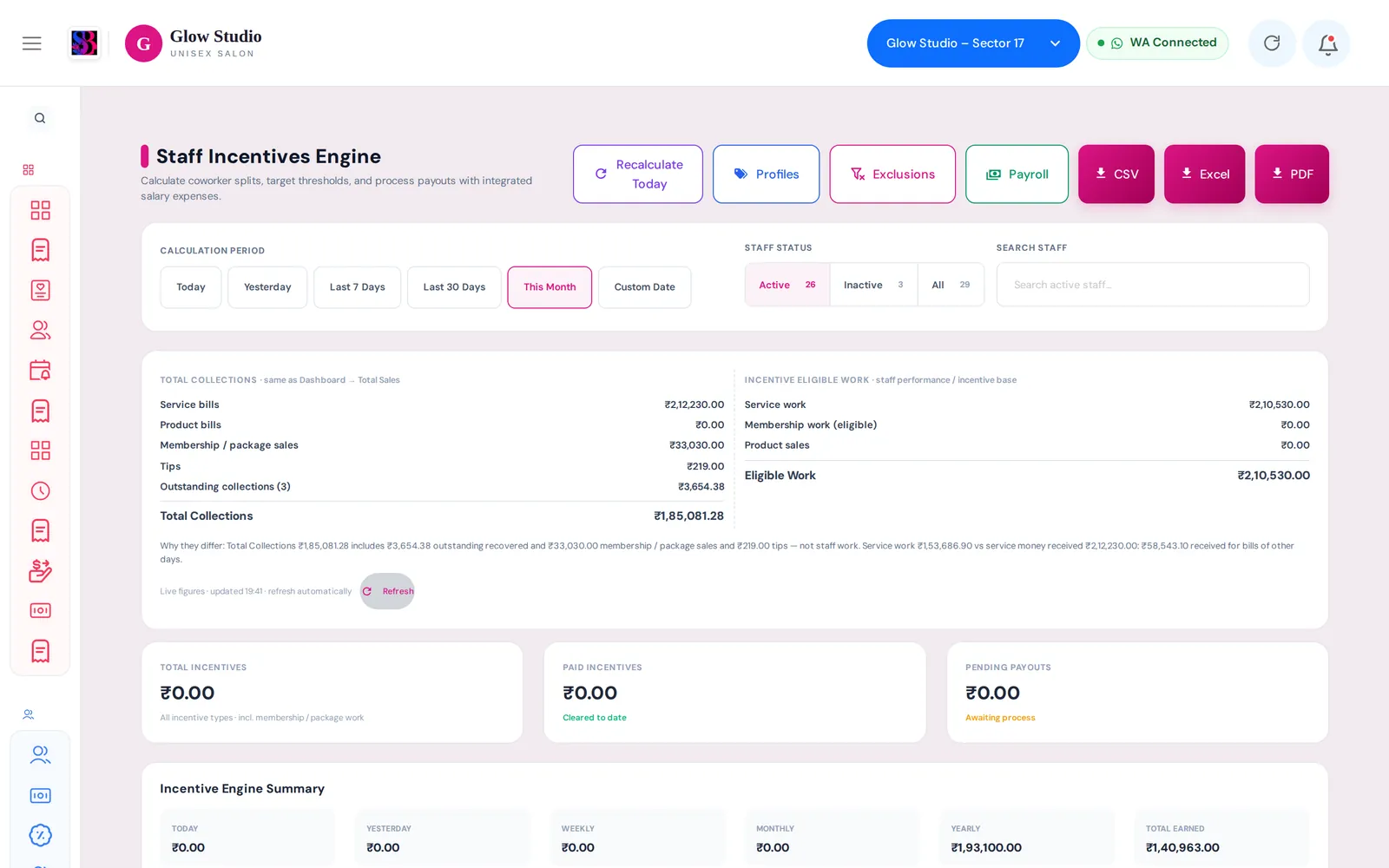
SalonBill calculates incentives every time a bill is saved, edited or deleted. The Staff Incentives page shows what each person earned and what is still pending, and lets you export it for payroll.
What this feature does
- Incentive profiles (one per designation, for example Hairdresser or Beautician) hold the rates: daily service slabs, product %, membership sale and service %, package rates.
- Each staff member follows the profile of their designation. Turn on custom override for a person who needs their own rates.
- Incentives are written automatically from bills: services, products, memberships, advance packages, service packages and combos.
Who can use it
Owner/Admin and Co-owner change profiles, exclusions and payouts. Managers can view the page. Employees see only their own incentive in the mobile app and their personal report link.
Where to find it
Team Management → Staff Incentives. Profiles also open from Staff Settings on the Team Management page.
How to use it
- Click Profiles and create a profile for each designation. Add the daily service slabs (for example ₹0–₹6,999 = 0%, ₹7,000–₹9,999 = 4%, ₹10,000+ = 5%) and the other rates.
- In Team Management → Staff, give each staff member their Designation (Incentive Category). Assigning a category switches their incentives on.
- Bill as usual. Incentives appear after each bill.
- Choose a period (Today, Yesterday, Last 7 Days, Last 30 Days, This Month or a custom date) and review the team breakdown.
- Use Exclusions to keep certain services out of incentives, Recalculate Today after changing rates, and CSV, Excel or PDF to export.
How daily service slabs work
- The slab is checked once per day, per staff member, on that day's eligible normal service sales.
- The matched slab % applies to the whole day's amount. Example: ₹8,500 falls in the 4% slab → 4% of ₹8,500 = ₹340.
- The last slab has no upper limit (for example "₹10,000 and above").
- Combos and product sales are not counted in the daily slab.
Important rules and limits
| Work | How the incentive is calculated |
|---|---|
| Normal services | Daily slab of the profile (or the service's own rate if it has one) |
| Products | Profile product % |
| Membership sale | Profile membership sale % of the selling price, held until the customer has paid in full |
| Membership service (wallet used) | Half of the wallet amount used × the profile's membership service % (only memberships sold on or after the outlet's effective date) |
| Advance / service package sale | The package's own incentive, otherwise the profile % |
| Combo | The combo's own incentive setting |
- Incentives already approved, processing or paid are never rewritten by recalculation.
- Helpers (co-staff) share the incentive of a line; the main staff keeps the sale credit.
- Pending rows show Pending — customer payment not completed and cannot be paid until the membership balance is cleared.
Common problems
A staff member earns nothing?
Check that they have a designation with an active profile, and that incentives are enabled for them. Also check the Exclusions list.
I changed a rate but old days did not change?
Click Recalculate Today for today. Older days are recalculated when their bills are edited; paid rows never change.
Last updated