
Bill a job card
Turn a finished job card into a bill with Bill Now or from the customer's open job cards, and learn the 10-minute rule and daily instant billing limit.
- Who can use it
- Owner/Admin, Co-owner, Manager, staff with "Create service-billings
- Where to find it
- Main Menu → Job Cards → Bill Now, or Make A Bill → Open job cards
When the client's services are done, you turn the job card into a bill. The services, staff and prices on the card are loaded into Make A Bill, so you only need to add any discount and take the payment.
What this feature does
- Loads every unbilled service of the card into the bill, with its stylist and price.
- Links the bill to the job card, so the card shows Billed and View Bill opens the invoice.
- If the card was planned for Membership / Wallet, you see a reminder that the client expects to pay from the wallet. The cashier still picks the payment mode.
Who can use it
Anyone who can make service bills: Owner/Admin, Co-owner, Manager, and staff with the Create service-billings permission.
Where to find it
You can start from either place:
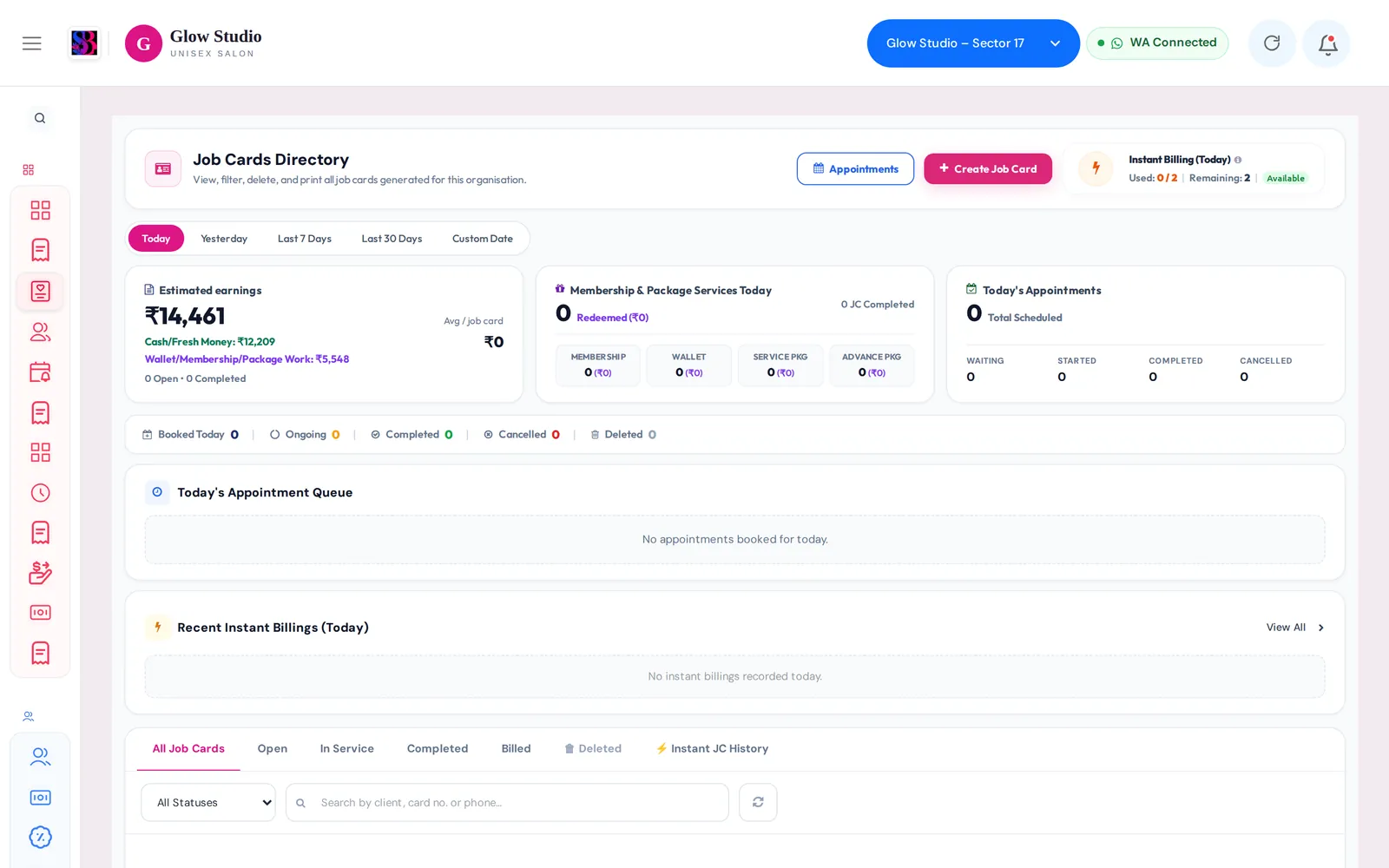
- Main Menu → Job Cards, then Bill Now on the card's row.
- Main Menu → Make A Bill. Select the customer and their cards appear under Open job cards.
How to use it
From the Job Cards directory
- Find the card (use the search box if it is not from today).
- Click Bill Now. For a partly billed card, click Bill Remaining.
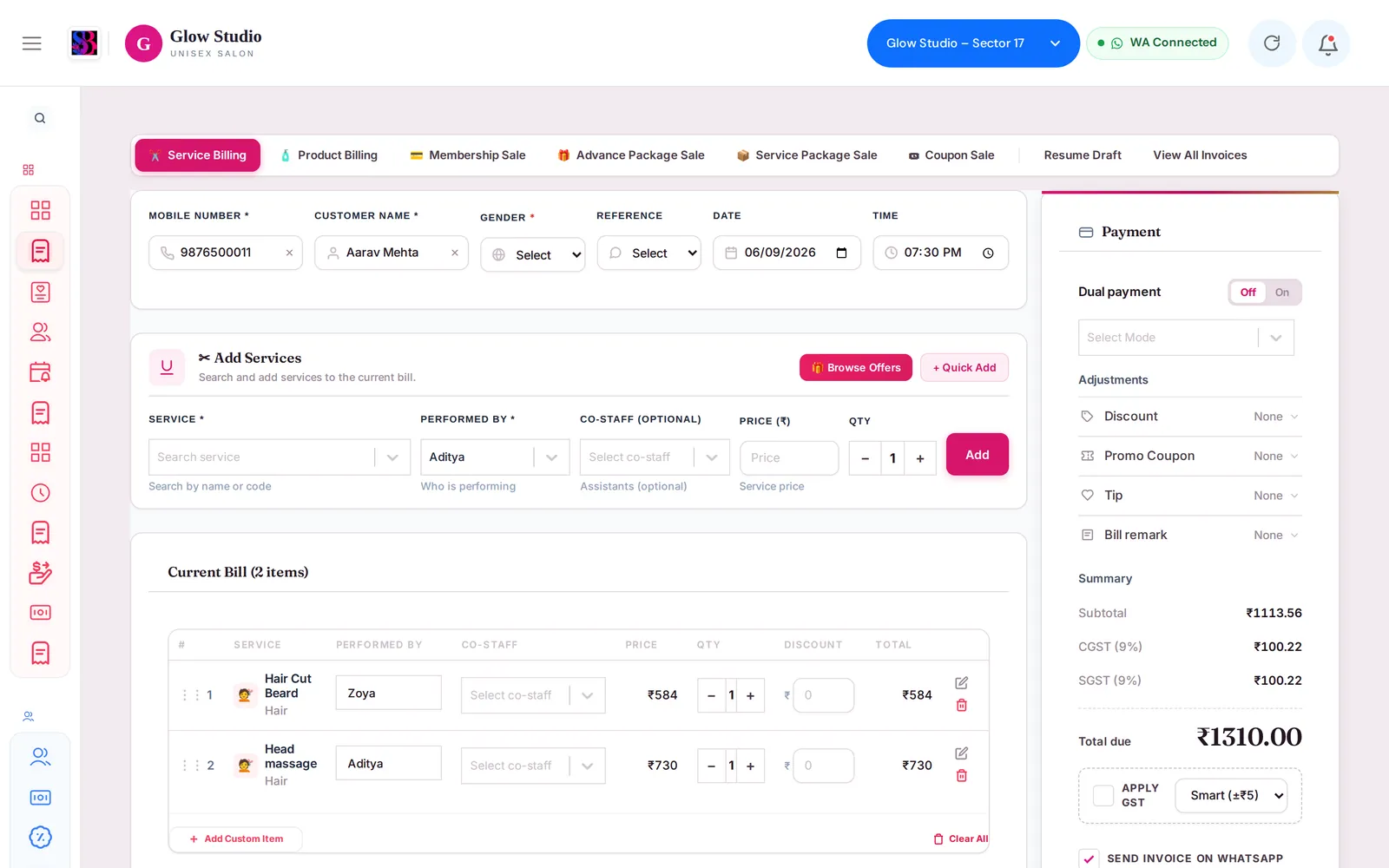
- Make A Bill opens with the client and services filled in. Check the staff and prices.
- Add a discount, coupon or loyalty points if needed, choose the payment mode and save the bill.
From Make A Bill
- Enter the client's mobile number.
- Under Open job cards, click the card number chip to load it into the bill.
- To check a card first, click View next to it. The quick view shows the card's state and services, with Bill this card, Open in Job Card Directory and Clear this card….
- Complete the bill as usual. See Create a service bill.
Important rules and limits
Job Card Billing and instant billing
When Enable Job Card Billing is on (Settings → Additional Settings), every service bill should come from a job card:
| Situation | What happens |
|---|---|
| Bill made from a job card created 10 minutes ago or earlier | Normal bill. |
| Bill made within 10 minutes of creating the job card | Counts as an instant billing exception for the person making the bill. |
| Bill made with no open job card | SalonBill creates a job card for it automatically, and it counts as an instant billing exception. |
| Exceptions used up for today | The bill is refused with Daily instant billing limit (N per staff) reached. |
- The limit is set in Daily Instant Billing Limit (Per Staff). The default is 2 per day.
- Staff with the Bypass Instant Billing Delay permission have no limit.
- Bills that used an exception are listed under ⚡️ Instant JC History in the Job Cards directory.
Other rules
- If you bill only some services of a card, the card becomes Partially Billed. Use Bill Remaining later for the rest.
- A card that is Cancelled or Deleted cannot be billed.
- If you bill a client without picking a card and they have several open cards, SalonBill links the bill to the card whose services match the bill. Picking the card yourself is always clearer.
Common problems
"Daily instant billing limit … reached"?
You have used today's instant billing exceptions. Wait until 10 minutes have passed since the job card was created, then save again. Or ask an Owner/Admin to raise the limit or give you Bypass Instant Billing Delay.
The client has an old open card I don't want to bill?
Click View on the chip, then Clear this card…, and give a reason. You need the Clear Open Job Cards permission, or the Owner/Admin or Co-owner can do it.
"This job card's bill has been deleted"?
The card's bill was removed, so the card is closed. Create a new job card if the client still needs to be billed.
Last updated