
Offers, Spin & Win & Marketing
Send an offer link on WhatsApp
Send a customer a link to a Current Offer from your salon's WhatsApp number, or copy and share the link. The offer page opens without login.
- Who can use it
- Owner/Admin, Co-owner, Manager
- Where to find it
- Current Offers → offer card → Send via WhatsApp
Every Current Offer has its own customer link. You can send it to a customer on WhatsApp in a couple of taps, or copy it to share anywhere.
What this feature does
The customer gets a WhatsApp message from your outlet's own WhatsApp number with the offer name, a short description and the link. The link opens an offer page — no app or login needed — showing:
- your salon name, logo and address
- the offer, its services and validity
- the conditions and terms, how to redeem it, and directions
If the offer has ended or not started yet, the page says so.
Who can use it
Owner/Admin, Co-owner and Managers (anyone who can open Current Offers).
Where to find it
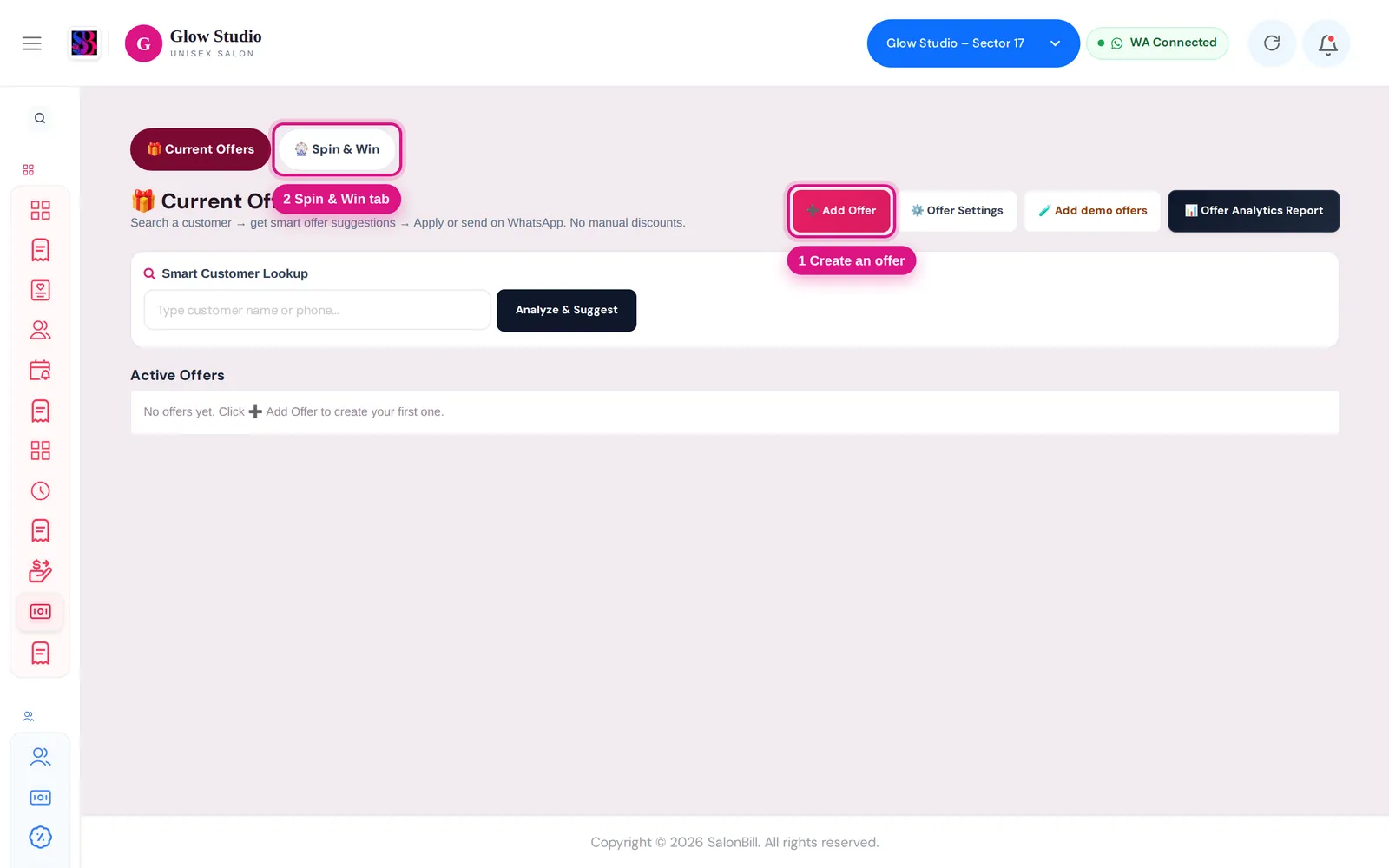
- Current Offers → Active Offers: the green Send via WhatsApp button on each offer card, plus 🔗 (Copy customer link) and 📤 (Share link).
- After a Smart Customer Lookup, recommended offers also have 🔗 Send offer link, already filled with that customer.
How to use it
- Make sure WhatsApp is connected for the outlet (Connect WhatsApp).
- On the offer card, click Send via WhatsApp. The 📲 Send offer on WhatsApp box opens.
- Search customer by name or phone… and select the customer (or click Change to pick another).
- Check the Message preview.
- Click Send via WhatsApp. You see whether it was sent; a few seconds later the screen checks whether WhatsApp delivered it.
- Recent sends of this offer at the bottom lists earlier sends.
To share yourself, use 🔗 Copy link or 📤 Share in the same box or on the card.
Important rules and limits
- The mobile number always comes from the customer record. Update the profile if it is wrong.
- The message text comes from the Offer link template in WhatsApp Templates. Edit it there.
- The same offer cannot be sent to the same customer again within 2 minutes.
- Only live offers (enabled and within their dates) can be sent.
- Every send is logged and appears on the customer's Audit Trail.
- Demo offers are marked DEMO and are left out of send analytics.
Common problems
"WhatsApp is not connected for this outlet"?
Connect it in Settings → WhatsApp Integration, then send again.
"The "Offer link" WhatsApp template is switched off"?
Turn it on in WhatsApp Templates, then send again.
"This customer has no valid mobile number saved"?
Open the customer's profile, add a 10-digit mobile number and try again.
"This offer was just sent to … Wait 2 minutes"?
It was already sent. Wait two minutes if you really need to send it again.
The Send button is greyed out?
The offer is not live — it is disabled or outside its Valid From / Valid Till dates.
See also WhatsApp messages not sending.
Last updated