
Check who did what in Activity Feed and Audit Trail
Use the Activity Feed for a live list of salon actions and the Audit Trail to see what changed on a record, who changed it, when and why.
- Who can use it
- Activity Feed - Owner/Admin, Co-owner, staff with "View activity-feed"; Audit Trail - Owner/Admin, Co-owner, Manager; Restore - Owner/Admin, Co-owner
- Where to find it
- Main Menu → Activity Feed → Audit Trail
SalonBill keeps two records of what happens in your salon. The Activity Feed is a simple timeline of actions. The Audit Trail is the detailed change log, with the old and new values and the reason given.
What this feature does
| Activity Feed | Audit Trail | |
|---|---|---|
| Shows | Bills, job cards, payments, memberships, packages, points and other actions as they happen | Every create, edit, delete and restore on a record |
| Details | Record number, customer, reason, payment mode changes | What Changed, Who, When, Reason, device details, full version history |
| Best for | "What happened today?" | "Who changed this bill, and why?" |
Who can use it
- Activity Feed: Owner/Admin and Co-owner see the whole outlet. Staff need the View activity-feed permission (off for Managers by default). A Manager sees their outlet; other roles see only their own actions.
- Audit Trail: Owner/Admin, Co-owner and Manager.
- Restore Record: Owner/Admin and Co-owner only.
Where to find it
Go to Main Menu → Activity Feed. The Audit Trail button is at the top right of that page.
How to use the Activity Feed
- Pick Today (default), Yesterday, Last 7 Days or Custom Date (choose dates, then Apply).
- Search by customer, staff, invoice or job card number, or mobile number.
- Scroll the timeline. Each entry shows the module, record number, customer, time and any reason.
- Click Load More for older entries (20 at a time).
How to use the Audit Trail
- Click Audit Trail on the Activity Feed page.
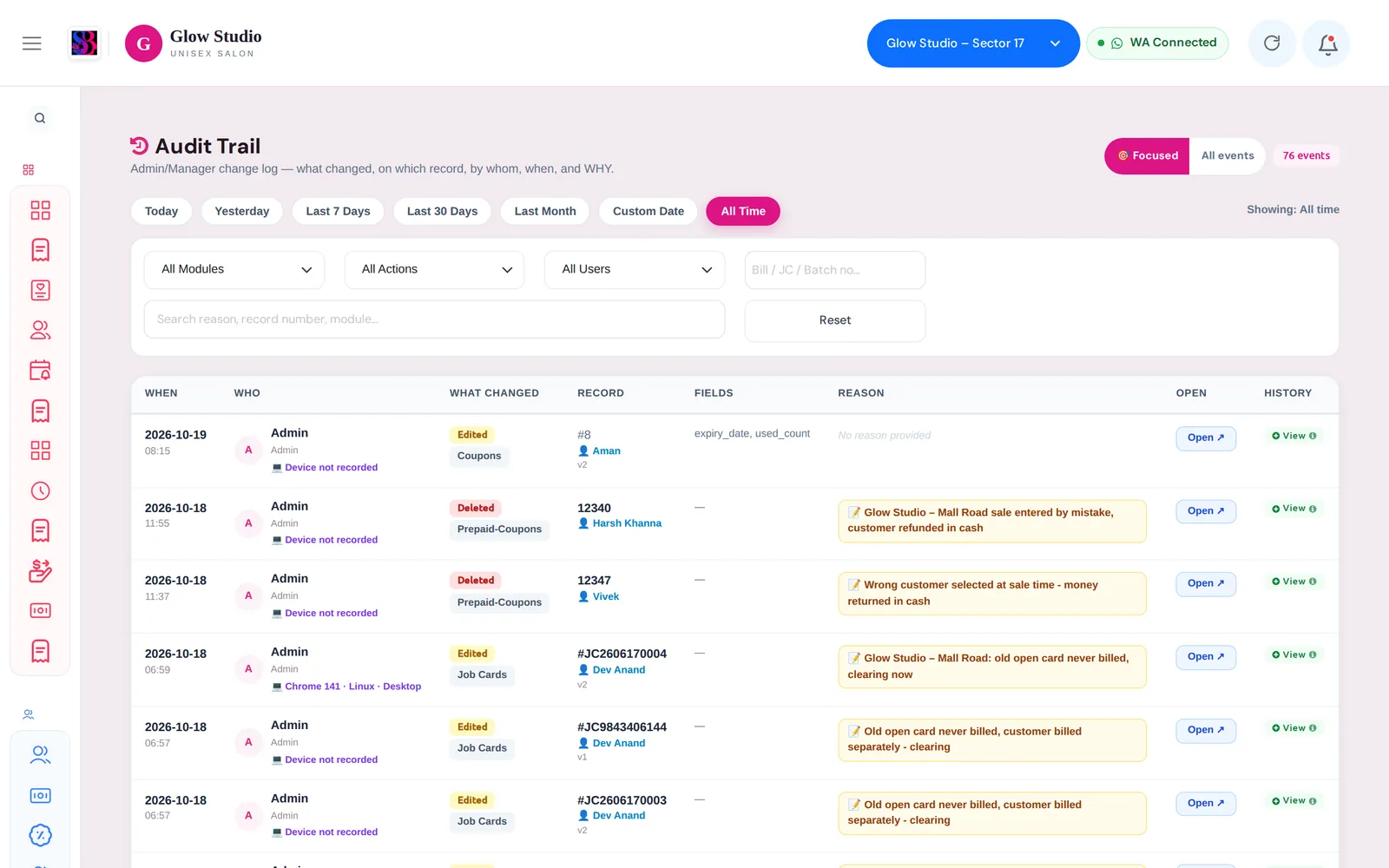
- Choose the view: 🎯 Focused shows changes by Owner, Admin, Co-owner, Manager and Accountant only; All events shows every system event.
- Pick a period: Today, Yesterday, Last 7 Days, Last 30 Days, Last Month, Custom Date or All Time (default).
- Narrow it with All Modules, All Actions (Create, Edit, Delete, Restore), All Users, a bill / JC / batch number, or the search box.
- Each row shows When, Who, Record, What Changed and Reason. Click Open ↗ to go to the record, or View to see its full Change History version by version.
Restore a deleted record
- Find the deleted record and click View.
- Type a Reason for restore and click Restore Record.
Restore works only for records that are deleted and only for modules that support it. Otherwise you see "This module does not support restore." or "This record is not deleted."
Important rules and limits
- Deletes across SalonBill ask for a reason of at least 20 characters, and the reason is saved in the Audit Trail.
- Entries cannot be edited or removed.
- Both pages show the outlet selected in the top bar.
Common problems
A Manager can't see the Activity Feed?
Tick View activity-feed for the manager role in Permissions. It is off by default.
I see "You are not authorized to view the audit trail."?
Only the Owner/Admin, Co-owner and Managers can open the Audit Trail.
The Audit Trail shows too many system events?
Switch to 🎯 Focused to see only changes made by people responsible for the salon.
Last updated