
Add, import and export customers
Add a customer by hand, bring your old client list in from a CSV or Excel file, import membership wallet balances, and export your customers.
- Who can use it
- Add and import: Owner/Admin, Co-owner, Manager or staff with "Create customers"; export: "View customers
- Where to find it
- Customers & Loyalty → All Customers → Import Customers / Export Customers
You can add customers one at a time, or move your whole client list into SalonBill from a spreadsheet. You can also download your customer list at any time.
What this feature does
- Add Customer creates one profile by hand.
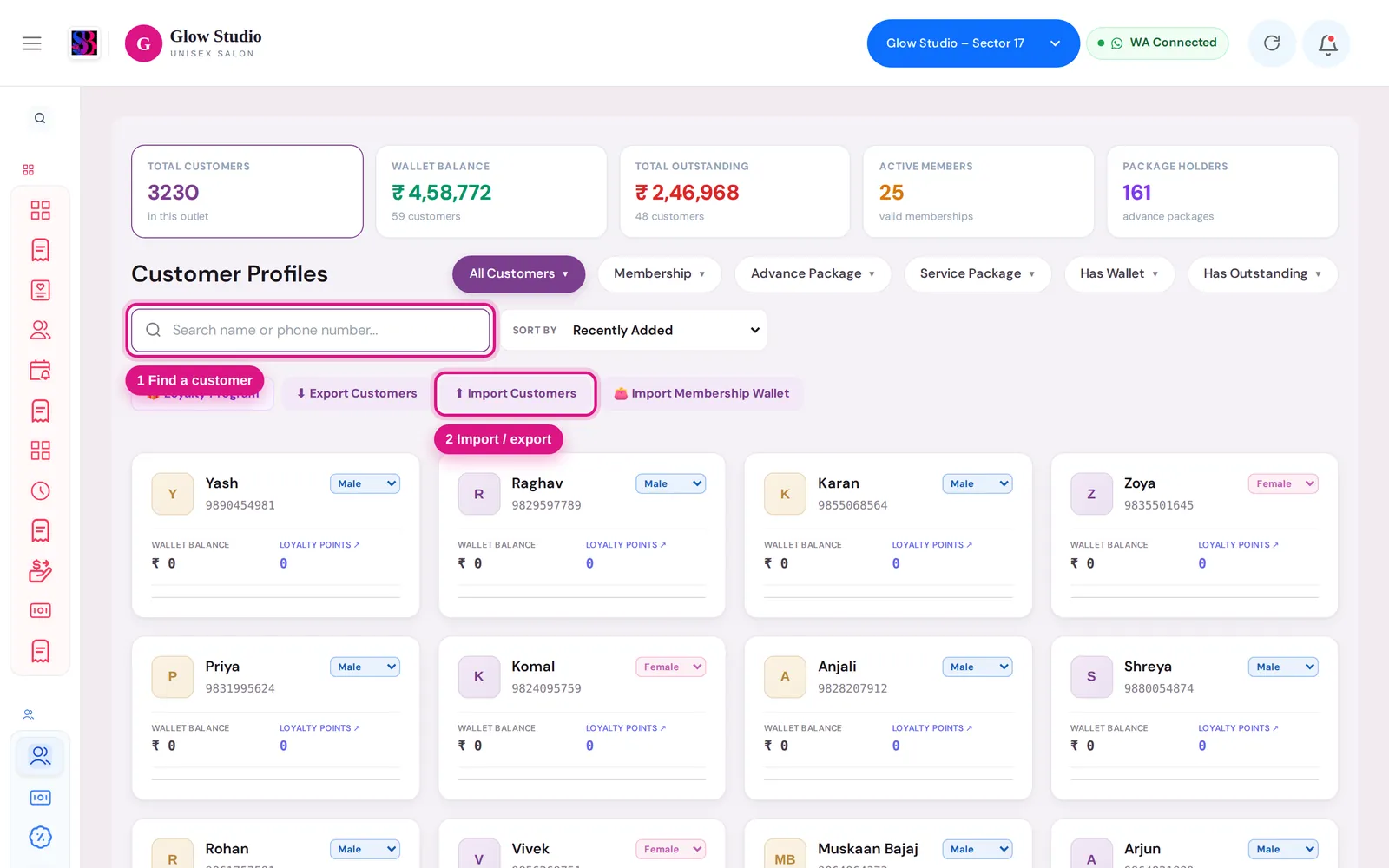
- ⬆ Import Customers reads a CSV or Excel file and adds or updates many customers at once.
- 👛 Import Membership Wallet sets wallet balances from a file, for example when moving from other software.
- ⬇ Export Customers downloads all customers of the outlet as a CSV file.
You often don't need to add a customer first. Making a bill, booking an appointment or using + Quick Add on a job card creates the profile for a new mobile number automatically.
Who can use it
| Action | Permission |
|---|---|
| Add Customer, Import Customers, Import Membership Wallet | Create customers |
| Export Customers | View customers |
Where to find it
- Import and export: Customers & Loyalty → All Customers. The buttons sit next to the search box.
- Add Customer: Customers & Loyalty → Loyalty & Rewards, open the All Customers tab, then click Add Customer.
How to use it
Add one customer
- Click Add Customer.
- Enter Name and Phone Number. Email, gender, date of birth and anniversary are optional.
- Tick Premium Customer if you want to mark the client as VIP.
- Click Submit.
Import customers from a file
- Click ⬇ Export Customers first. The downloaded file is the easiest template to fill in.
- Prepare your file (CSV, XLSX or XLS). It must have a phone column. SalonBill also reads first name, last name, gender, email, address, date of birth, anniversary, last visit, total revenue and total bills. Other columns are ignored.
- Click ⬆ Import Customers and choose the file.
- SalonBill shows how many rows are New, Existing and Invalid.
- If some phone numbers already exist in this outlet, choose:
- Skip them: keep existing customers as they are and add only new ones.
- Update them: fill or overwrite existing customers with values from the file. Empty cells in the file never erase data.
- Click Import N customers. You see how many were added, updated and skipped.
Import membership wallet balances
- Prepare a file with Phone Number and Current Balance columns. Name, membership name, card number, purchase date, expiry date and cost are also read.
- Click 👛 Import Membership Wallet and choose the file.
- Check the preview: Will import, New customers and Invalid. Phone numbers that are not yet customers are created automatically.
- If some matched customers already have wallet money, choose Overwrite with file balance or Skip them.
- Click Import. Use ⬇ Download report to see any invalid rows.
Export customers
Click ⬇ Export Customers. A CSV of all customers in the current outlet downloads, with name, gender, phone, email, address, date of birth, anniversary, membership, last visit, total revenue and total bills.
Important rules and limits
- Imports go into the outlet selected in the top bar.
- A row is invalid if the phone number is missing or wrong, the name is missing, or the same phone appears twice in the file. Invalid rows are skipped. The rest still import.
- Phone numbers are matched within the same outlet only.
- If an import fails, nothing is saved, so you can fix the file and try again.
Common problems
"No "Phone" column found in the file"?
Add a column whose heading contains Phone, Mobile or Contact, then import again.
"Could not read the file. Please use the exported CSV/XLSX format."?
Save the file as CSV or XLSX, keep the headings in the first row, and try again. Starting from an exported file avoids this.
"File must contain "Phone Number" and "Current Balance" columns"?
The wallet import needs both columns. Rename your headings and try again.
I don't see the import buttons working?
Importing needs the Create customers permission. Ask the Owner/Admin.
Last updated