
Collect pending outstanding payments
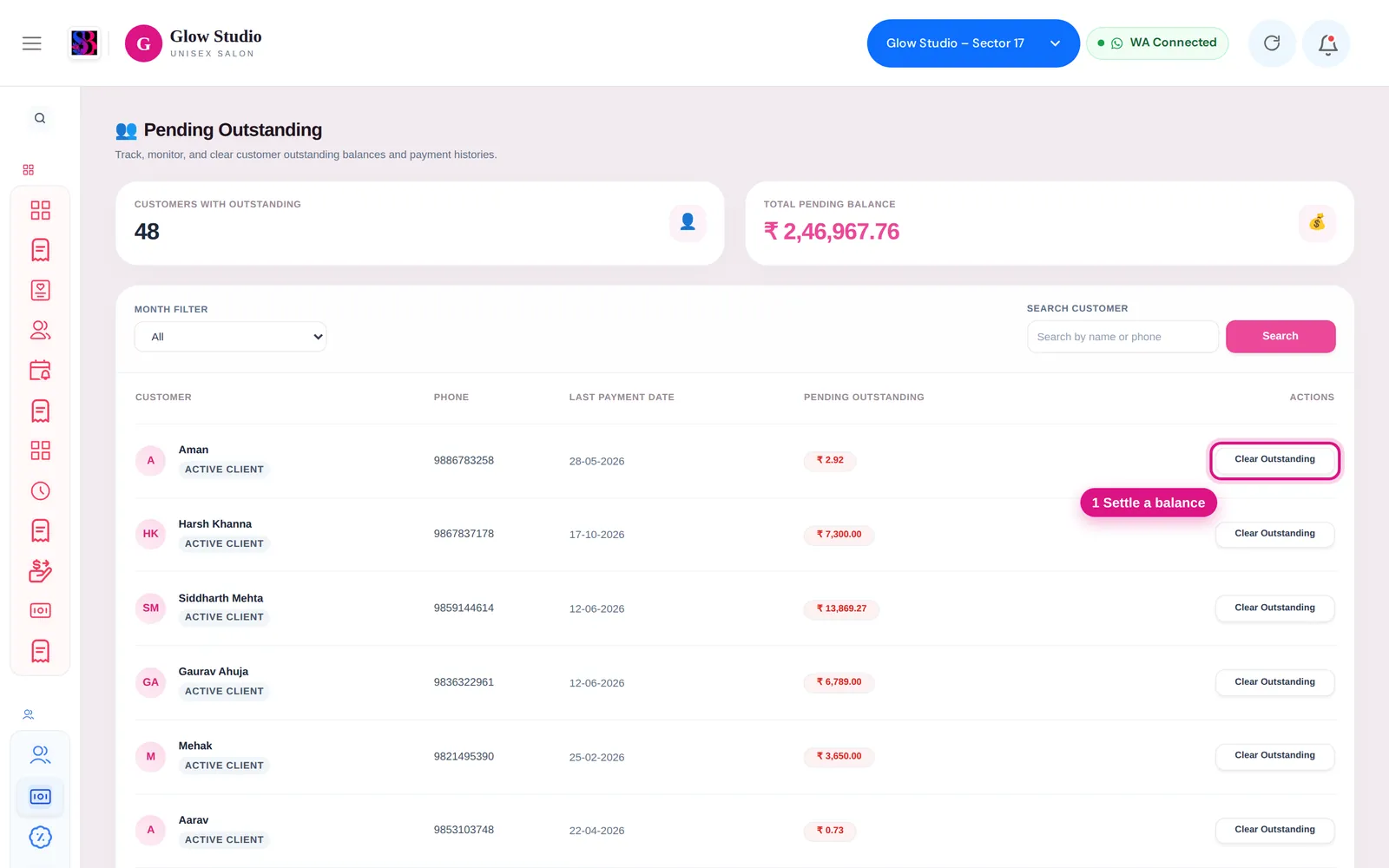
See every customer who still owes money, record a full or part payment with Clear Outstanding, credit the right staff and check the settlement history.
- Who can use it
- Owner/Admin, Co-owner, or staff with "Update outstanding-payments" or "Delete outstanding-payments
- Where to find it
- Customers & Loyalty → Pending Outstanding
When a customer has not paid the full amount — for example on a membership or package sold with part payment — the balance stays as outstanding. Pending Outstanding lists everyone who owes you, and lets you record the money when they pay.
What this feature does
- Shows Customers with Outstanding and the Total Pending Balance for the outlet.
- Lists each customer with Phone, Last Payment Date and Pending Outstanding.
- Clear Outstanding records a full or part payment, in one or more payment modes, and keeps a history of every settlement.
Who can use it
The menu item is shown to the Owner/Admin, Co-owner and staff with Update outstanding-payments or Delete outstanding-payments. Recording a payment on a past date (Backdated Payment) is only for the Owner/Admin and Co-owner.
Where to find it
Customers & Loyalty → Pending Outstanding. Use Month Filter and Search Customer (name or phone) to find someone.
How to use it
- Find the customer and click Clear Outstanding. The Settle Outstanding window opens with the Current Outstanding.
- In Settle Amount (₹), type what the customer is paying now. It can be less than the full balance.
- In Recovered By (Staff Credit), choose the staff member who should get the credit for collecting it (optional).
- Under Payment Split, choose the mode and amount. Add another mode if they pay part cash, part UPI. The split must add up to the settle amount.
- Owner/Admin only: tick 📅 Backdated Payment and choose the date if the money was received earlier.
- Check Settling Now and Remaining Outstanding, then click Settle Outstanding.
- Open Settlement History to see each payment with Date, Amount, Mode, Settled By, Recovered By and Balance.
Collect it on a bill
On Make A Bill, when the selected customer owes money, a banner Outstanding payment pending: ₹… appears. Click Add to bill to put the outstanding amount on the bill and collect it with today's payment.
Important rules and limits
- You cannot settle more than the customer owes: "You cannot settle more than ₹…".
- The amount must be greater than zero, and every payment row needs a mode.
- Settled By is the person who recorded the payment. Recovered By is the staff member credited with it — they can be different people.
- Each settlement appears in reports as an outstanding payment received, under the mode you chose.
- Backdated settlements are marked BACKDATED in the history.
Common problems
"Payment split must add up to ₹…"?
The amounts in Payment Split do not match the Settle Amount. Correct one of them.
Pending Outstanding is not in my menu?
Your role needs Update outstanding-payments or Delete outstanding-payments. Ask the Owner/Admin.
I recorded the settlement in the wrong mode?
The Owner/Admin can correct it. See Correct a payment mode.
Last updated