
Track enquiries with Client Queries
Record every customer enquiry or job application, assign staff, set follow-up reminders, send a WhatsApp offer and convert the lead into a customer.
- Who can use it
- Owner/Admin and Co-owner; others with "View Client Queries", "Create Client Queries", "Update Client Queries" or "Delete Client Queries
- Where to find it
- Customers & Loyalty → Client Queries
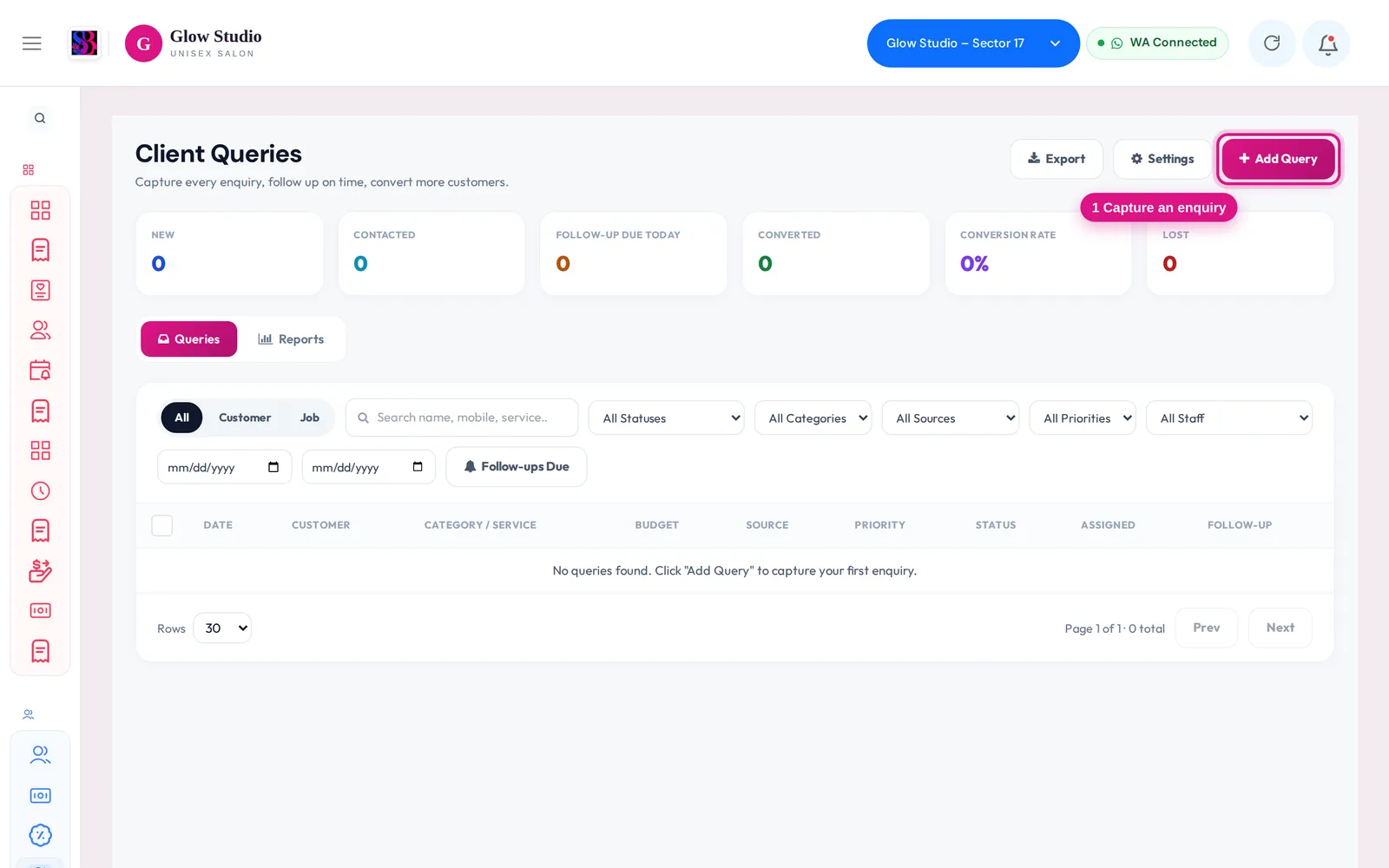
Client Queries is your enquiry book. Every call, walk-in or Instagram message about a service can be saved here, followed up on time and turned into a paying customer. You can also track job applications from stylists.
What this feature does
- Saves each enquiry with the person's details, category, source, budget, preferred visit date, priority and requirement.
- Tracks each enquiry through a status, from New to Converted or Lost.
- Reminds you of follow-ups and keeps a timeline of every call, message and status change.
- Builds an offer message and sends it on WhatsApp.
- When an enquiry is marked Converted, links it to the existing customer with that mobile number, or creates a new customer profile.
The strip at the top shows New, Contacted, Follow-up Due Today, Converted, Conversion Rate and Lost.
Who can use it
| Action | Who |
|---|---|
| See and work on all queries | Owner/Admin, Co-owner, View Client Queries |
| Add Query | Create Client Queries |
| Change status, assign, follow-up, bulk actions | Update Client Queries |
| Delete | Delete Client Queries |
| Export | Owner/Admin and Co-owner only |
- Managers do not see the mobile number, WhatsApp number or email of customer enquiries. It shows as Hidden. Job applicants' contact details stay visible.
- Staff without View Client Queries see only the queries assigned to them.
Where to find it
Go to Customers & Loyalty → Client Queries. The page has two tabs: Queries and Reports.
How to use it
Add an enquiry
- Click Add Query.
- Choose the query type: Customer or Job.
- For a customer, enter Mobile Number, name and the Query Details: category, source, gender, Estimated Budget (₹), Preferred Visit Date, Assigned Staff and priority. Describe the need in Query Description / Requirement. You can attach an image.
- For a job applicant, fill Application Details such as positions, experience, salary, city and Resume Upload.
- Save the query.
Follow up and convert
- Click a query to open it.
- Under Follow-up, use Set Follow-up Reminder (Tomorrow, After 3 Days, After 7 Days or a date).
- Use Log Activity to record Called, WhatsApp, Follow-up Done or a Note.
- Change the status as the lead moves:
| Customer statuses | Job statuses |
|---|---|
| New, Contacted, Follow-up Required, Appointment Booked, Converted, Not Interested, Closed, Lost | New Application, Resume Reviewed, Shortlisted, Interview Scheduled, Interview Completed, Trial Day, Selected, Rejected, On Hold |
- When the client books or pays, set the status to Converted.
Send an offer
- In the query, open Offer Builder.
- Choose a Complimentary Service and Offer Valid For (3, 5, 7 or 15 days), and add Additional Notes.
- Generate the message. Edit the text if needed.
- Click Preview, then Send WhatsApp. A New query moves to Contacted after the offer is sent.
You can also open Current Offers in the query to show live offers this client can use.
Find and report
- Filter by status, category, source, priority, staff and date, or turn on Follow-ups Due.
- Tick several queries and use Bulk Status… or Bulk Assign Staff….
- The Reports tab shows Monthly Trend and conversion by category, source and staff.
Important rules and limits
- Converting never makes a duplicate customer. If the mobile number already exists in the outlet, the query is linked to that customer.
- Selecting a job applicant does not create a customer.
- Every status change, assignment and follow-up is saved on the query's Activity Timeline.
Common problems
The phone number shows "Hidden"?
Managers cannot see contact details of customer enquiries. Ask the Owner/Admin if you need to call the client.
I can't see the Export button?
Only Owner/Admin and Co-owner can export queries.
I only see a few queries?
You don't have View Client Queries, so you see only queries assigned to you.
Last updated