
Create a job card for a customer visit
Open a job card when a client arrives, pick the services and stylists, choose wallet or normal billing, and print or bill it when the work is done.
- Who can use it
- Owner/Admin, Co-owner, Manager, Accountant
- Where to find it
- Main Menu → Job Cards → Create Job Card
A job card is the work slip for one client visit. It records who the client is, which services they are getting and which stylist does each one. Later you turn it into a bill in one click.
What this feature does
When you create a job card, SalonBill:
- gives it a unique number (for example JC2610210012)
- saves each service with its stylist and price
- suggests the stylist whose turn is next, using the Staff Turn Board
- sends the client a WhatsApp message with the job card number and services, if they have a mobile number, WhatsApp is connected and the job card message template is switched on
Nothing is charged and no wallet money is taken at this stage. Money is only collected when you bill the job card.
Who can use it
Owner/Admin, Co-owner, Manager and Accountant can create and edit job cards. Employees work from the SalonBill mobile app and do not use this screen.
Where to find it
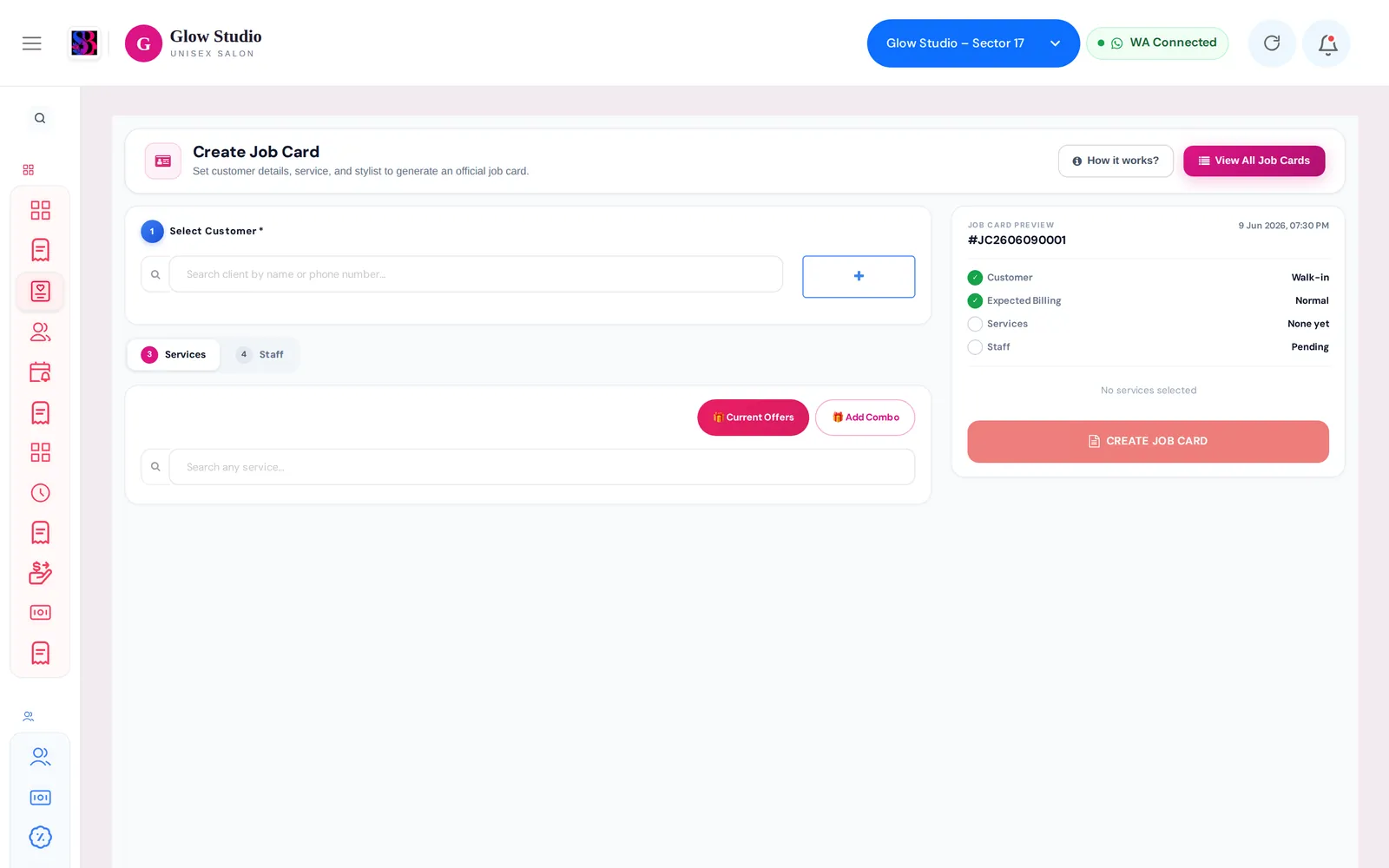
Go to Main Menu → Job Cards and click Create Job Card at the top. You can also open a customer's profile and click Create Job Card. The customer is then filled in for you.
How to use it
- Select Customer. Type a name or phone number in the search box and pick the client from the list.
- New client? Click + Quick Add and enter Name, Mobile Number (10 digits) and Gender.
- Walk-in with no details? Leave the search box empty. The card is saved as a walk-in.
- Choose how the card will be billed. If the client has wallet money, SalonBill asks How should this Job Card be billed? Pick Membership / Wallet or Normal Billing (Cash / UPI / Card). You must choose one before you can add services.
- Add services. On the Services tab, search for and add each service. You can also use 🎁 Current Offers or 🎁 Add Combo. If the client has a package, pick it to add services from it.
- Assign staff. Each service is given the recommended stylist, marked ⭐ Next Turn. To change it, choose another person under Performed By. You can also add a Co-Staff helper.
- Check the Price (₹) and Qty of each row. Add Special Notes (Optional) if needed.
- Click Create Job Card.
- In the Job Card Created! box, choose Print Job Card, Bill Now or Create Another Job Card.
Important rules and limits
| Rule | What it means |
|---|---|
| Price cannot go below the service price | You can raise the price of a service but not lower it. Offer and combo prices are the only exception. Discounts are given on the bill. |
| Every service needs a stylist | You see Please assign a stylist to … until each row has a Performed By person. |
| Wallet is only a plan | Choosing Membership / Wallet does not deduct anything. The wallet is used when the bill is made. |
| Expired membership | A Manager cannot plan wallet use from an expired membership. The Owner can override it with a reason of at least 20 characters. |
| Backdated Billing | Only users with the Allow Backdated Billing permission see this option. |
- When you edit a job card, you must type a reason of at least 20 characters.
- Only Owner/Admin, Co-owner and Accountant can remove or cancel a service that is already saved on a card. Managers cannot.
- The printed slip says it is valid for today only.
Common problems
"Please select a customer from the search dropdown, or clear the search input"?
You typed something in the customer box but did not pick a name from the list. Pick the client, use + Quick Add, or clear the box to make a walk-in card.
The services area is locked?
The client has wallet money, so you first need to answer How should this Job Card be billed? Choose Membership / Wallet or Normal Billing.
"Price for … cannot be less than original price"?
You lowered a service price. Put it back to the catalogue price and give the discount on the bill instead. See Discounts and limits.
The client did not get the WhatsApp message?
Check that the client has a valid mobile number and that WhatsApp is connected for the outlet. See WhatsApp messages not sending.
Last updated