
Find and use customer profiles
Search your customers, filter by membership, package, wallet or outstanding, and read a client's visits, spend, plans, balances and full transaction history.
- Who can use it
- Owner/Admin, Co-owner, Manager or staff with "View customers" (edit: "Update customers")
- Where to find it
- Customers & Loyalty → All Customers
Every client of your outlet has a profile. It brings together their contact details, visits, spending, memberships, packages, wallet, loyalty points and every transaction.
What this feature does
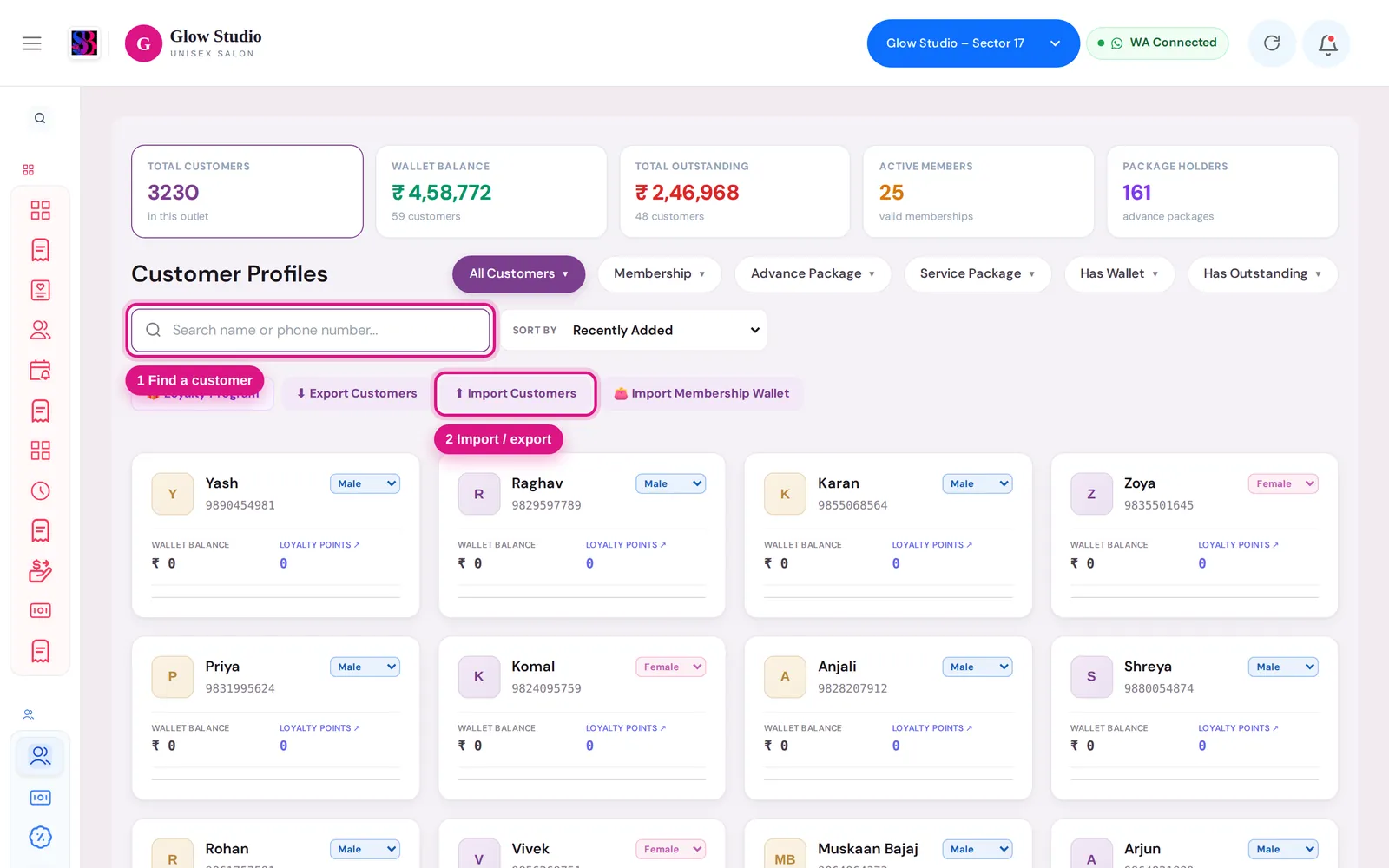
All Customers opens the Customer Profiles directory. From there you open a profile to see:
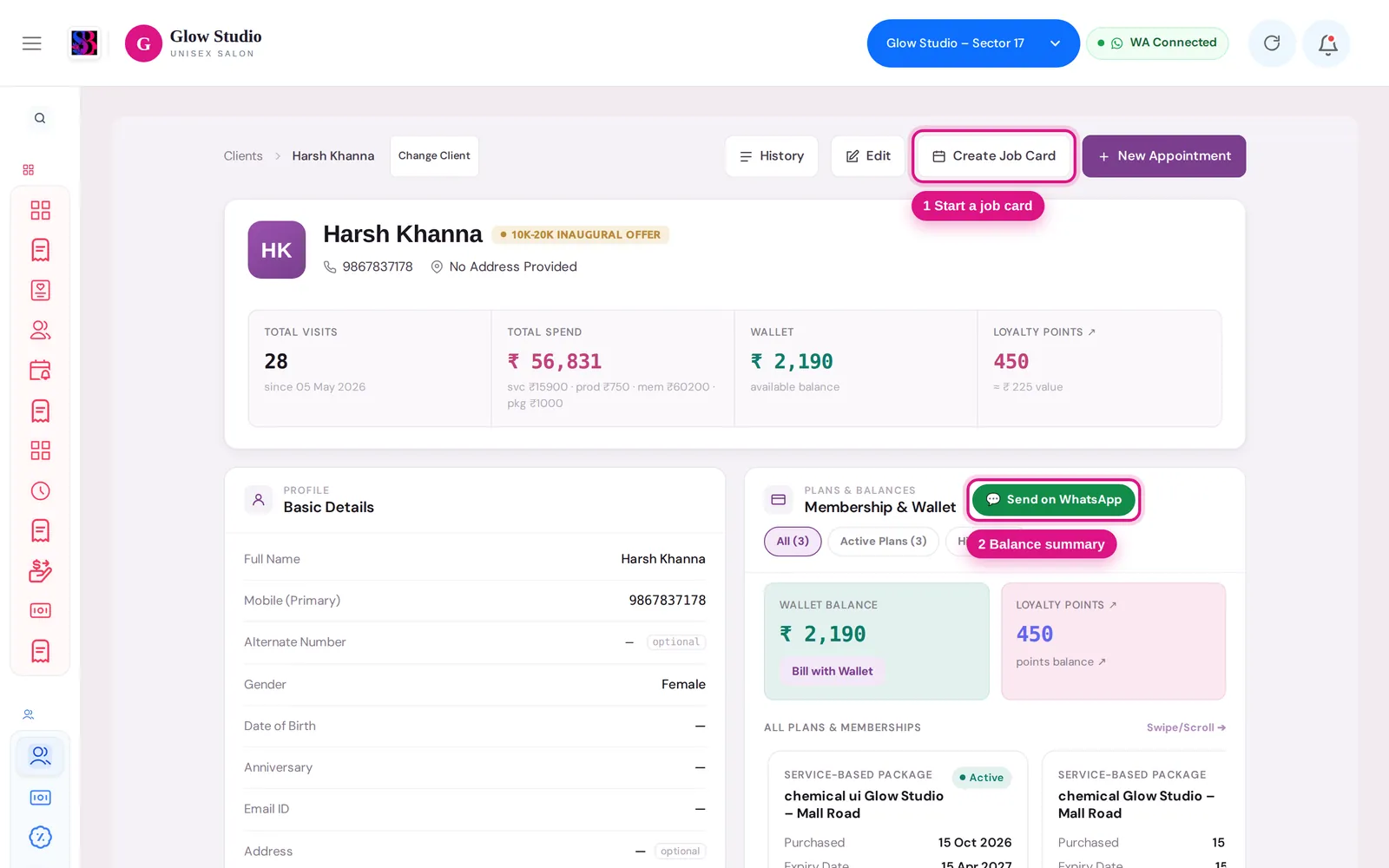
- Total Visits, Total Spend, Wallet and Loyalty Points
- Basic Details: name, mobile, alternate number, gender, date of birth, anniversary, email and address
- Membership & Wallet: every plan the client holds, with purchase date, expiry date, remaining value and sessions left
- Financial Activity: lifetime spend, active package value, membership status, outstanding balance, wallet added and spent, and a full ledger of credits and debits
Who can use it
| Action | Who |
|---|---|
| See All Customers and open profiles | View customers |
| Edit a profile | Owner/Admin, Co-owner, or Update customers |
| History (payment history page) | Owner/Admin, Co-owner |
Where to find it
Go to Customers & Loyalty → All Customers.
How to use it
Find a customer
- Type a name or phone number in Search name or phone number....
- Or click a summary tile at the top: Total Customers, Wallet Balance, Total Outstanding, Active Members or Package Holders.
- Use the filter buttons to narrow the list:
- Membership, Advance Package and Service Package, each with Active, Expiring in 7 Days, Expiring in 30 Days or Expired
- Has Wallet and Has Outstanding
- Change the order with Sort By, for example Recently Added, Wallet Balance: High → Low, Outstanding: High → Low, Loyalty Points: High → Low, Expiring Soon, Last Visit: Recent → Old or Highest Total Spend.
- Click a customer card to open the profile.
Work from a profile
- Create Job Card starts a job card with this client already selected.
- New Appointment opens Book Appointment for this client.
- Edit changes the client's details. Type a reason in Reason for modification (Required) and click Submit.
- Bill with Wallet (shown when the client has wallet money) opens billing ready to pay from the wallet.
- 💬 Send on WhatsApp sends the client their balances. See Wallet and balance summary.
- Click Loyalty Points ↗ to open the client's loyalty details.
- Change Client takes you back to the directory.
Read the ledger
Under Financial Activity, filter the ledger with All Transactions, Credits Only, Debits Only, Services, Membership, Packages, Wallet or Outstanding Payments. Each row shows date and time, type, description, debit, credit, balance, payment mode and invoice reference.
In Membership & Wallet, switch between All, Active Plans and History to see current or old plans.
Important rules and limits
- Customers belong to an outlet. The directory and totals show the outlet selected in the top bar.
- A mobile number can belong to only one customer in an outlet.
- Every profile edit needs a reason, so changes can be traced later.
Common problems
I can't see All Customers in the menu?
Your role does not have View customers. Ask the Owner/Admin to turn it on. See Staff permissions.
There is no Edit button on the profile?
You need the Update customers permission.
The customer exists but search can't find them?
Check that the correct outlet is selected in the top bar. See Log in and switch outlets.
Last updated