
Read the Management Report and export it to Excel
Filter sales by outlet, staff, payment mode, category and billing type, compare periods, open the bills behind any amount and export to Excel.
- Who can use it
- Owner/Admin, Co-owner
- Where to find it
- Main Menu → Reports → Management Report
The Management Report is the full sales report of your salon. One set of filters drives every number on the page, the drill-downs and the Excel file, so all figures match each other.
What this feature does
It shows what you sold and collected in a period: services, products, memberships, packages and prepaid coupons, split by payment mode, staff, category and customer. Any amount with a 🔍 link opens the list of bills behind it.
Who can use it
Only the Owner/Admin and Co-owner. Other roles do not see Reports in the menu. If someone opens the page without access they see "You are not authorized to view this report."
Where to find it
Open Main Menu → Reports. The page opens on the 📋 Management Report tab. The second tab, 📈 Visual Analytics, shows charts (see Business Analytics).
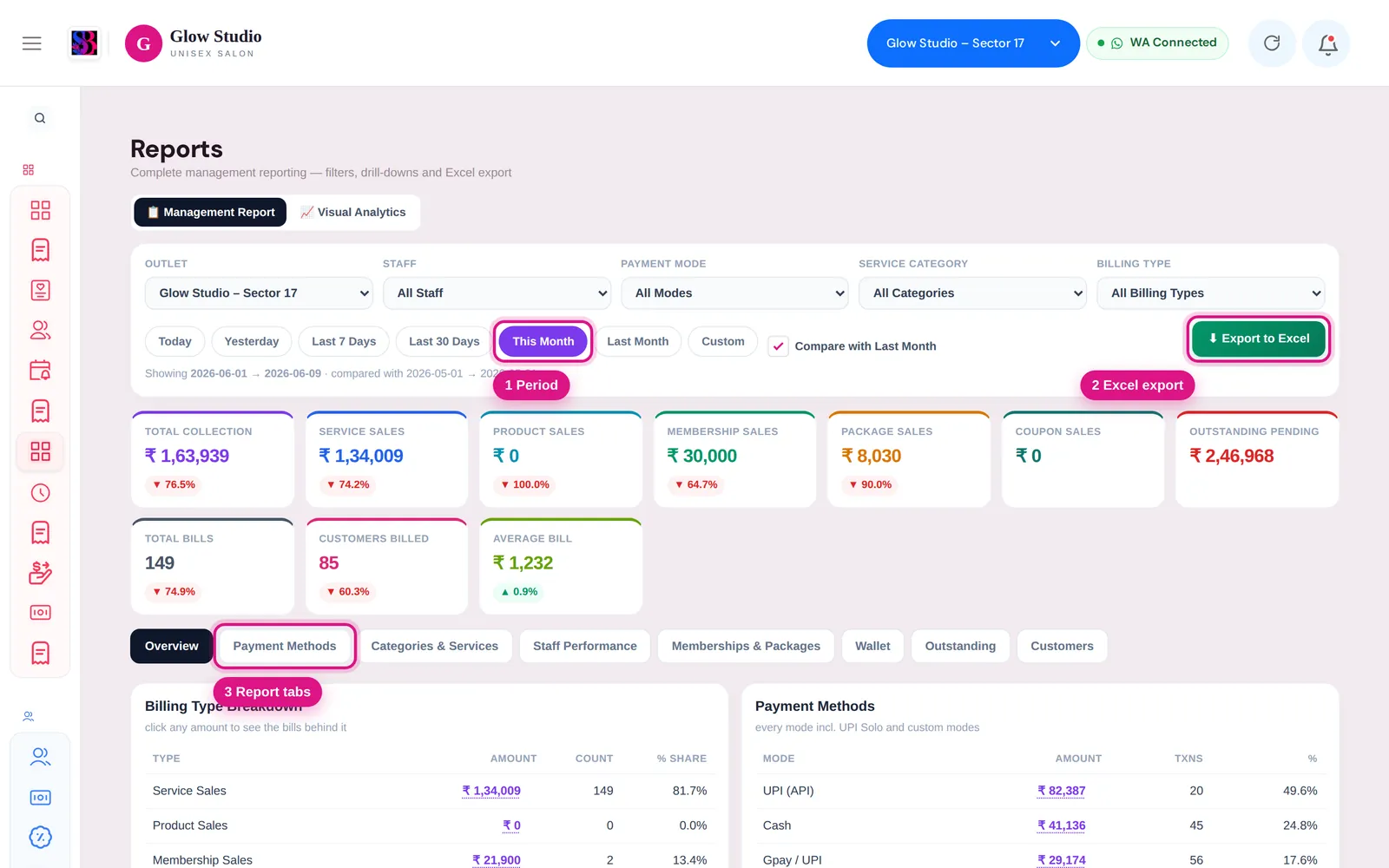
How to use it
- Choose the filters at the top:
- Outlet (Owners with more than one outlet also get 🏢 All Outlets)
- Staff, Payment Mode, Service Category
- Billing Type: All Billing Types, Service, Product, Membership, Advance / Service Package or Prepaid Coupon
- Pick a period: Today, Yesterday, Last 7 Days, Last 30 Days, This Month (default), Last Month or Custom.
- Keep Compare ticked to see each figure against the previous period (for example "with Last Month" for This Month). Comparison is not available for a Custom range.
- Read the summary cards: Total Collection, Service Sales, Product Sales, Membership Sales, Package Sales, Coupon Sales, Outstanding Pending, Total Bills, Customers Billed and Average Bill.
- Open a tab for detail (see the table below).
- Click any amount with the 🔍 link to see the transactions behind it: date, invoice number, type, customer, items, staff, payment and amount. Click Invoice ↗ to open the invoice read-only.
- Click ⬇ Export to Excel to download the report with the same filters.
The report tabs
| Tab | What it shows |
|---|---|
| Overview | Billing Type Breakdown and Payment Methods with amount, count and % share |
| Payment Methods | Amount collected, transactions, % of collection and average per transaction for every mode, including UPI Solo and custom modes |
| Categories & Services | Service-wise analysis: times performed, service value, collected revenue, average value and discount, by category or service |
| Staff Performance | Service sales, membership sales, total sales, bills, customers, services done and average bill per staff member |
| Memberships & Packages | Plans sold, total value (MRP), payments received, outstanding on these sales, redemptions and remaining package value |
| Wallet | Wallet value added, wallet redeemed on service bills and net wallet movement |
| Outstanding | Outstanding generated and collected in the period, and the top 50 customers with pending payment |
| Customers | Customers billed, new and repeat customers, average spend and top customers by spend |
Important rules and limits
- The Excel file has one sheet each for Summary, Payment Methods, Services, Billing Types, Memberships & Packages, Staff Performance, Customers, Outstanding and Wallet.
- Staff service sales are shared out in line with the amount actually collected on the bill, so the staff total matches service collection.
- Redemptions of memberships and packages are prepaid usage. They are shown separately and are not counted as new sales.
Common problems
A drill-down list says "Showing the … most recent of … transactions"?
The list is shortened for long periods. The total at the top is still the full amount. Narrow the date range or add a filter to see every transaction.
The Payment Mode list shows only one mode?
Choose All Modes first, then pick a different mode.
I don't see Reports in the menu?
Reports are for the Owner/Admin and Co-owner only. Managers can use the Home Dashboard as their role allows.
Last updated