
See trends with Business Analytics and charts
Use Business Analytics and the Reports Visual Analytics tab to see sales trends, payment modes, top services, busiest days and staff payments.
- Who can use it
- Owner/Admin, Co-owner (Visual Analytics); Business Analytics also opens for other staff, with figures hidden as their role requires
- Where to find it
- Search "Analytics" in the menu search; Main Menu → Reports → Visual Analytics
SalonBill has two chart views. Business Analytics gives a quick picture of sales, customers and top services. The 📈 Visual Analytics tab inside Reports goes deeper, with revenue mix, category drill-down, busiest days and staff payments.
What this feature does
Charts turn your bills into trends, so you can see which months grow, how customers pay and which services sell best. Both views read live data for the outlet selected in the top bar.
Who can use it
- Visual Analytics (inside Reports): Owner/Admin and Co-owner only.
- Business Analytics: a Pro feature. It opens for staff who can sign in to the web app, but figures a role is not allowed to see (for example sales totals for some Managers) are not shown.
Where to find it
- Business Analytics: type Analytics in the menu search box and open it.
- Visual Analytics: go to Main Menu → Reports and click 📈 Visual Analytics.
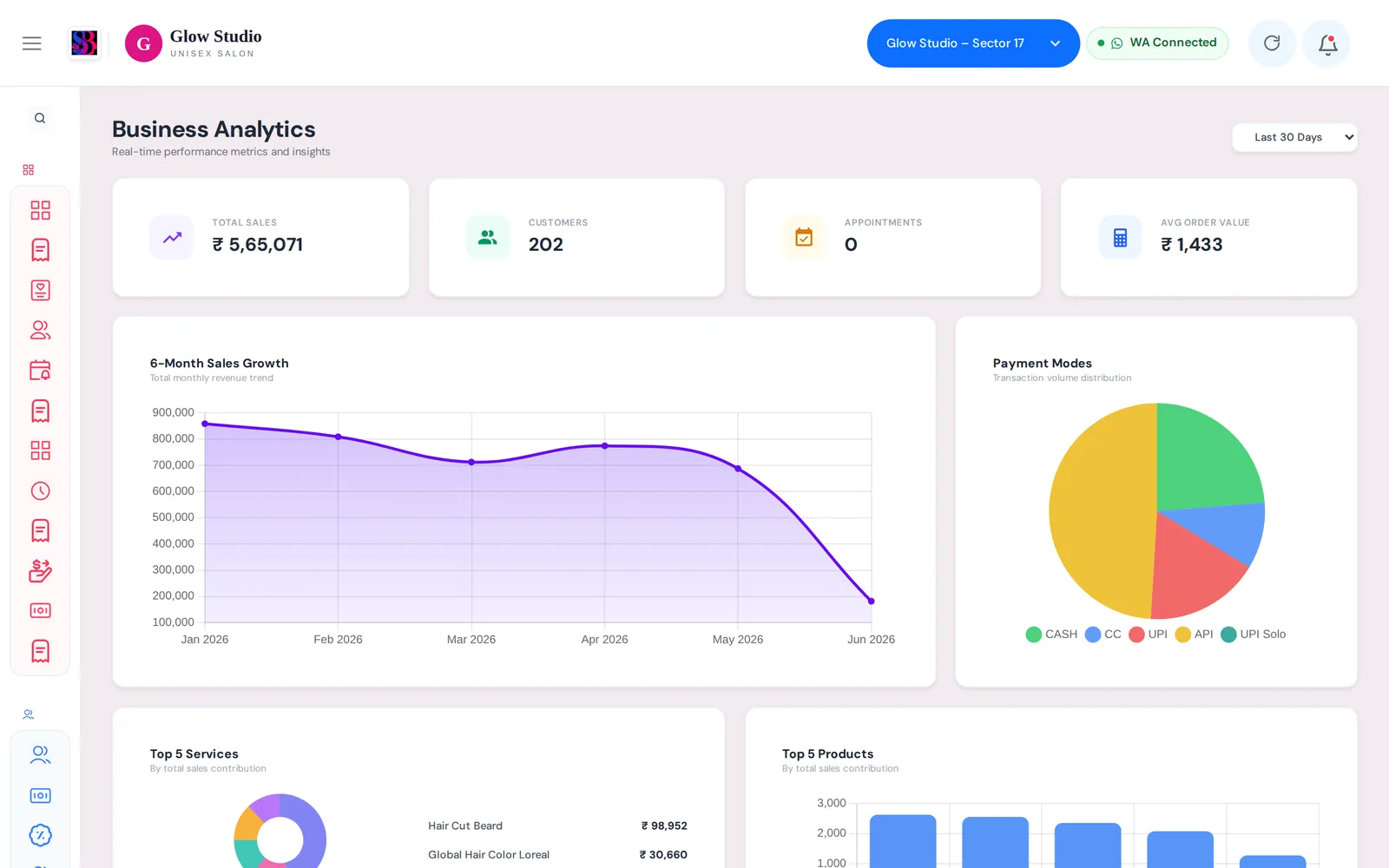
How to use Business Analytics
- Choose the period in the drop-down: Today, Yesterday, Specific Date, Last 7 Days, Last 14 Days, Last 30 Days (default), Overall or Custom Date.
- For Specific Date or Custom Date, pick the date(s). The page reloads by itself.
- Read the four cards:
| Card | Meaning |
|---|---|
| Total Sales | Service, product, membership and package sales in the period |
| Customers | Unique customers who bought something |
| Appointments | Appointments in the period |
| Avg Order Value | Total Sales divided by the number of bills and plan sales |
- Below the cards you see 6-Month Sales Growth, Payment Modes, Top 5 Services and Top 5 Products.
How to use Visual Analytics
- Open Reports → 📈 Visual Analytics.
- Choose Today, Last 7 Days, Last 30 Days (default), This Month or Custom.
- Read the cards Total Revenue (all money received), Service Bills, Avg Ticket and Services Revenue.
- Scroll through the charts:
- Revenue Mix and Payment Modes
- 12-Month Trend of service revenue
- Category Performance: click a bar to see that category's daily trend
- Staff Sales, Daily Revenue and Busiest Days (average revenue per weekday)
- Memberships & Packages
- Employee Payments: salary, advance, incentive, overtime and bonus paid to staff, taken from your expenses
- Ranked lists: Top Services, Rarely Used Services, Top Products, Top Memberships, Top Packages
Important rules and limits
- Business Analytics and Visual Analytics count slightly different things (for example Visual Analytics also includes prepaid coupon sales in Total Revenue). For exact, reconciled figures and Excel export, use the Management Report.
- Busiest Days shows an average per weekday, not the sum of all Sundays.
- Membership and package redemptions are prepaid usage and are not counted as new revenue.
- Employee Payments only shows expenses linked to an employee. See Track salon expenses.
Common problems
The page shows ₹0 for a moment?
Wait for "Loading analytics…" to finish. Large periods such as Overall take a few seconds.
A chart or card is missing?
Your role is not allowed to see that figure, so it is hidden instead of showing a wrong number. Ask the Owner/Admin.
Visual Analytics says "You are not authorized to view Reports."?
Only the Owner/Admin and Co-owner can open Reports.
Last updated