
Offers, Spin & Win & Marketing
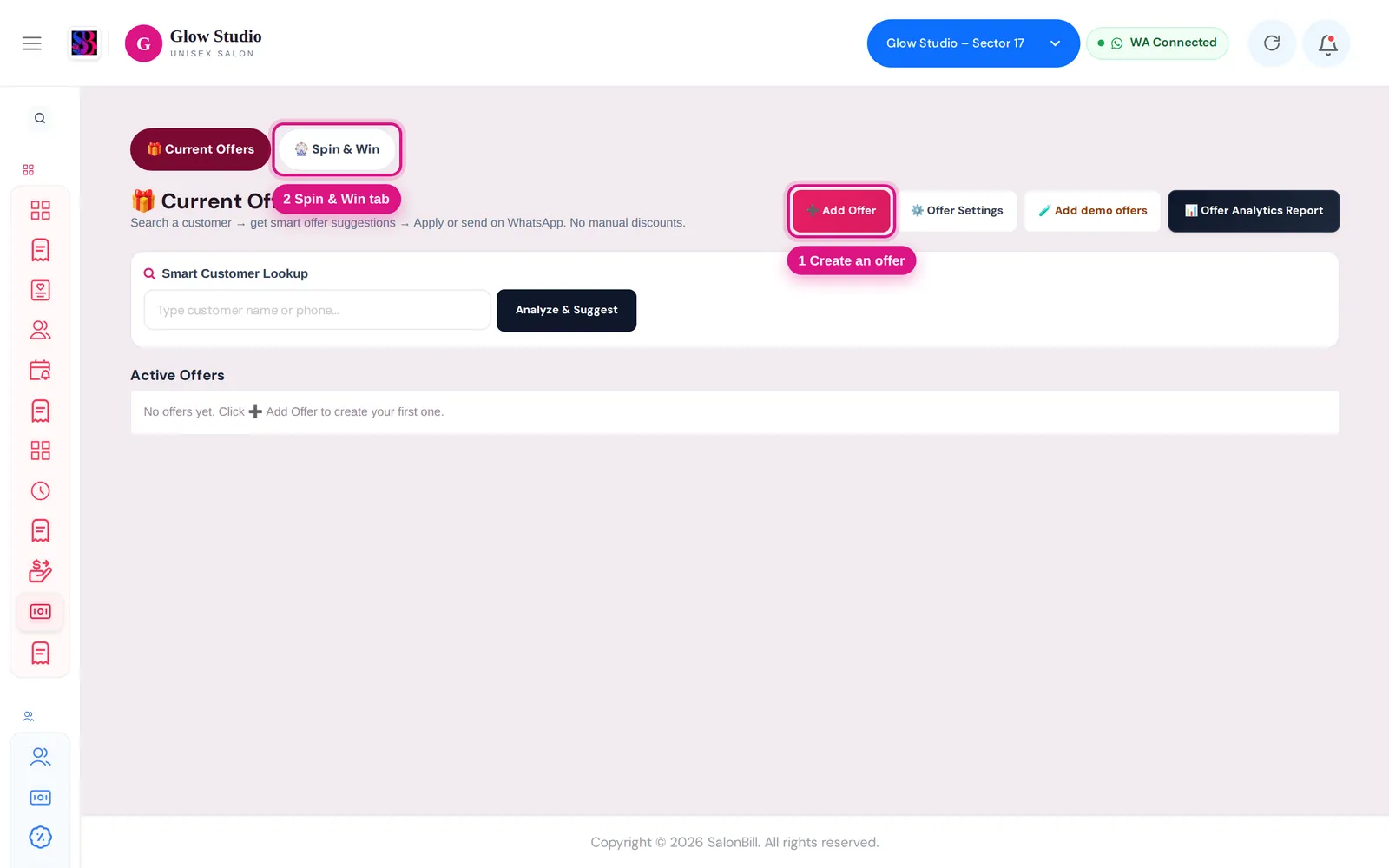
Create and apply Current Offers
Set up special-price, ₹ OFF and % OFF offers, let Smart Rules recommend them per customer, and apply them on a Job Card or bill.
- Who can use it
- Owner/Admin and Co-owner (create and change); Manager (view, apply and send)
- Where to find it
- Main Menu → Current Offers
Current Offers is where you keep your salon's running deals. Staff search a customer, see which offers suit them, and apply or send one, so there is no need for manual discounts.
What this feature does
There are three kinds of offer:
| Offer kind | What the customer gets |
|---|---|
| 📦 Services at a special price | A fixed set of services (📦 Fixed Services) or a choice (🎛 Flexible Combo (Choose any X)) for one Offer Price |
| ₹ OFF on the bill | A flat amount off, with an optional minimum bill |
| % OFF on selected services | A percentage off chosen services or whole categories, with an optional maximum discount and minimum bill |
Who can use it
- Owner/Admin and Co-owner: add, edit, disable, delete offers, Offer Settings, demo offers and the 📊 Offer Analytics Report.
- Manager: sees 🔒 View & send only — can look up customers, apply live offers and send them.
Where to find it
Current Offers in the Main Menu. The page has two tabs: 🎁 Current Offers and 🎡 Spin & Win.
How to use it
Add an offer
- Click ➕ Add Offer and choose What kind of offer?
- For a discount offer, enter ₹ OFF or % OFF, and optionally Minimum bill ₹, Max discount ₹ and Whole categories.
- For a special-price offer, choose Offer Type and add the services with quantity.
- Fill Offer Name, Valid From and Valid Till. Add an Offer Image / Banner (JPG/PNG/WebP, max 4 MB — also used as the WhatsApp banner) and Terms & conditions (shown on the customer link).
- Save. Use Disable/Enable, ✏️ Edit or 🗑 on the offer card later.
Recommend offers with Smart Rules
Open ⚙️ Offer Settings. Each rule (for example "Customer inactive for N days", "Birthday coming up", "Membership expiring", "High-spending customer") can point to one offer, or to → All live offers. When a rule matches a customer, that offer is recommended. Click + Add Rule to add more.
Apply an offer
- In Smart Customer Lookup, type the customer's name or phone. You see their last visit, visits, lifetime spend and loyalty points, then ✨ Recommended Offers.
- Click ✅ Apply Offer:
- A special-price offer opens a new Job Card with the offer's services already added (for a Flexible Combo you first pick the services).
- A ₹ OFF or % OFF offer is applied on the bill: open Make A Bill, add the services, then 🎁 Browse Offers → Apply.
Important rules and limits
- Billing Protection (in Offer Settings): the offer price is the final selling price. These are off by default and blocked on offer bills unless you switch them on: Allow Additional Discount, Allow Coupon on Offer, Allow Loyalty Redemption on Offer, Allow Membership/Wallet Redemption on Offer.
- Only one discount offer can be used on a bill. The minimum bill and maximum discount are checked again when the bill is saved.
- A Job Card cannot apply a ₹ OFF or % OFF offer; it says to apply it at billing.
- An offer outside its dates or disabled is not live and cannot be applied or sent.
Common problems
"Only Owner/Admin can create or edit offers"?
Managers can use offers but not change them. Ask the Owner/Admin.
"No eligible offers for this customer right now"?
No Smart Rule matches this customer. Pick an offer from Active Offers instead, or add a rule.
The Promo Coupon box shows "🔒 Locked – Offer Price Applied"?
That is Billing Protection. The Owner can allow coupons on offers in Offer Settings.
Last updated