
Use the Staff Turn Board (clockwise turns)
See whose turn is next in each service pool, how turns move when work is done, how to skip a turn with a reason, and how staff skills decide who is eligible.
- Who can use it
- Everyone with web login (view); Owner/Admin, Co-owner, Manager (skip turn, History); Owner/Admin, Co-owner (Service Mapping)
- Where to find it
- Main Menu → Staff Turns
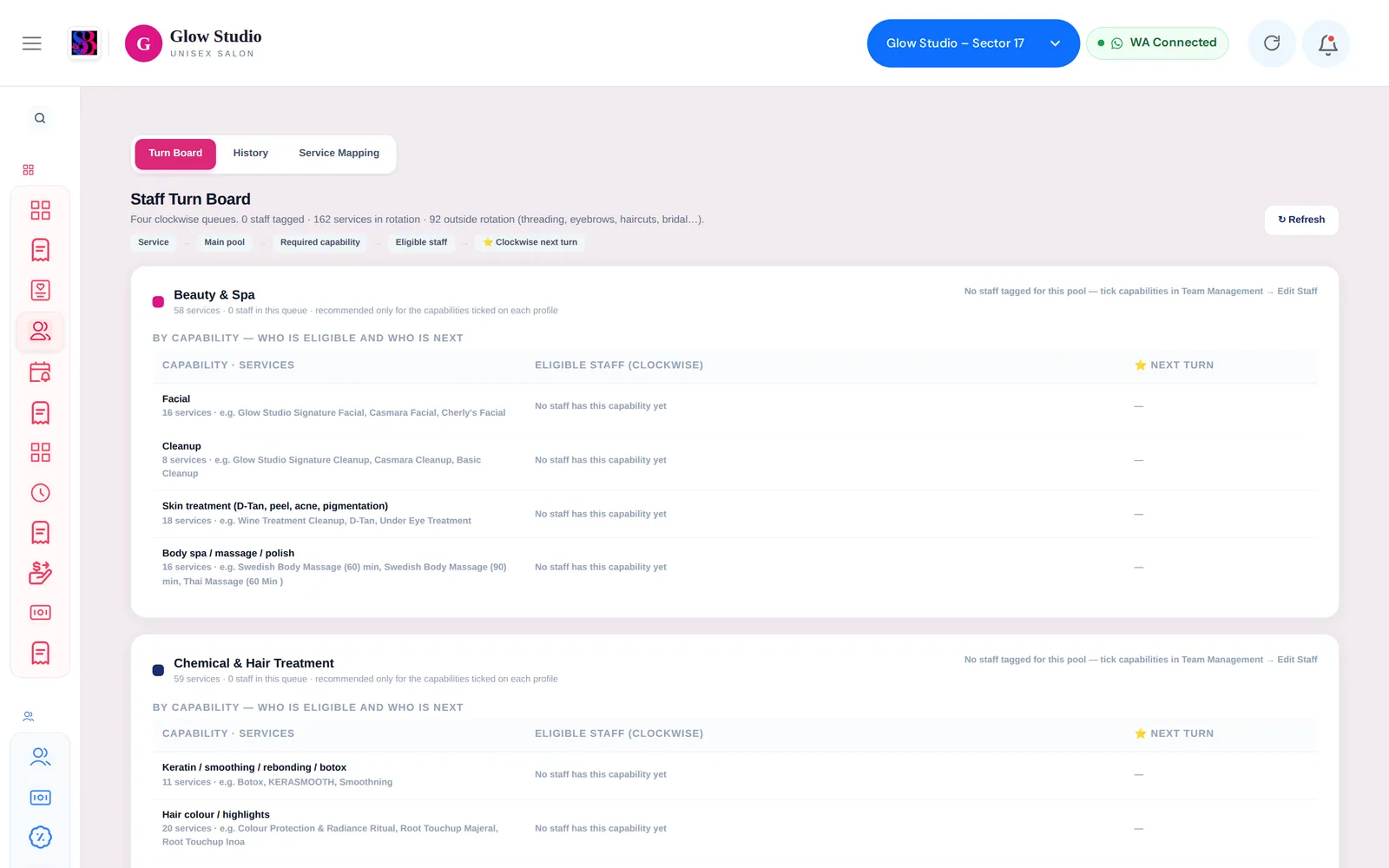
The Staff Turn Board shares clients fairly between your stylists. It keeps a clockwise queue for each kind of work and shows whose turn is next. The same suggestion appears when you create a job card.
What this feature does
Services are grouped into four pools. Each pool has its own queue:
| Pool | Example services |
|---|---|
| Beauty & Spa | Facial, cleanup, skin treatments, body spa |
| Chemical & Hair Treatment | Keratin, smoothing, hair colour, hair spa, head massage |
| Makeup | Party, engagement and reception makeup, saree draping |
| Nails & Feet | Pedicure, manicure, nail extensions, nail art |
Some services stay outside the rotation, for example threading, eyebrows, haircuts and bridal makeup. Any free stylist can do these and they never move a turn.
Inside a pool, each service needs a capability (for example Hair colour / highlights). A stylist is in a pool's queue as soon as they have any capability in it. They are suggested for a service only if they have that service's capability.
Who can use it
| Action | Who |
|---|---|
| See the Turn Board | Everyone who uses the web app |
| Skip turn and see History | Owner/Admin, Co-owner, Manager |
| Service Mapping (which service belongs to which pool) | Owner/Admin, Co-owner |
Where to find it
Go to Main Menu → Staff Turns. Staff skills are set in Team Management → Staff → Edit Staff under Turn Pool / Skills.
How to use it
Read the board
- Each pool card shows ⭐ Current turn, Next and Following, plus the Full clockwise order.
- The table By capability lists, for each kind of service, the eligible staff in order and who has the ⭐ Next turn.
- Click ↻ Refresh to load the latest order.
Give a stylist their skills
- Open Team Management → Staff and edit the staff member.
- Tick the services they can do under Turn Pool / Skills and save.
- A newly tagged person joins at the back of the queue. They never jump ahead.
Skip a turn
- In the By capability table, click Skip turn next to the person who is next.
- Choose a reason: Unavailable, Preferred Staff or Manual Skip. You can add a note.
- Choose what happens to their turn:
- Keep … Next: they stay first for the next eligible client.
- Move … to End: the turn is skipped and they go to the back of the queue.
- Click Confirm. The skip is saved in Turn History and the Audit Trail.
How turns move
- A turn is used only when the service is completed or billed. Adding a service to a job card does not move the queue.
- One visit uses one turn per stylist per pool, even if the stylist does several services in that pool.
- If someone other than the suggested stylist does the work, that person goes to the back. The suggested stylist stays next. The job card shows Manual Override, and it is recorded in the Audit Trail.
How Create Job Card picks the stylist
When you add a service to a job card, SalonBill fills in the first eligible stylist in turn order who is free now. It passes over anyone who:
- is on approved leave today
- has not checked in, has checked out, or has stepped out (only for outlets that use attendance)
- is busy with another open job card today
If everyone is busy, it suggests the first busy stylist in turn order. If nobody has the needed skill, you pick the stylist yourself.
Common problems
"No staff tagged for this pool"?
No one has a capability in that pool yet. Tick their skills in Team Management → Edit Staff.
"No staff has this capability yet"?
The service's capability is not ticked for anyone. Add it to the right stylists, or ask the Owner/Admin to check the service in Service Mapping.
The queue did not move after a client left?
The turn moves when the service is completed or billed. Bill the job card and click ↻ Refresh.
Last updated