
Set up your services, categories and products
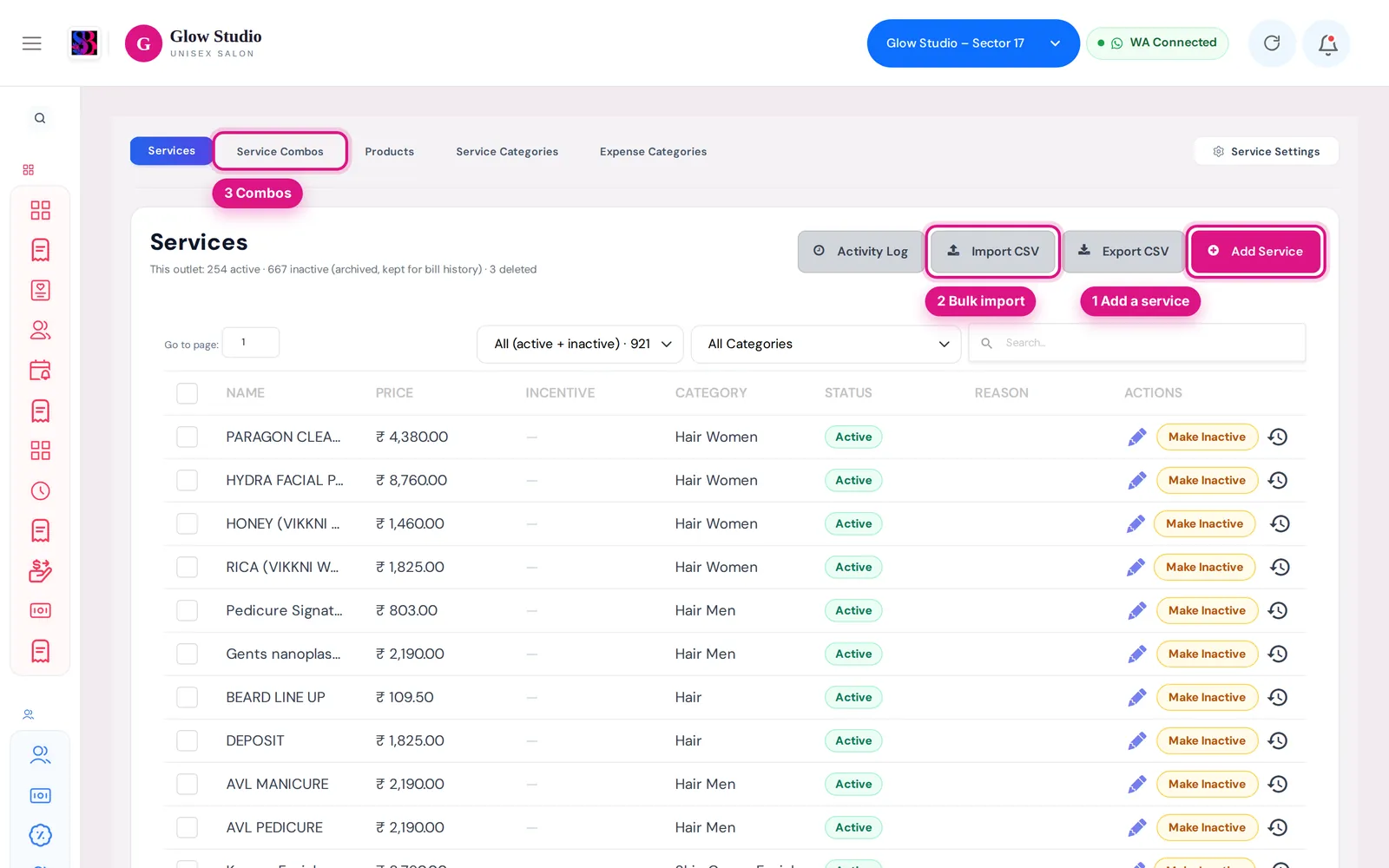
Add services and prices, import or export your menu as CSV, organise categories, make services inactive, create combos and manage retail products.
- Who can use it
- Owner/Admin and Co-owner (full); Managers view, search and export only; products need "Create product
- Where to find it
- Business Modules → Services & Products
Your service menu and retail products live in Services & Products. Everything you add here appears when you make a bill, a job card, an appointment or a package.
What this feature does
The page has five tabs:
| Tab | What it is for |
|---|---|
| Services | Your service menu with prices, categories and status |
| Service Combos | Special-price bundles of 2 or more services – see Service combos |
| Products | Retail products for product billing |
| Service Categories | Groups such as Hair, Skin or Nails |
| Expense Categories | Categories used in Expenses |
Who can use it
| Action | Who |
|---|---|
| View, search, Export CSV, Activity Log | Everyone with access to the page, including Managers |
| Add Service, Import CSV, edit, Make Active / Inactive, delete | Owner/Admin and Co-owner, or staff given the service permissions (not Managers). Bulk actions on several services are for the Owner/Admin and Co-owner. |
| Add or change categories and combos | Owner/Admin and Co-owner |
| Add Product, product Import CSV | Staff with Create product |
Managers can look at the service catalogue but cannot change services, categories or combos.
Where to find it
Business Modules → Services & Products. Select the outlet in the top bar first – each outlet has its own catalogue.
How to use it
Add a service
- Open the Services tab and click Add Service.
- Enter the Service Name and Service Price, and choose the Service Category Name.
- Optionally fill in Service Reminder (after how many days to remind the customer), Minimum Selling Price for Incentive (₹) and Additional Incentive (Fixed ₹). The additional incentive is earned only when the service is sold at or above that minimum price.
- Optionally set the Staff Turn Pool / Capability used by the Staff Turn Board.
- Click Submit.
When you edit a service later, you must type a Reason for modification.
Import or export your menu
- Click Export CSV to download the services of this outlet. Use this file as your template.
- Fill in your services. The file needs a Name column; Category and Price are read too.
- Click Import CSV and choose the file (CSV or Excel).
- Choose what to do with services that already exist (same name): OK updates them with the values from the file, Cancel skips them and only adds new ones.
- A message shows how many were added or updated. Categories named in the file are created if they don't exist yet.
Start fast with a standard list
On the Service Categories tab, Import Service List adds a standard salon menu (13 categories, 200+ services with prices). Categories that already exist with the same name are skipped. Use Add Service Category to add your own; a category can have a Parent Category.
Make services inactive or delete them
- Tick services in the list and use Make Inactive or Make Active in the pink bar.
- Delete (unused) appears only when every selected service has never been used in a bill, job card, appointment, package, combo or incentive.
- The status filter shows Active, Inactive or Deleted services, with counts.
Add a product
- Open the Products tab and click Add Product.
- Enter Product Name, Product Price, choose the Product Brand, and optionally a Product Reminder.
- Click Submit. Products also have Import CSV, Export CSV, Activity Log and a purchase history per product.
Important rules and limits
- Inactive services cannot be added to new bills, job cards, appointments, packages or combos. Customers who already bought package sessions for that service can still redeem them.
- A service that has been used cannot be deleted – make it inactive instead. This keeps old bills and reports correct.
- Services and categories belong to one outlet; a bill can only use services of its own outlet.
- Activity Log shows every create, edit and delete with the old and new values; the Change history icon on a row shows that service's history.
- Import accepts up to 5 MB per file.
Common problems
"CSV must contain a "Name" (or "Item Name") column"?
Your file's first row must have a column called Name. Download Export CSV and copy your data into it.
I can't find a service while billing?
It may be Inactive. Switch the status filter to Inactive, select it and click Make Active.
The Add Service button is missing?
You are signed in as a Manager, or your role lacks Create services. Ask the Owner/Admin.
Last updated